Set up your first role
Your sales team must keep its applications up to date, without touching those of other departments. Boldo combines roles and access domains, including the entries for members without a role and assets without a domain. A role says what a person can do: view, edit, delete. An access domain groups assets by area, for example sales, finance or human resources: it says where the role applies.
This guide takes ten minutes. You will create an access domain and a role, set the rights of the role, then give it to a colleague.
Before you start
- You need to be an administrator of the organization, and your plan must include property rights.
- The type chosen when inviting someone is a ceiling. A Viewer can read, comment and suggest corrections, whatever their roles. An Editor can edit and create visualizations, within the limits of their roles. See Invite your team.
1. Open the Rights page
Open Organization settings, the building icon at the top right, then Rights.
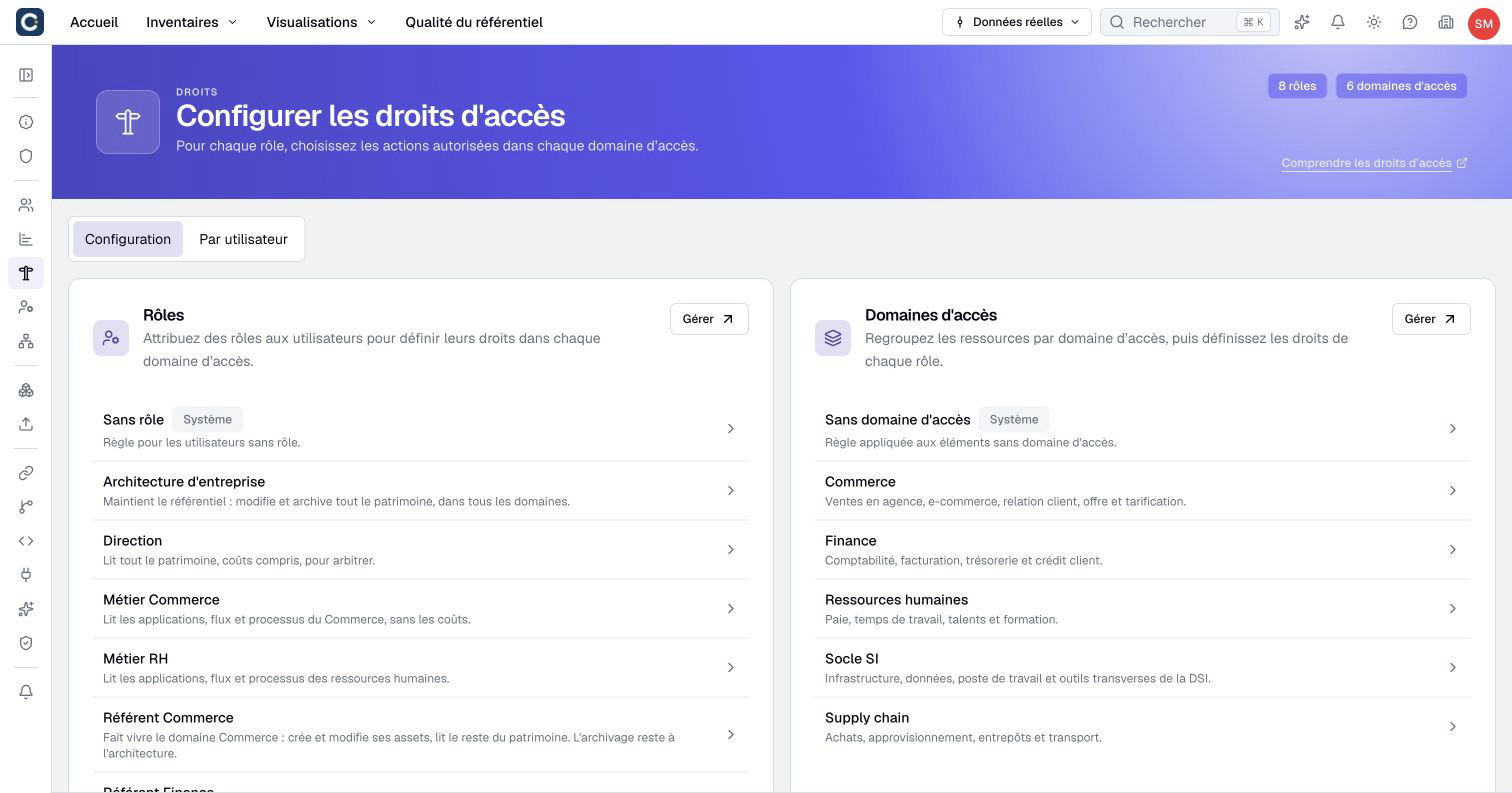
The page shows your roles on the left and your access domains on the right. Two entries always exist. No role sets the rights of people who have no role. No access domain sets the rights on assets that have no domain.
2. Create an access domain
Next to Access domains, click Manage, then Create access domain. Name it after the area, for example Sales, and add a short description.
A new domain gives no rights to anyone. As long as no role has rights on it, nobody can act on the assets you put in it. You will set these rights in step 4.
3. Create a role
Go back to Rights. Next to Roles, click Manage. The list of roles opens.
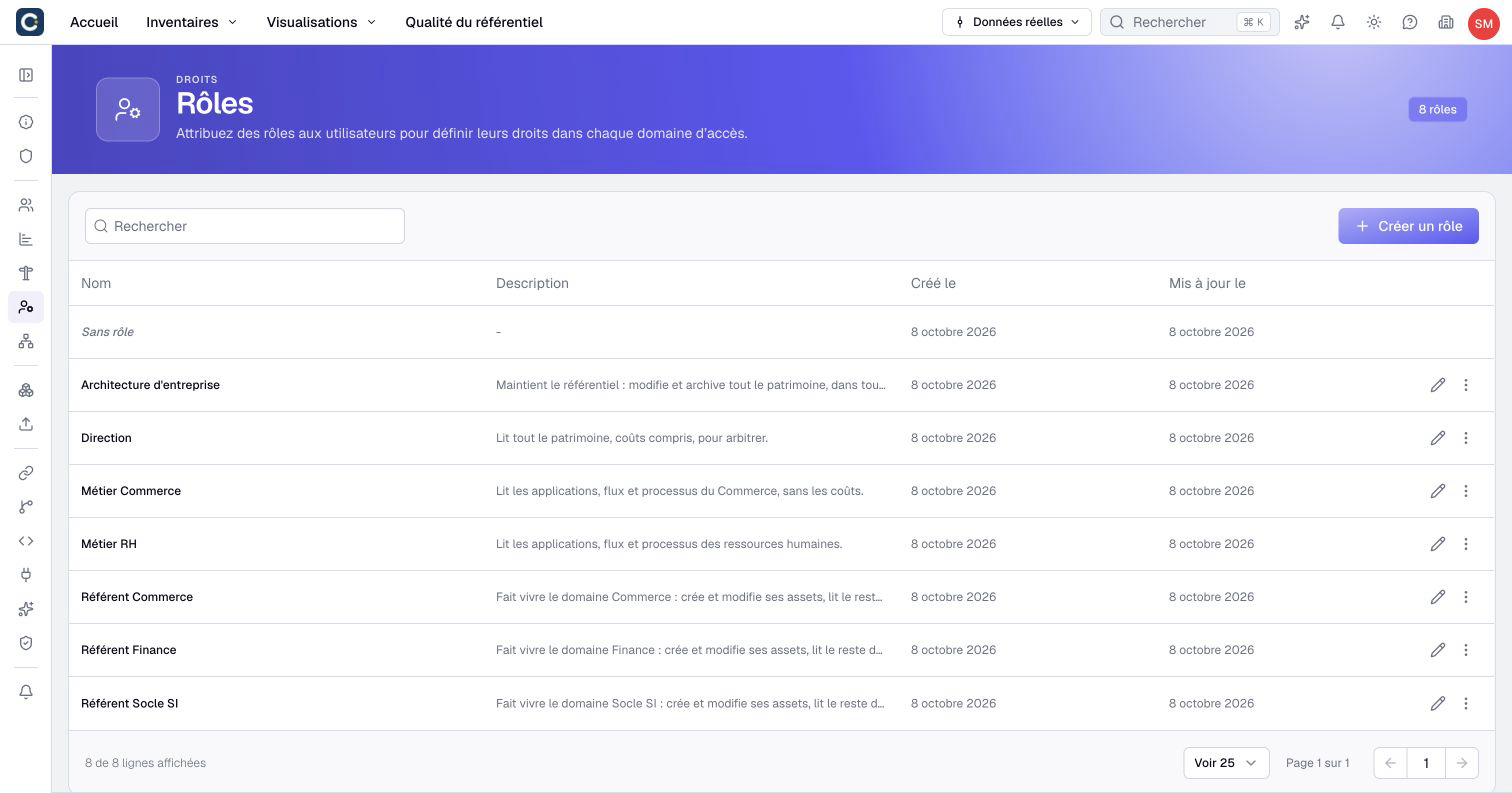
Click Create Role. Give it a name that says what it is for, for example Sales lead, and a description your colleagues will understand. Click Create.
A new role starts with full rights on assets that have no domain. Check this column in the next step, before you give the role to anyone.
4. Set the rights of the role
Open the role from the Rights page. The Assets tab shows a table: one row per asset type, one column per access domain.
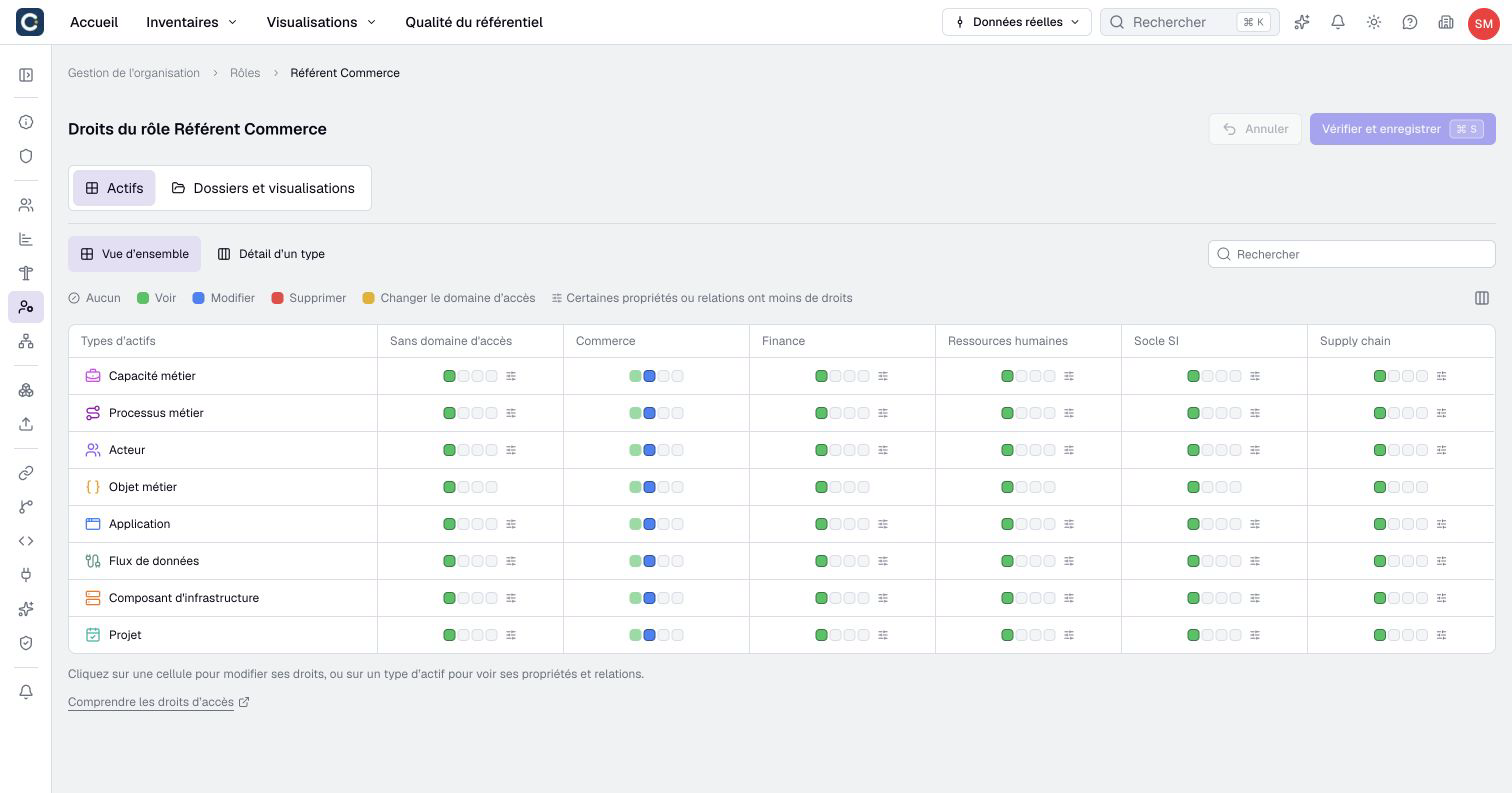
Each cell shows four squares: View in green, Edit in blue, Delete in red and Change access domain in yellow. The colored squares give the level of the cell. With none colored, the level is None: the person does not see these assets.
Click a cell to change it: its detail opens on the right, and General access sets its level. For a sales lead, set Edit in the sales column, and View in the other columns. The Folders and visualizations tab sets, separately, access to folders, views and diagrams.
5. Hide a piece of information, if needed
In the detail of a cell, the Properties and Relations tabs let you lower the level for one piece of information, for example to hide costs.
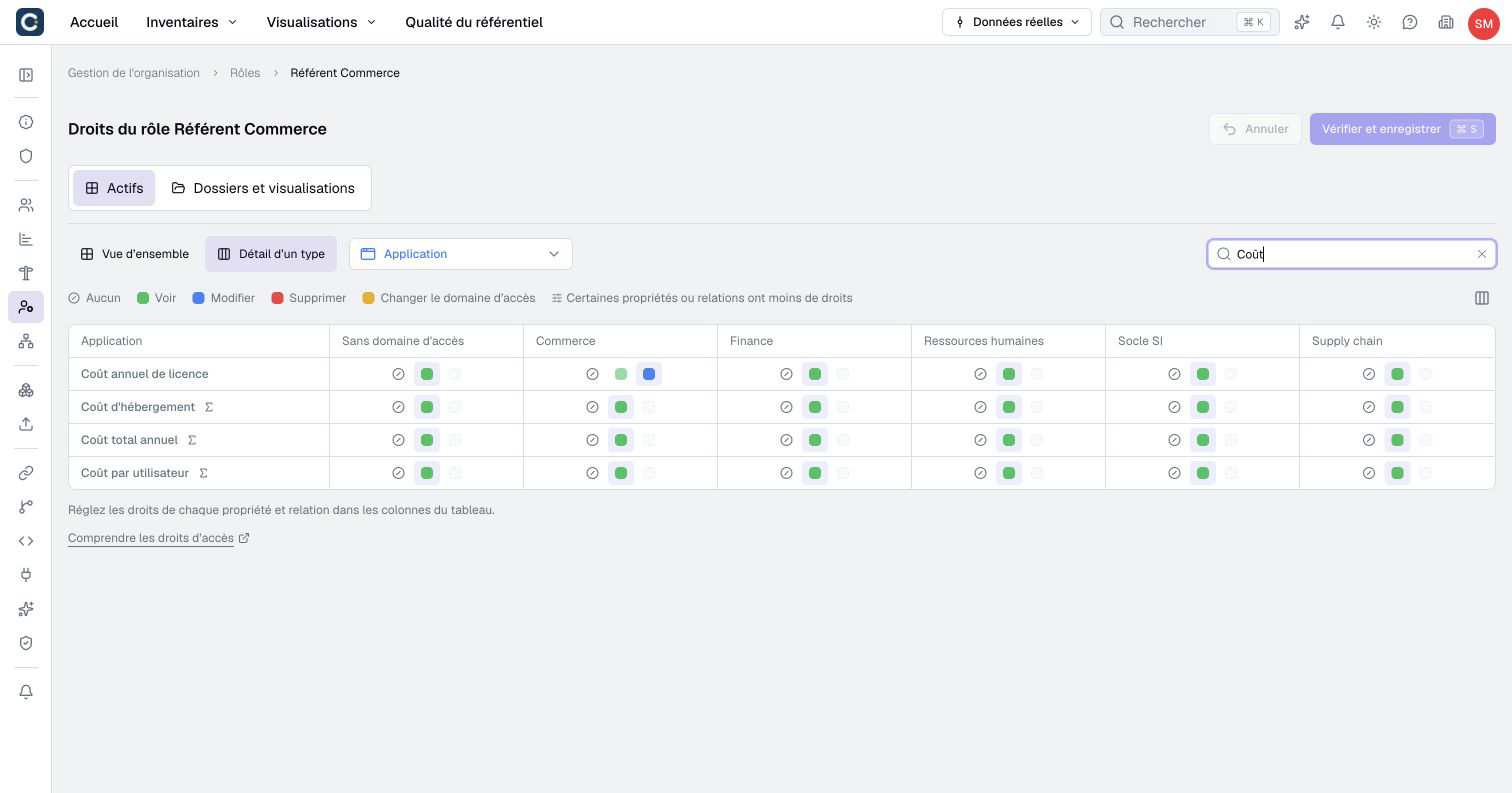
Computed properties, marked Σ, can only be viewed. In the table, a settings icon next to a cell tells you that some properties or relations have fewer rights.
6. Save, then give the role
Nothing is saved while you click. Click Review and save, or press Ctrl+S (Cmd+S on Mac). Read the list of changes, then click Save changes.
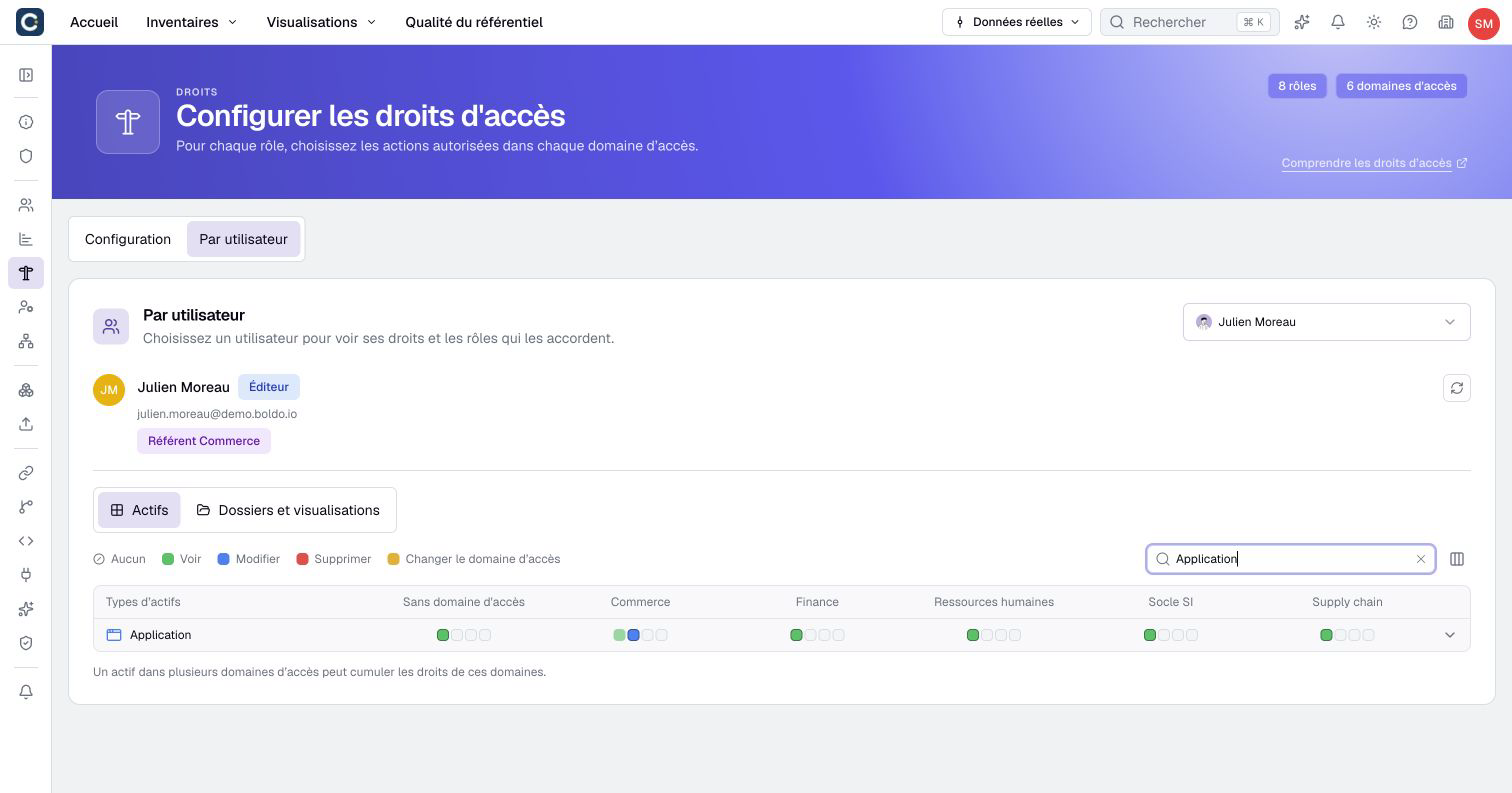
To give the role, open Users in the organization settings. Click the pencil on your colleague's row, add the role under Roles and click Validate. A person can have several roles: Boldo then keeps the highest right. To check the result, open the By user tab of the Rights page.
7. Put assets in the domain
Before moving assets, check your own rights in By user. You need Change access domain on at least one current domain, Edit on each destination domain and Change access domain on every domain you remove. For an asset without a domain, check No access domain. Give yourself an appropriate role if needed.
Rights only apply to assets that carry the domain. Open an asset of the area, click Edit and choose the domain under Access domains. For many assets, do it at import time, with Default access domains.
Key points
- A role says what, an access domain says where. No role and No access domain cover members and assets without an explicit assignment.
- A new domain gives no rights, a new role gives full rights on assets without a domain: check both.
- Nothing is saved before Review and save, then Save changes.
Go further
- Invite your team: the type of each person, and giving them their roles.
- Bulk import from CSV or Excel: put many assets in a domain right at import.
- Keep the repository alive with business teams: one lead per domain, and readers who suggest.
- Configure roles and domains: every rule, for special cases.