Share with a link
A contractor, an auditor or a member of the executive committee needs to see your capability map. They have no Boldo account, and there is no need to create one. A share link gives them access to that one page, read-only.
This guide takes five minutes.
Before you start
- Your plan must include share links. They must be enabled for your organization, and you must be allowed to create them. If that is not the case, ask an administrator.
- You need to be able to view what you share and use the Real data context. Share links cannot be created from a scenario.
1. Open sharing
Open the visualization to share: a view, a chart, a diagram, a nested map or an impact analysis. Click the ⋮ menu at the top right, then Share.
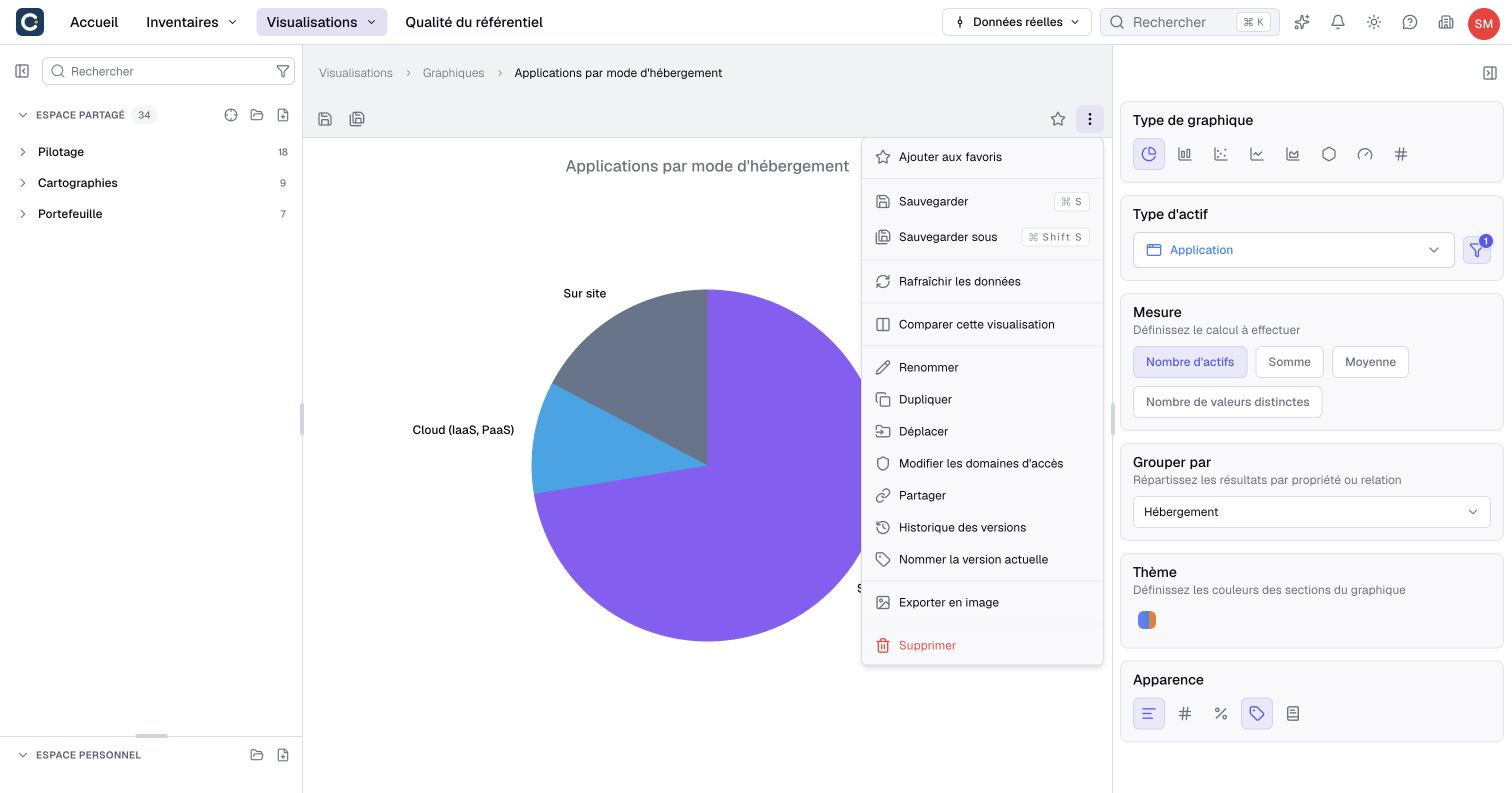
The page of an asset also offers sharing, from its header. Dashboards do not offer external share links.
2. Set up the link
The share window reminds you of the rule: anyone with the link can view the item, without being able to change it.
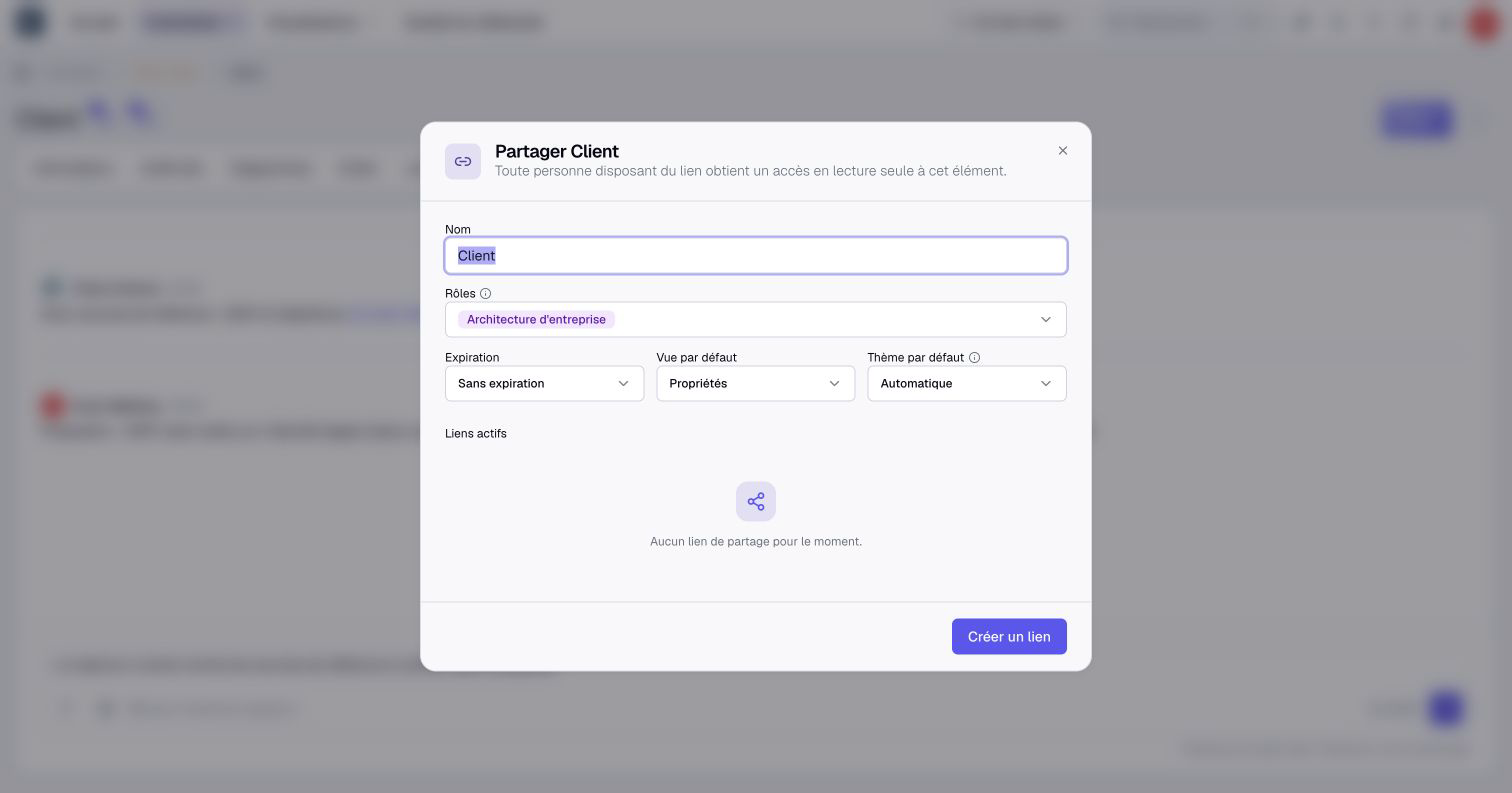
- Name: give a name that says who the link is for, for example "Executive committee".
- Roles: the visitor sees what this role is allowed to see. What the role cannot see, such as some costs, stays hidden.
- Expiration: No expiration, or a period from 24 hours to 90 days.
- Default theme: Automatic, Light or Dark.
3. Create and send the link
Click Create link, then copy it. Send it the way you like: email, chat, meeting invitation.
The person opens the link in their browser. They need no account, and they always see up-to-date data.
4. Follow and cut your links
Open the share window again: the Active links section lists your links for this item. For each one, you see its creation date, its expiration and whether it has been used.
The copy button takes the address of the link again. The bin deletes it: the address stops giving access right away, and the shared item does not change.
Key points
- A share link gives read-only access, without a Boldo account.
- The role of the link decides what the visitor sees.
- Deleting a link cuts access right away.
Go further
- Export, and manage share links: for an image or a file, and for the list of all links.
- Share content with a link: the reference page, with the special cases.