Keyboard shortcuts and mobile use
You spend part of your day in Boldo and want to go faster. A few shortcuts are enough to find an asset, edit a table or save a visualization without reaching for the mouse. And when you are away from your desk, your phone is enough to check an asset or answer a request.
This guide takes three minutes.
Before you start
- Shortcuts are written here for Windows. On Mac, replace Ctrl with Cmd.
- A shortcut never gives you more rights: if you cannot edit a table, Ctrl+E does nothing.
1. Find anything with Ctrl+K
Press Ctrl+K (Cmd+K on Mac), or click the Search field in the top bar. The search palette opens. Before you type, it shows your recent items and a few actions, such as creating a view or a diagram.
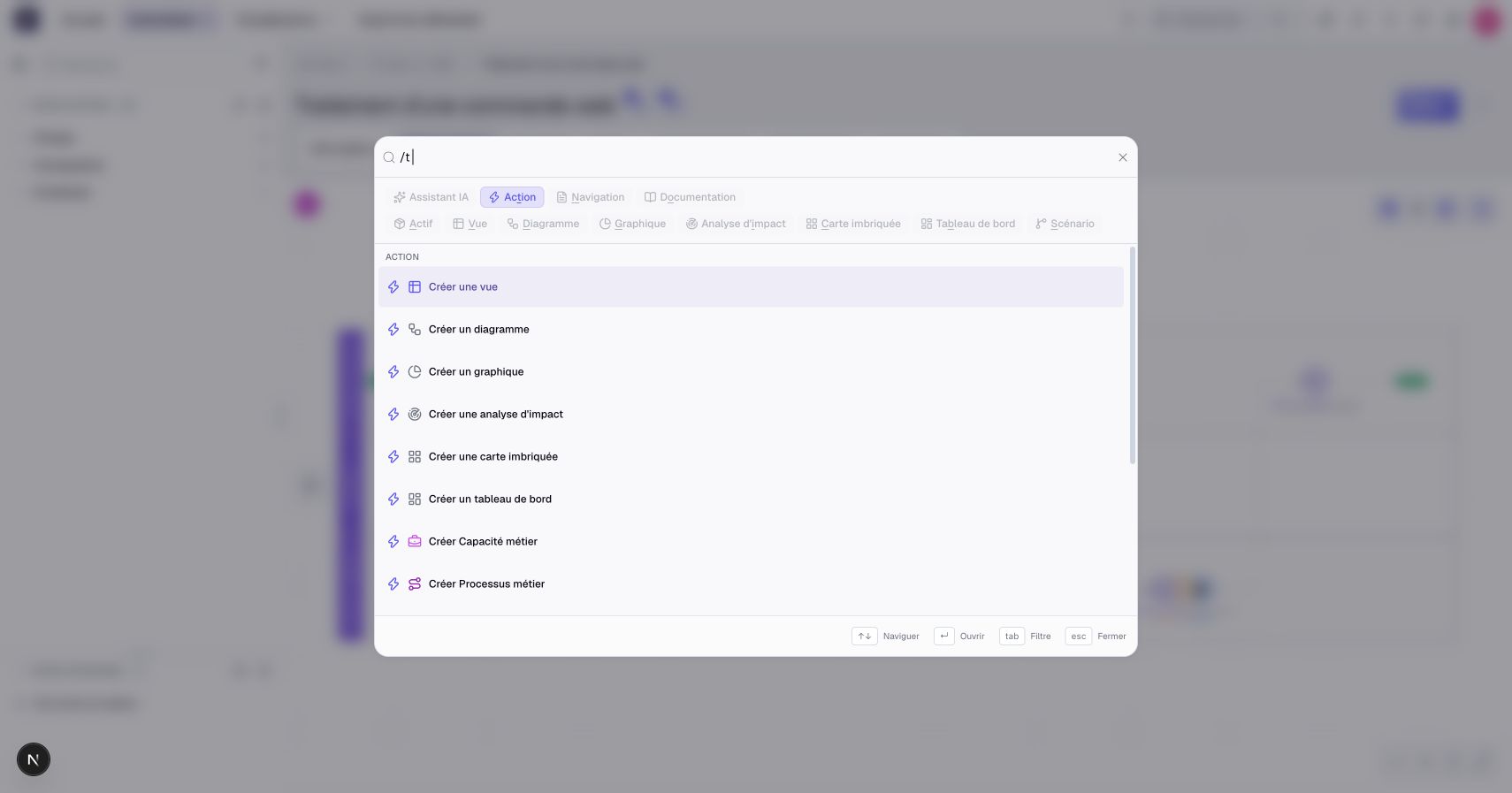
Type a few letters: assets, visualizations, pages and documentation show up together. Press Tab to narrow to one kind of result, for example only assets. Move with the arrow keys, open with Enter, close with Esc.
To ask the AI assistant instead, type your question and choose Ask the assistant. A first Tab does the same: what you type becomes the question.
2. Work faster in an inventory
In an inventory or a view, three shortcuts cover most of the work:
- Ctrl+E switches the table to cell editing, to change values directly in the table.
- Ctrl+S sends your cell changes. Outside table modes, it saves an existing editable view. Use Save as or Ctrl+Shift+S to create a new view.
- Ctrl+Shift+E lets you select several assets, for example to update them all at once.
Ctrl+B hides the tree on the left to give the table the full width; press it again to bring the tree back. Press ? outside text entry for the table's shortcut list, or choose Keyboard shortcuts in its actions menu.
3. Save and unlock your visualizations
- Ctrl+S saves a chart, a nested map, an impact analysis or a dashboard. Ctrl+Shift+S saves it under another name.
- Ctrl+L unlocks a diagram, process flow or dashboard. In an unlocked diagram, it toggles selected objects’ locks; without a selection, it locks the canvas.
- Ctrl+F searches inside the diagram or the process flow you have open, not in all of Boldo.
- Ctrl+Z undoes an available graphical change in a diagram or a process flow. Ctrl+Shift+Z redoes it.
Diagrams and process flows save on their own: there is no need to press Ctrl+S. Ctrl+I shows or hides the panel on the right of a diagram, chart, nested map or impact analysis.
In a diagram, press V for the cursor, H for the hand, or hold Space to pan. Ctrl+D or Alt+drag duplicates a selection. Shift+1 frames the content and Shift+2 frames the selection. During a presentation, K activates the collaborative laser pointer. Press E to add inventory assets through a right-hand panel, with temporary objects previewed on the canvas. Escape cancels the preview and restores the previous framing and selection.
Press ? outside text entry for the current diagram or process flow's shortcuts. For a process, Flow editor must be open to find Keyboard shortcuts in the page's ⋮ menu.
In an asset's relationships graph, Ctrl+Z and Ctrl+Shift+Z undo and redo exploration choices. They apply to the graph under the pointer, holding focus or shown full screen. Back to the initial relationships restores its starting view; it does not modify the inventory.
4. Go through your reviews
In the guided reviews of the Home page, the right arrow skips an asset for now and the left arrow goes back. Ctrl+Enter confirms, for example to attest an asset or confirm the suggestions you accepted or rejected.
Escape leaves the review when focus is outside fields, menus and dialogs. If you have unsaved changes, confirm how to handle them before leaving.
In the AI assistant, Enter sends your message and Shift+Enter adds a new line.
5. Use Boldo on your phone
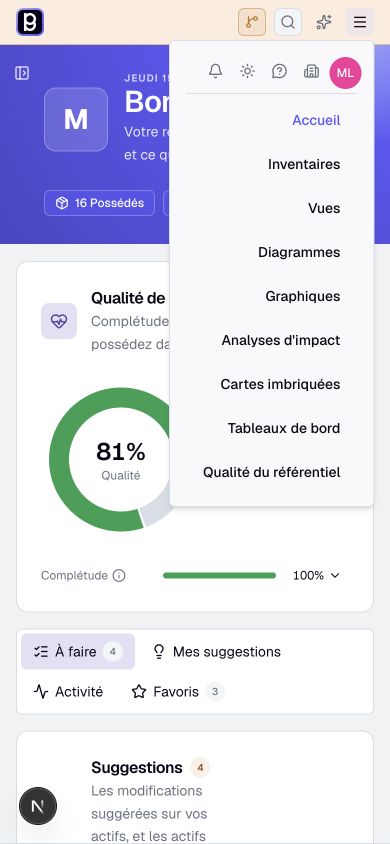
Open Boldo in your phone's browser, with the same address and account. The top bar gets shorter: the search, the AI assistant and a menu with three lines. The menu gathers your notifications, your account, the organization settings and the links to the pages: Home, inventories, visualizations.
On a phone, you can check an asset page, search, attest your assets, handle suggestions and comment. Setup work, such as drawing a diagram or reviewing a scenario, is more comfortable on a large screen.
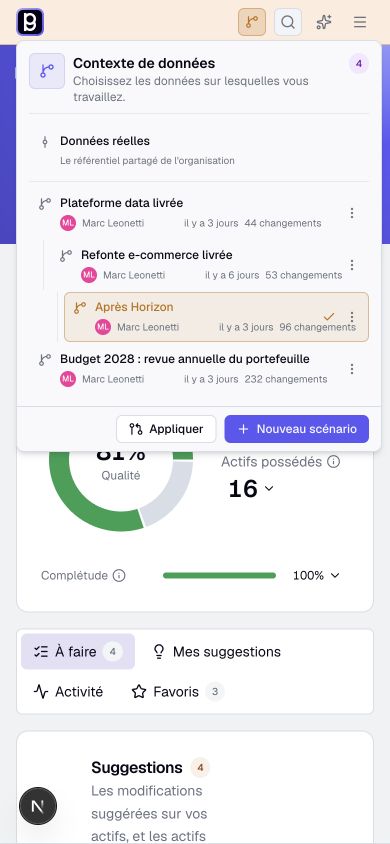
When scenarios are available, the context icon in the top bar opens the same selector as on a computer. Tap it to choose a scenario or Real data. Its colored background identifies a scenario; its tooltip gives the current context's name.
On a touchscreen, drag the diagram's background to pan and pinch with two fingers to zoom. With the cursor tool, hold the background, then drag to select several objects. Hold an object or connection without moving, then release to open its context menu. Editing still requires the appropriate permissions and an unlocked canvas.
In a process flow, tap a step to show its actions. When editing an unlocked flow, drag its movement handle to an offered connection or branch end to change the sequence. The flow places the steps automatically after the move.
Key points
- Ctrl+K (Cmd+K on Mac) finds everything, from anywhere.
- Ctrl+S saves, Ctrl+L unlocks a diagram or a flow.
- On a phone, the menu with three lines gathers the navigation.
Go further
- Keyboard shortcuts and navigation commands: the full list, screen by screen.
- Your home page, day to day: the reviews where arrows and Ctrl+Enter save you time.
- Edit several assets in the table: what cell editing lets you do.