Start your repository from Excel
Like many companies, you keep the list of your applications in an Excel file. It is half up to date, and only one person really knows how to read it. This guide shows how to turn it into a shared repository: prepare the file, import it without breaking anything, check the result, then have the right people fill in the information.
Before you start
- You need to be an administrator of the organization to import. If you are not, ask an administrator.
- Steps 4 and 5 use repository quality, which must be included in your plan and enabled by an administrator.
- Clean up before importing: one row per application, a unique name per row. Extra columns do no harm, you can ignore them.
1. Prepare the file
Open Organization settings, the building icon at the top right, then Imports. Next to Download a blank template, choose an asset type, for example Application, then CSV or XLSX.
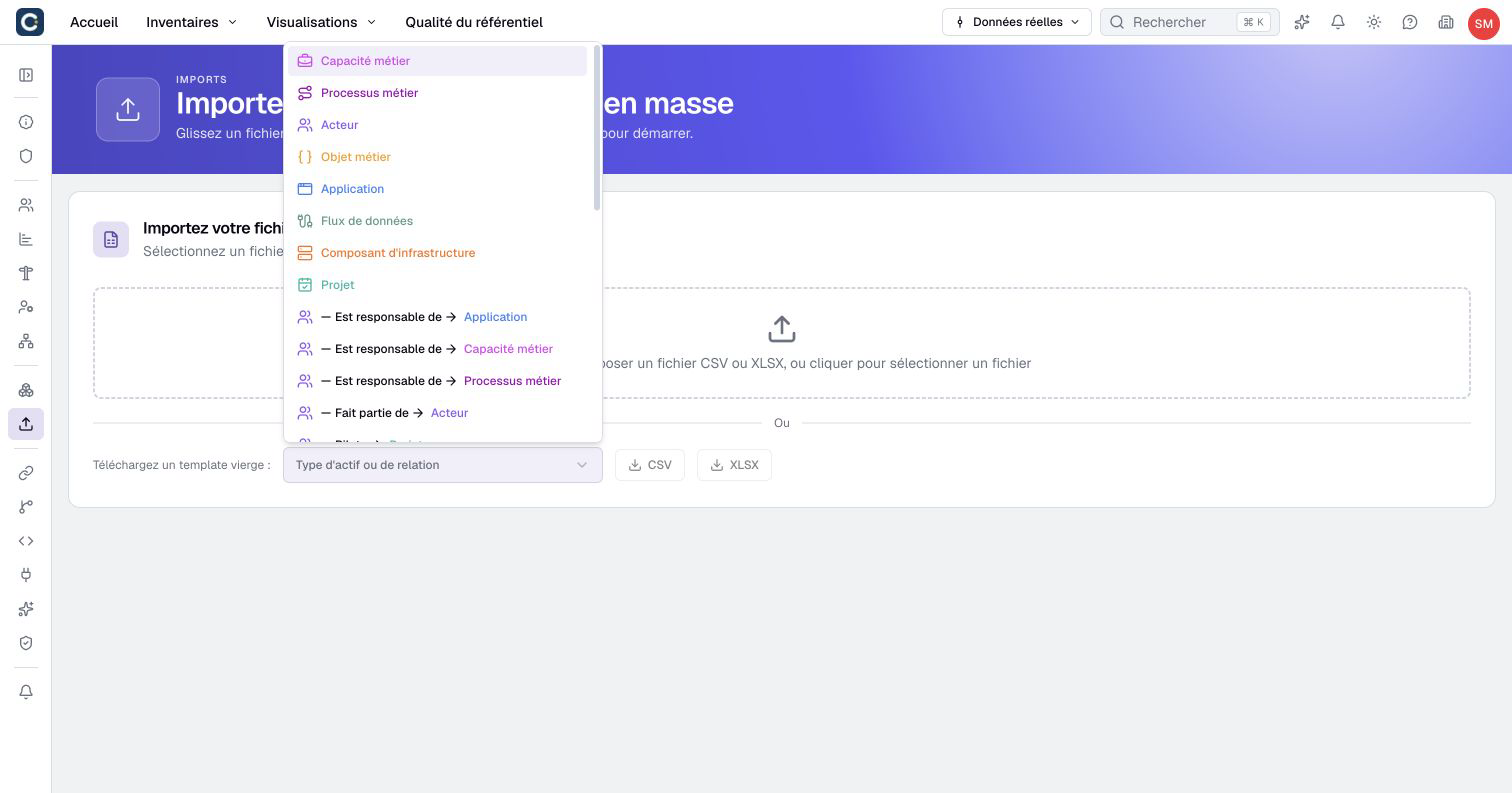
The template has one column per piece of information of the chosen type. Paste your data into it, or keep your own file and let Boldo match the columns. The same list offers relationship templates, for step 3.
2. Import, and check before writing
Drop your file on the Imports page. Boldo matches each column with a piece of information, and each list value with a known value.
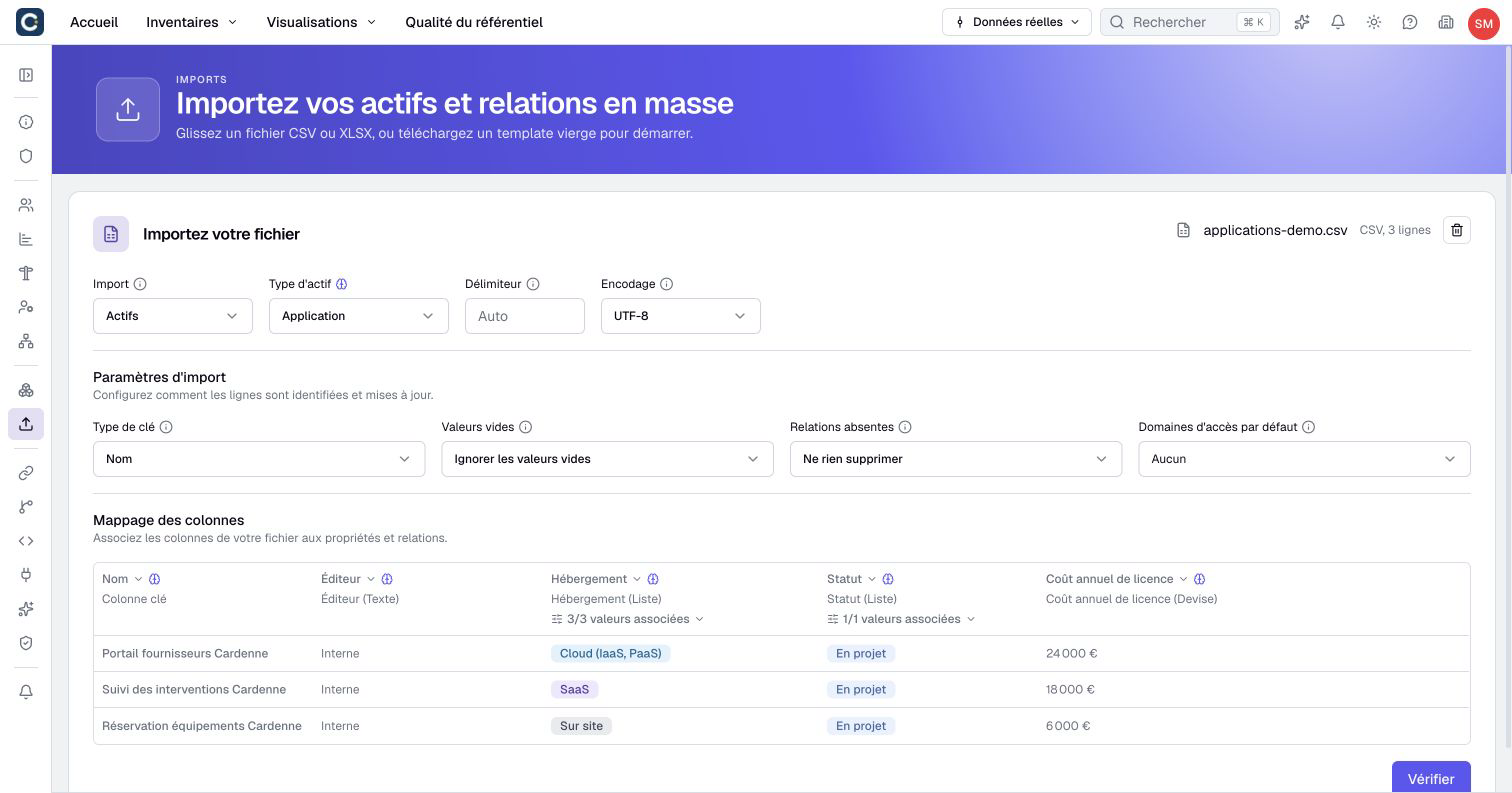
Check the Column mapping, including each date column’s day/month order. If the file uses missing-data markers, review their No value mapping and the handling of empty values. Then click Verify. Boldo shows what will be created or updated, without writing anything.
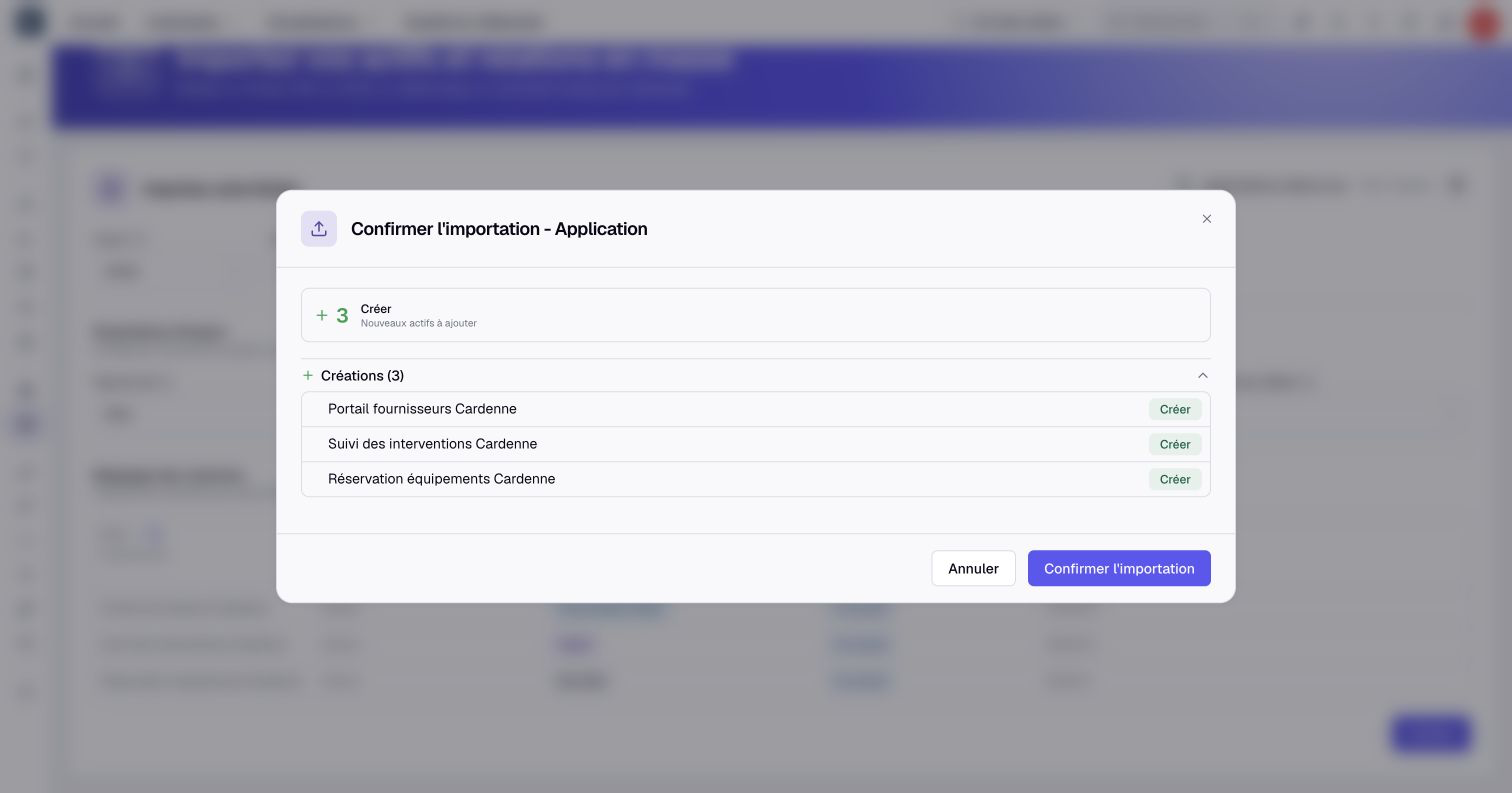
Read the summary. If it does not suit you, cancel, fix the file and start again: you can verify as many times as needed. When everything is right, click Confirm import.
3. Link the assets together
A list of applications is not enough: you need to know who uses them and what they support. Then import the relationships with a relationship template, for example the teams in charge of each application. Read Import relationships for the format.
4. Check the result
Open Repository quality in the top bar. You see at a glance the share of complete assets and the share of assets that have an owner.
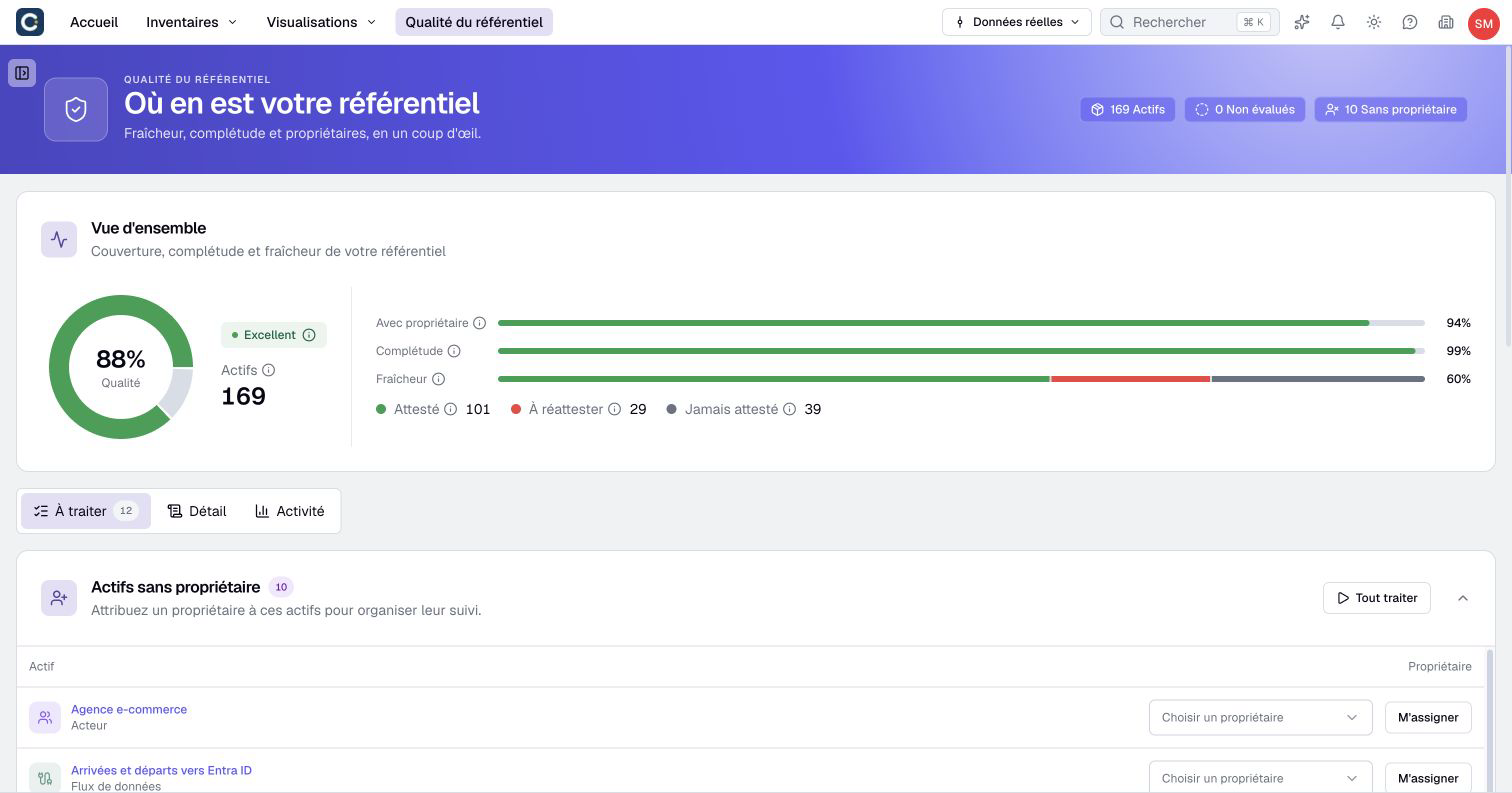
Right after an import, completeness is often low and many assets have no owner. This is expected: the next step takes care of it.
5. Have owners fill in the rest
Give each application an owner, in bulk from the inventory. Each owner then finds on their Home page the list of their assets to complete, and fills them in one by one.
Enable the weekly ownership digest in repository quality settings to send reminders. Delivery follows each owner’s notification preferences. Owners without editing rights submit suggestions that an authorized editor must accept.
Key points
- Verify changes nothing: you can run the import again as many times as needed.
- Import the assets first, then the relationships between them.
- After the import, give each asset an owner: they are the ones who will complete the information.
Go further
- Bulk import from CSV or Excel: for the detail of each import setting.
- Own an asset and attest it: to explain their role to the owners you name.
- Track repository quality: to measure progress week after week.