Use Boldo from Claude
You already work with Claude every day, for your notes, your emails or your analyses. You want to ask it about your applications without switching tools: "Which applications support invoicing?". Once connected, Claude reads Boldo and answers from your data.
This guide takes six minutes. The connection is done once, then Claude keeps it.
Before you start
- An administrator must turn on the AI assistant for the organization and give you MCP access, in your member settings. For Claude to read your assets, and not only how Boldo works, your AI access must also allow it to read the data.
- Your MCP level decides whether Claude can only read, also submit suggestions, or make direct changes. This guide starts with reading; review the MCP access controls before enabling changes.
- Claude sees exactly what you see in Boldo, never more. An asset you cannot open stays invisible to it.
1. Get the connection address
In Boldo, open Organization settings, the building icon at the top right, then MCP. Click MCP documentation: it gives the connection address and the steps for each compatible assistant.
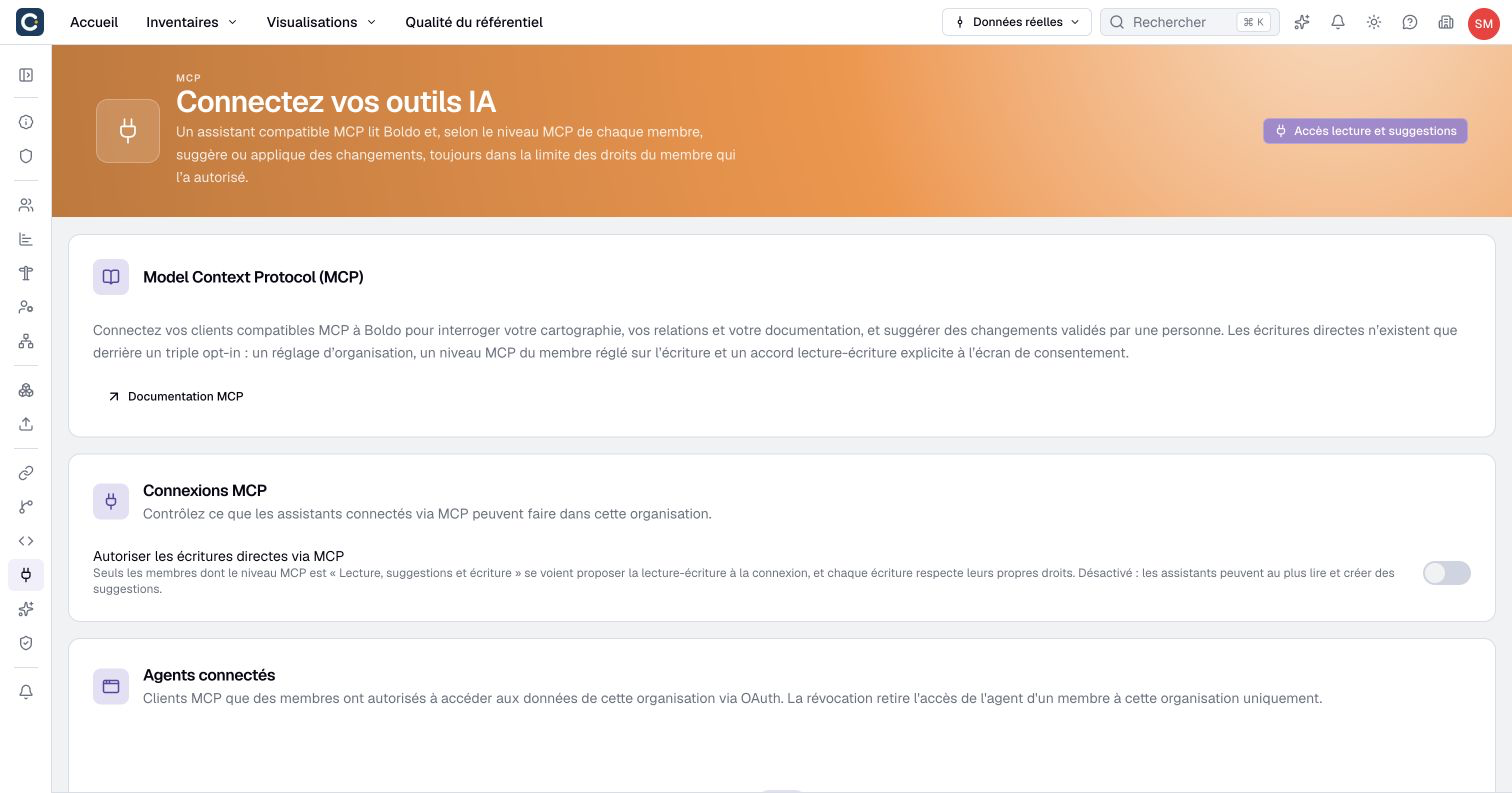
If you do not see this page, ask your administrator for the address. For Boldo in the cloud, it is https://app.boldo.io/api/mcp.
2. Add Boldo to Claude
Follow the Claude connection example in Boldo's MCP documentation, using the address you copied. Claude's menus can vary by version and account. The connection uses a remote MCP server and Boldo's OAuth sign-in flow.
3. Authorize access
When you connect the new connector, Claude opens Boldo's sign-in page. Sign in as usual, with your password or your company's single sign-on.
On Connect an MCP client, check the organization Claude should read. The connection only concerns this organization. To read another one, add a second connection.
Under Access level, click how far Claude may go: Read only reads, Suggest keeps changes pending for review, Write allows direct changes within your permissions. Steps above your rights are locked. Then click Authorize.
4. Ask your questions
Back in Claude, ask your questions in your own words:
- "Which applications support the invoicing capability, and who owns them?"
- "List the applications whose support ends this year, with their criticality."
- "What depends on the data warehouse?"
- "Total annual application costs by hosting mode, then by criticality."
- "What do I have to review or attest in Boldo?"
Claude searches Boldo and answers with what it finds. Check an important answer on the asset page before using it in a decision. An empty result may simply mean the information is not recorded, or that you are not allowed to see it.
If suggestions are authorized, you can ask: “Suggest correcting the owner of this application; do not change it directly.” Then review the suggestion in Boldo. Direct changes require the organization's permission, your member's write level and write access chosen when connecting. They do not open a confirmation card in Boldo.
5. Remove access when you no longer need it
To disconnect Claude, open your account from your avatar at the top right, then Security. In Connected apps, click Revoke next to Claude.
Administrators see every connection of the organization on the MCP page, under Connected agents. They can revoke a person's access at any time.
Key points
- The connection is done once: address, sign-in, choice of organization.
- Reads, suggestions and direct changes depend on your authorization and always respect your permissions.
- You can revoke access at any time, from your account's security page.
Go further
- Document with the AI assistant: to prepare and review changes inside Boldo.
- Connect Boldo to your other tools: the other ways to connect Boldo, to plan with your technical team.
- Connect an assistant, for technical teams: the detailed connection settings and how to diagnose a refused access.