Go back to an earlier version
A diagram was approved in a steering committee, then changed several times since. You want to see what it looked like that day, or put it back as it was. Boldo keeps the versions of each visualization. You can look at them, give a name to the ones that matter, and restore one in a few clicks.
This guide takes four minutes.
Before you start
- Versions exist for views, charts, nested maps, diagrams, impact analyses, dashboards and process flows.
- Looking at the history only requires being able to open the visualization. To name, restore or delete a version, you need to be able to edit it. If you cannot, ask an administrator.
1. Open the history
Open the visualization, then its ⋮ menu at the top right, and choose Version history. For a process, first open Flow editor, then use the page's ⋮ menu.
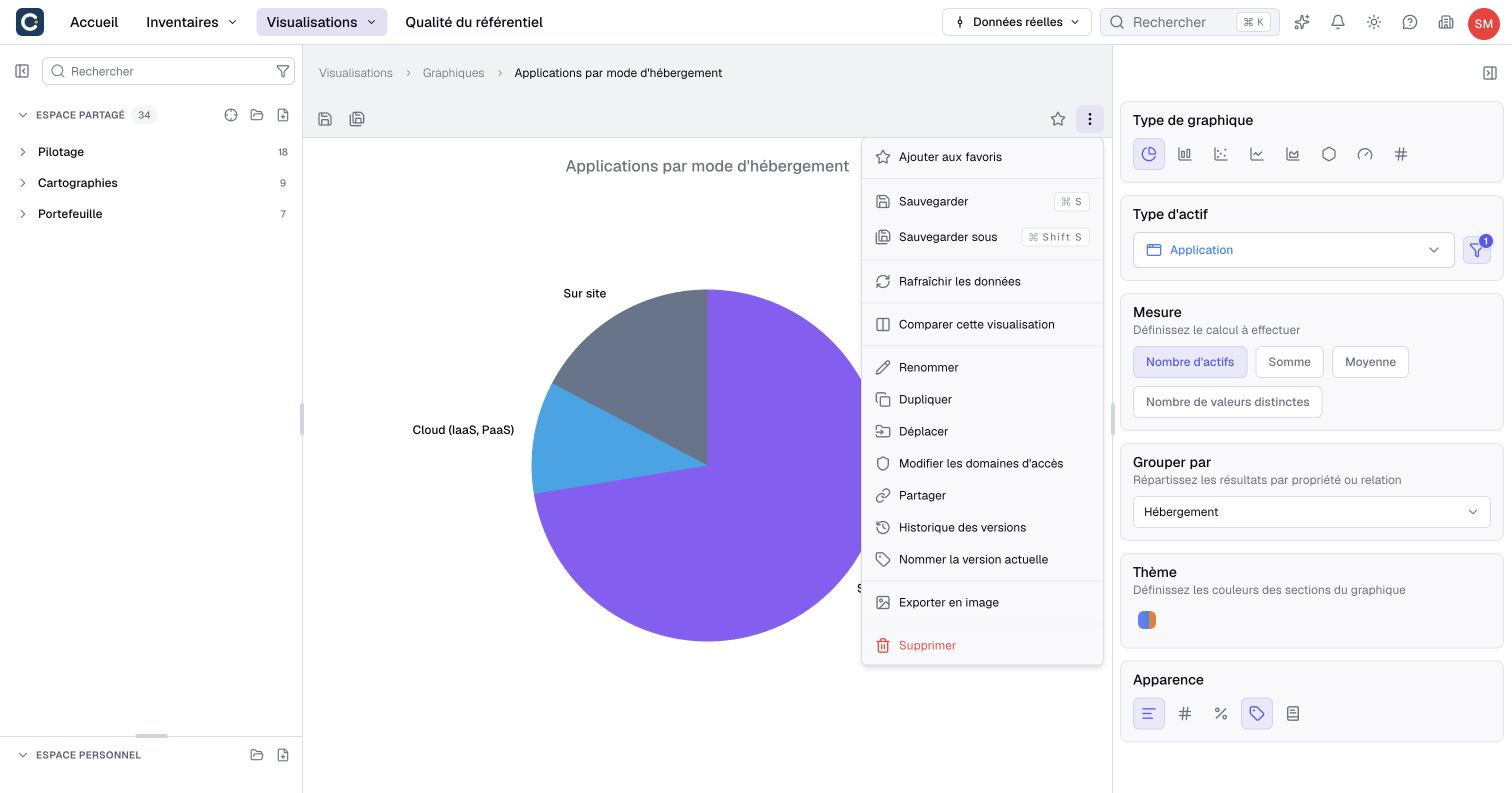
You can also open Version history from the visualization's menu in the side catalog without loading its page. If a flow cannot load its saved content, its error screen also offers this command.
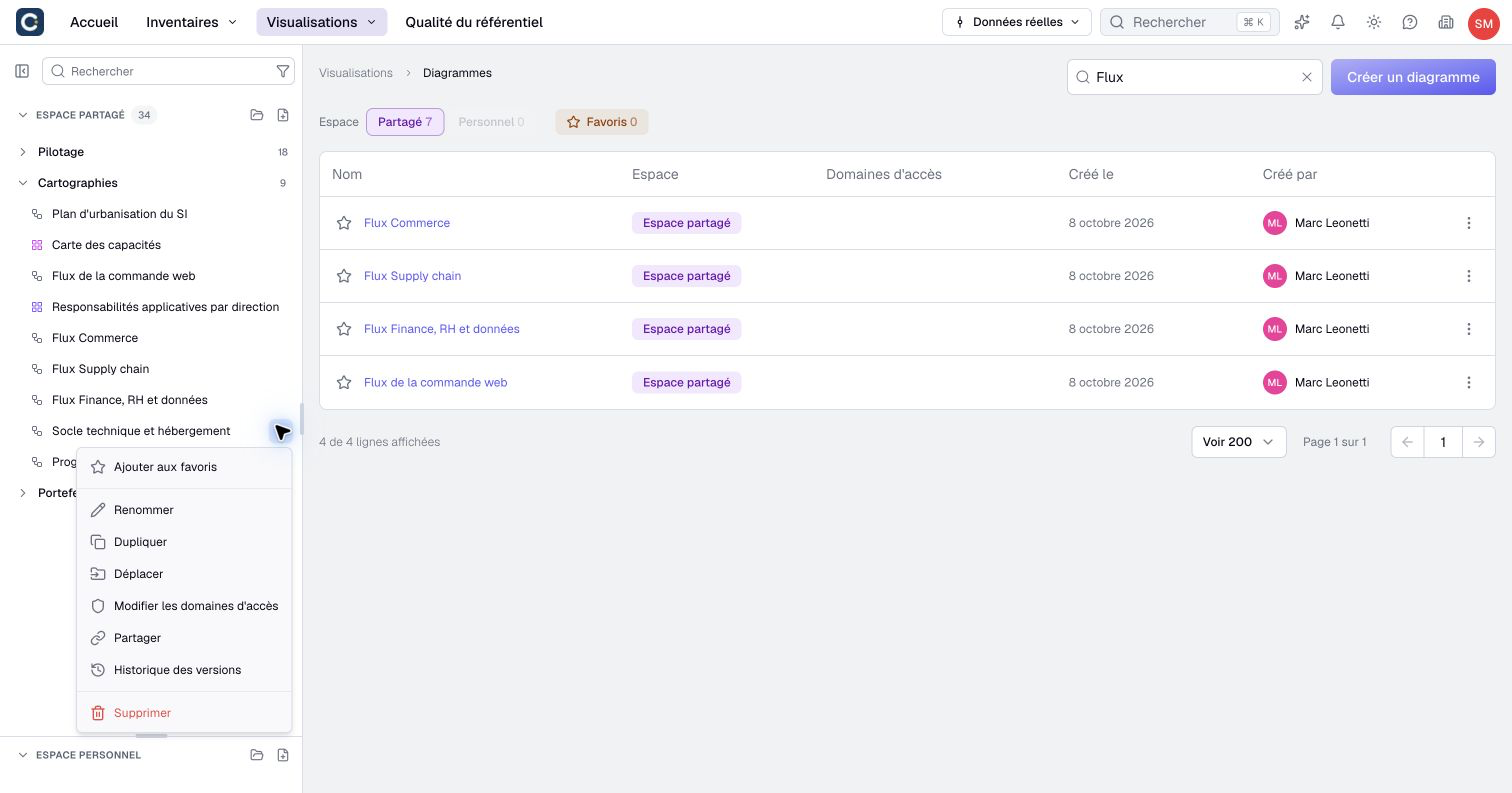
2. Look at an earlier version
The window lists the versions, the most recent at the top, with their author and date. Current version marks the state in use today. A version without a name shows as Changes.
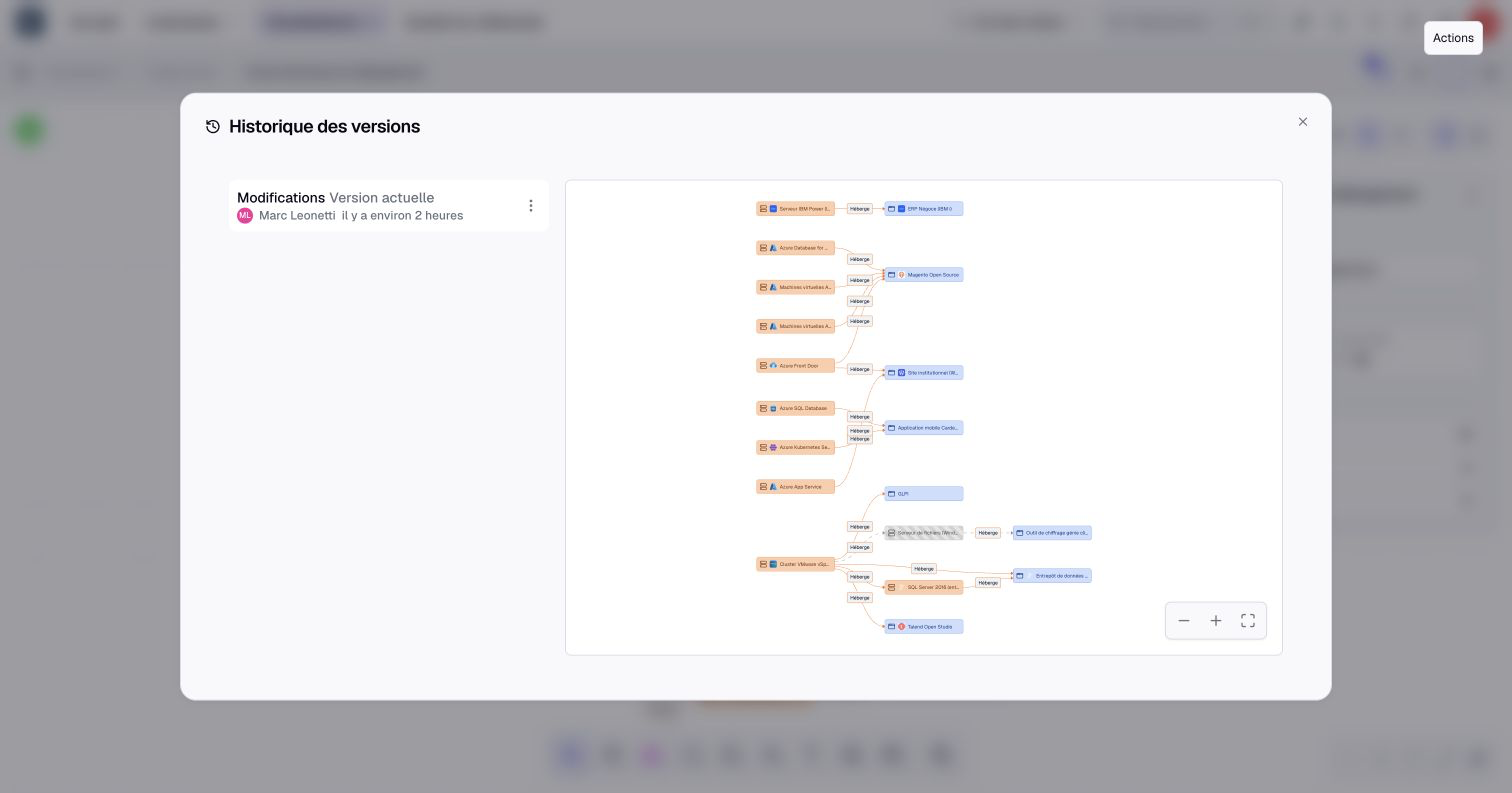
Click a version: its preview shows on the right, with a zoom. Looking at a version changes nothing. Changes made close together are grouped into one version, so the history is not a list of every click.
3. Name the versions that matter
Before a presentation or a big change, choose Name the current version in the ⋮ menu. Enter a name that says why this state matters, then click Validate.
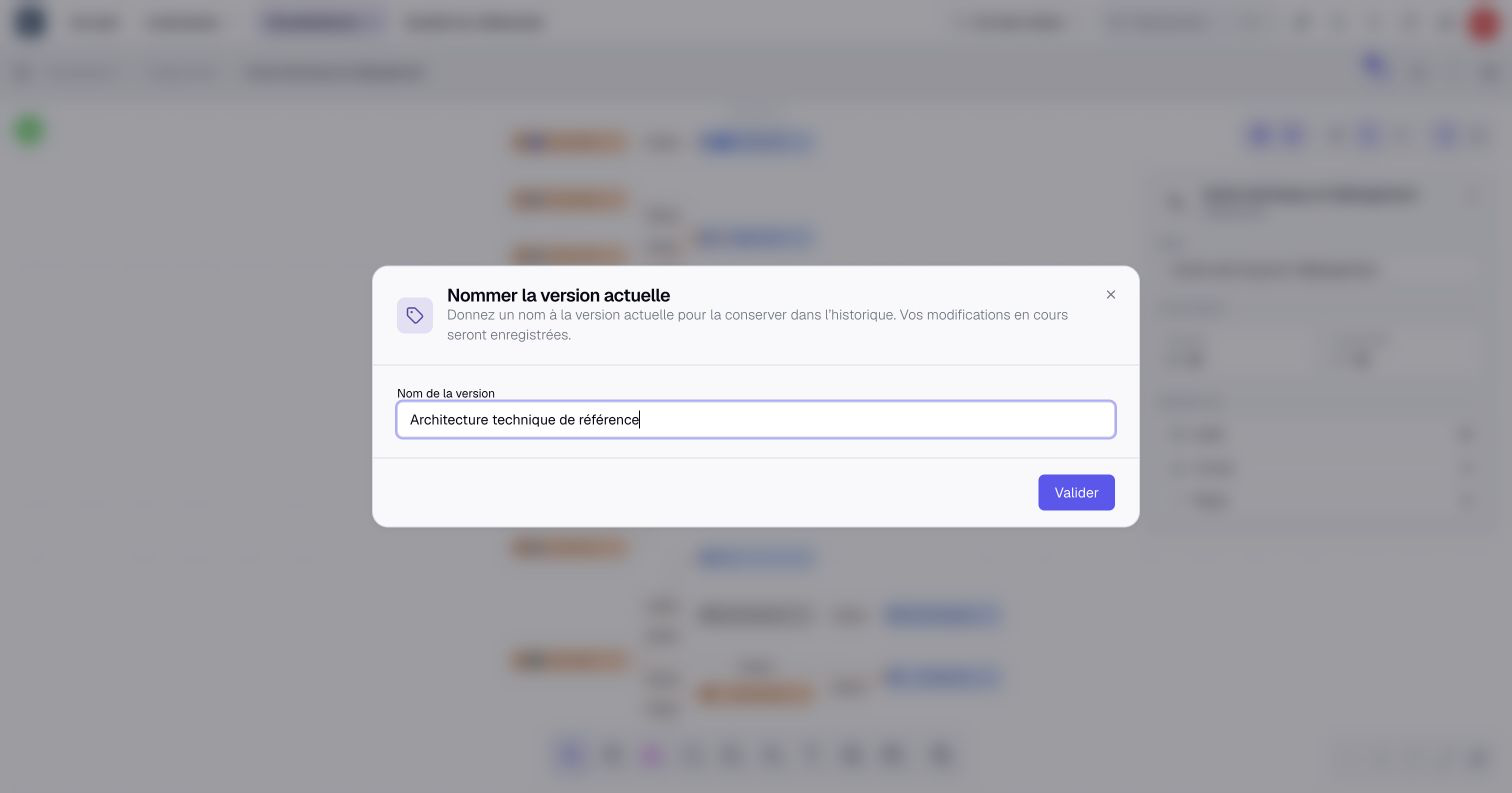
Boldo keeps the 50 latest versions without a name and deletes the older ones. A named version is kept, whatever its age. To name an older version, open its ⋮ menu in the history and choose Name.
4. Restore a version
In the history, open the ⋮ menu of the version you want, then choose Restore. A window asks you to confirm: the current configuration will be replaced by this version. Click Restore. The message Version restored confirms the change.
Before restoring, save and name the current state if you want to preserve it. Unsaved entries are not a backup version. The restoration applies to everyone who uses the visualization, so let the colleagues working on it know.
A version keeps the visualization, not the data. A restored diagram shows your assets as they are today, with their current values.
Key points
- Version history is in the ⋮ menu; for a process, open Flow editor first.
- Name a version before a big change: it is protected from automatic cleanup, but can still be deleted manually.
- Restore replaces the visualization for everyone, and keeps the previous state in the history.
Go further
- Draw a diagram: the visualization whose history you will use most.
- Build a dashboard: name a version before you present it.
- Manage visualization versions: what each kind of visualization restores exactly.