Work together: comments, mentions and notifications
You have a doubt about a piece of information: which application is the reference for customer data? Rather than an email that will get lost, ask the question where the information lives, on the page of the asset. Mention the right colleague to request their attention, and the answer stays with the asset for everyone who comes after.
This guide takes five minutes.
Before you start
- You need access to an active asset in the Real data context. Asset comments cannot be created from a scenario.
- Comments depend on your plan.
1. Comment on an asset
Open the page of an asset, then the Comments tab. Write your message in Write a comment….
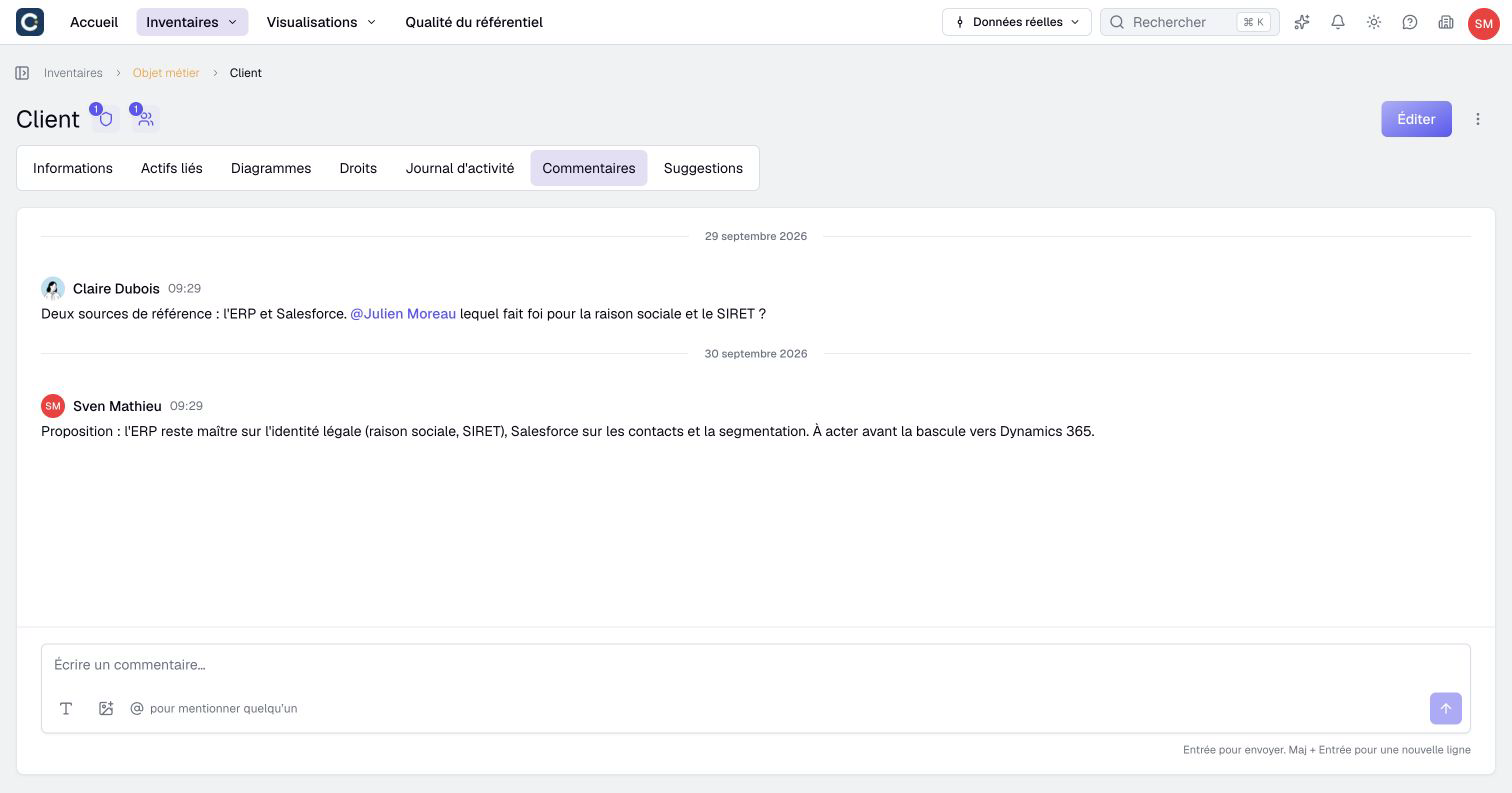
Press Enter to send, or Shift+Enter for a new line. You can also attach an image. The ⋮ menu of a comment offers the allowed actions, for example editing it if you wrote it.
2. Mention a colleague
Type @, then the first letters of a name. Pick the person in the list.
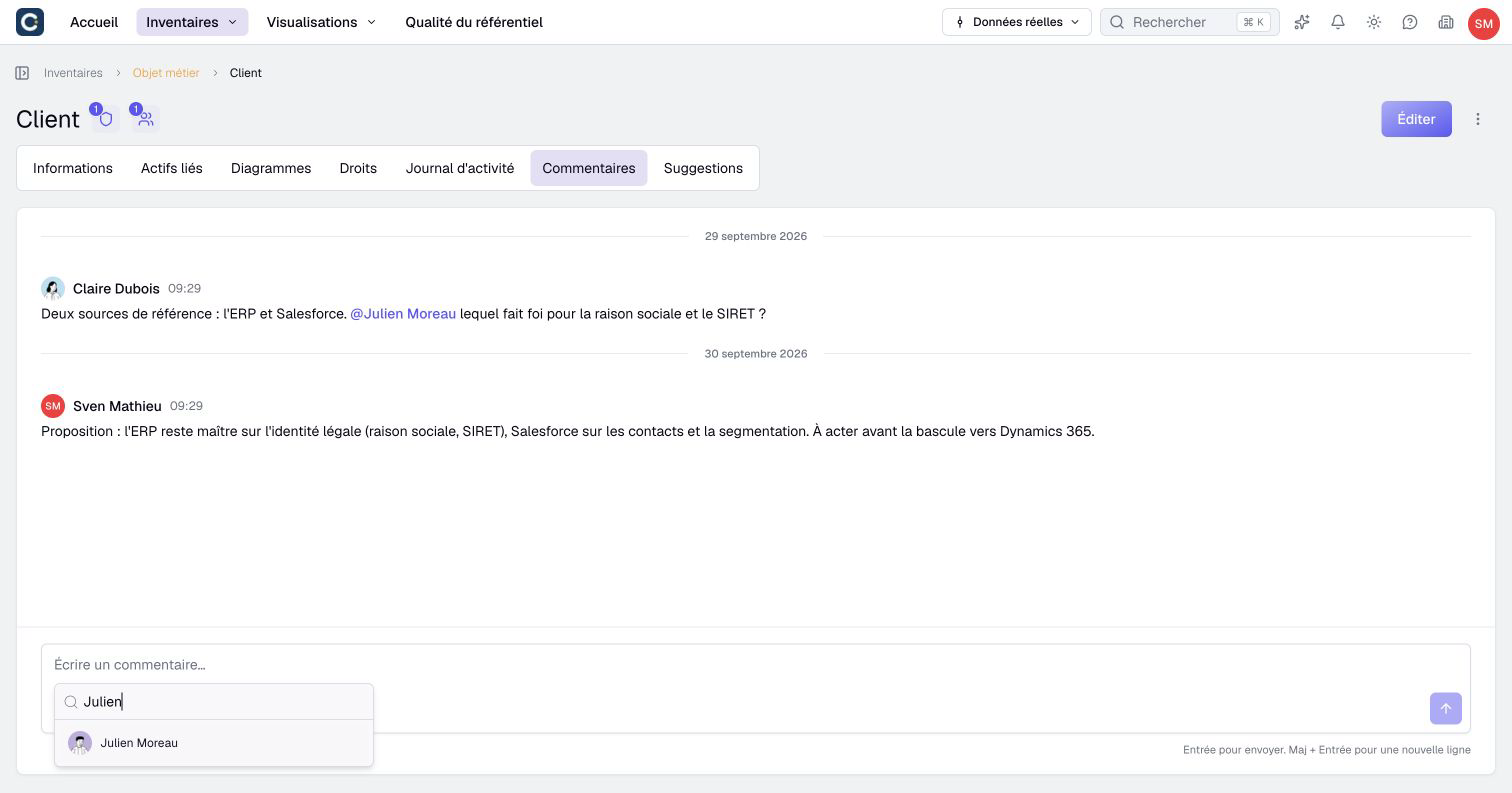
A mention can notify an active colleague who can read the asset, according to their notification preferences. Someone already reading the discussion may receive no alert. Just writing their name, without going through @, does not create a mention.
3. Work on the same item at the same time
Several people can edit the same diagram or the same process flow at the same moment. Everyone's initials show at the top left of the page, and each person sees the others' changes live.
This is handy in a workshop: each person completes their part, and everyone sees the picture grow.
4. Follow your notifications
The bell, at the top right, lists your unread notifications: a mention, the answer to one of your suggestions, a scenario that is ready and, with repository quality, a suggestion on one of your assets.
With repository quality, a creation suggestion can notify you because it names you as an owner, even if someone else must create it. Creation alerts are grouped by asset type. The daily suggestions digest also includes these new requests. Read notification rules to understand the recipients and summaries.
5. Choose what Boldo sends you
Open Organization settings, the building icon at the top right, then Notifications, under My preferences.
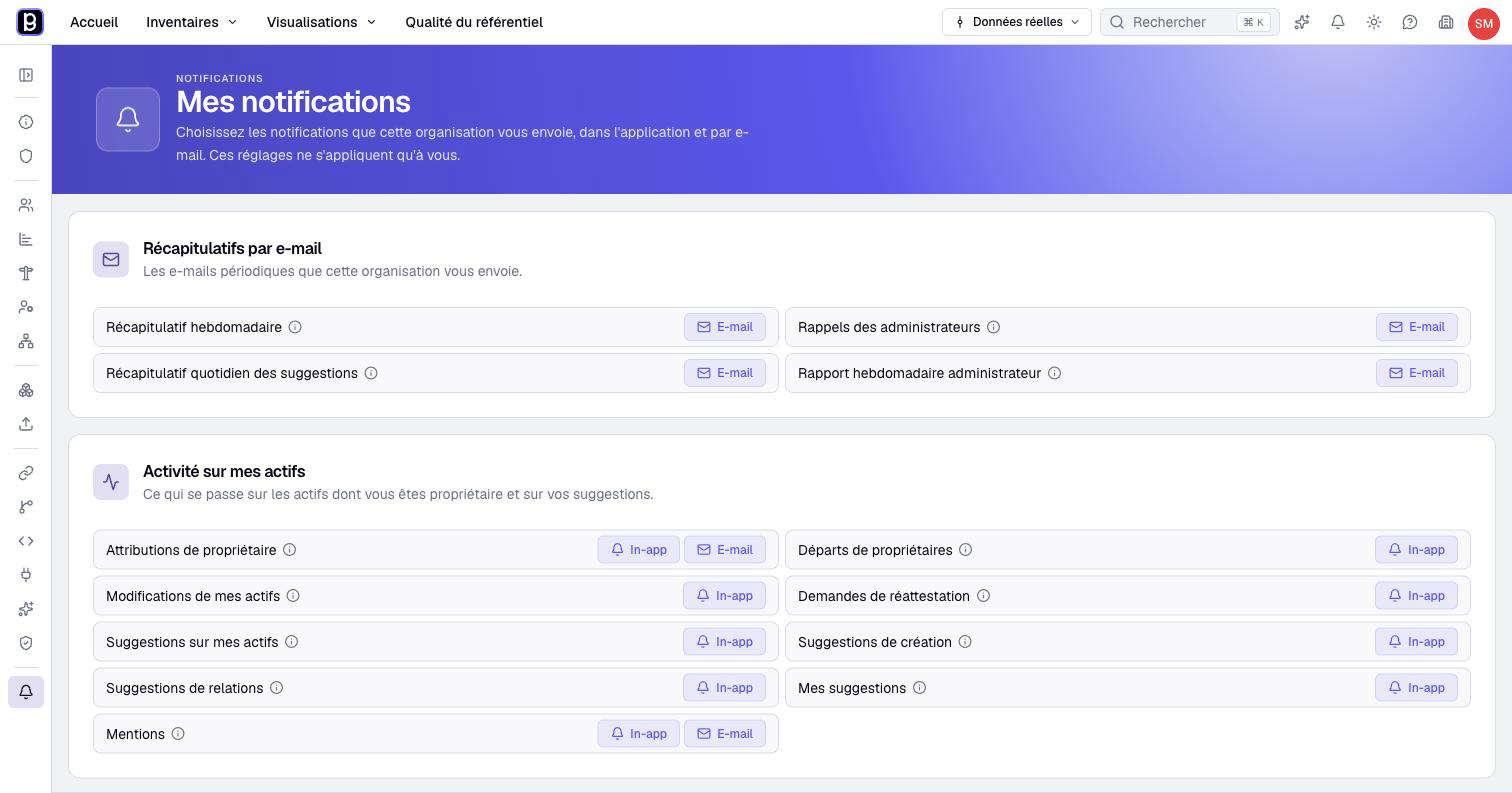
Each row can reach you in the app (In-app), by Email, or both. Click a tag to turn it on or off. These settings only apply to you.
- Email digests: the suggestions digest and, with repository quality, the weekly digest and reminders from administrators.
- Activity on my assets: changes, suggestions, re-attestation requests, answers to your suggestions and Mentions. Without repository quality, this group becomes My suggestions and mentions.
- Scenarios: a scenario shared, ready, applied or archived.
The preferences of your account, from your avatar, only cover the account itself, such as replies from support.
Key points
- Ask your questions in the Comments tab: the answer stays with the asset.
- Type @ to mention a colleague; their access and notification preferences still apply.
- Your notifications are set per organization, in Notifications.
Go further
- Suggest a change: when you want to correct a value, not just talk about it.
- The page of an asset: the activity log and the other tabs.
- Comment, mention and work together and Manage notifications: the reference pages.