Boldo AI agents
Boldo's AI assistant helps you work with your knowledge base without leaving your current context. Use it to query your architecture, prepare changes, enrich asset fields, and explore your diagrams, views, charts, nested maps, and process flows.
Core principle: the assistant follows your Boldo rights. It can only use data your account is allowed to access, and every change it makes goes through a proposal that you review before applying.
The assistant opens as a side panel over the page you are on, so you keep your context. When you open it from a diagram, view, chart, nested map, process flow, or asset, Boldo can pass that screen to the assistant, which helps with questions like "explain this diagram". Use Open in the panel header to expand the conversation into the full AI workspace.
The three ways to access AI
Boldo offers AI in three complementary modes. The table below summarizes what each one brings.
| Mode | Description | Typical use cases | Benefits |
|---|---|---|---|
| AI by Boldo Qwen, hosted in Europe (Scaleway) | Chat and agents built into Boldo, with access to the metamodel, platform features, and optionally your asset data. | Data and file ingestion Architecture explanation Asset and relationship creation and enrichment View and dashboard creation | Sovereignty (data stays in Europe) Stable, predictable cost Included in your subscription |
| Customer AI Bring Your Own Key: Claude, GPT, Gemini, Mistral | The same use cases, connected to your own provider key. BYOK models appear only once a valid key is configured. | Advanced analysis Faster analysis and dashboard creation | Power of frontier models Cost control through your own provider contract |
| MCP Use Boldo from an external LLM client | Boldo exposes a read-only Model Context Protocol server that any compatible assistant can query. | Querying Boldo data Cross-referencing with other IS sources (CMDB, data catalog, Jira, Confluence) | Reach Boldo from your other tools Cross-reference data across your IS |
Why use it
- Stay in the flow. Query, explain, and enrich without leaving the screen you are working on.
- Document faster. Fill fields, generate descriptions, and create views and dashboards in a few sentences.
- Keep governance tight. Rights and access levels apply, and every change goes through a proposal you review before applying.
- Choose your sovereignty. Use models hosted in Europe by Boldo, or your own provider models.
AI can make mistakes. Verify important answers before using them for a decision, a communication, or a change to your repository.
Set up AI access
AI availability depends on your plan, on AI being enabled at the organization level, and on the AI access an administrator grants to your user. Setup happens in the organization AI settings.
From Organization settings, open the AI Assistant page. It has two tabs: Configuration, where you set the access level, providers, and output language, and Usage, where you monitor activity and budget.
Choose the data access level
The access level defines what data the assistant may use in your organization. It applies to all users.
| Level | What the assistant can use |
|---|---|
| Level 1 - Platform only | The metamodel (asset types, properties, relationship types) and the Boldo documentation. Helps you understand Boldo, navigate, and configure, without reading business data. |
| Level 2 - Business data (recommended) | Everything in Level 1, plus the organization data the current user is allowed to read. Required for data-driven features such as filling asset fields. |
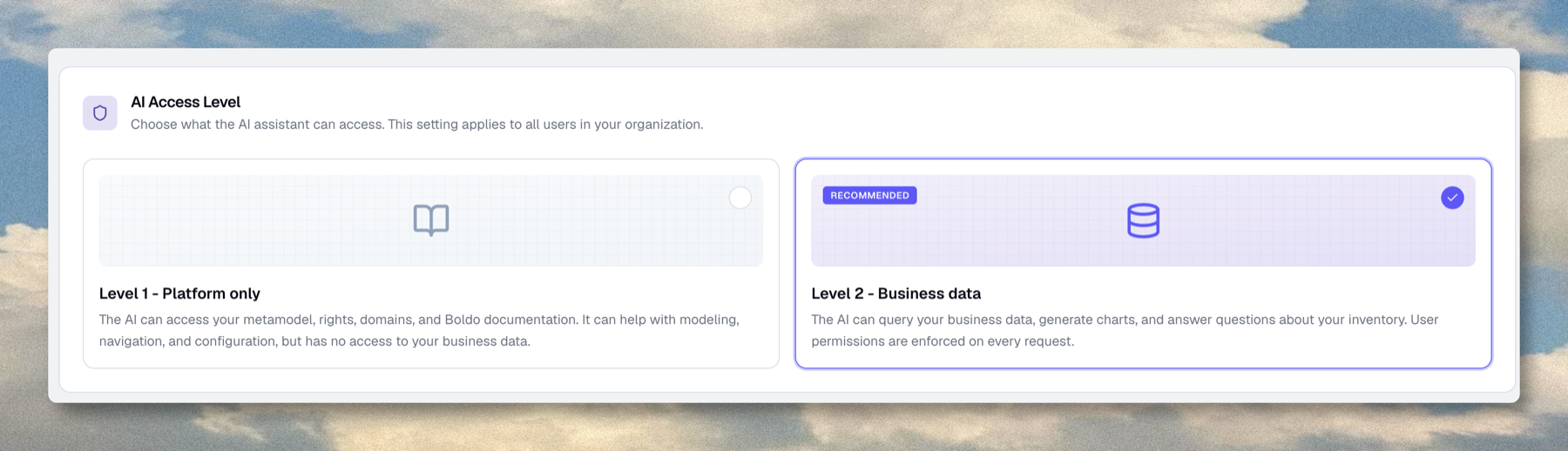
Level 2 is the most useful, because it lets the assistant answer questions about real assets and relationships while still respecting each user's rights. Choose Level 1 when you want help with structure without exposing business data to the assistant.
Add model providers
Boldo AI is always available with its hosted models. You can optionally add your own provider keys to use more models.
- Hosted by Boldo ("Europe · no API key required"): no secret to provide, best for sovereignty and a stable cost.
- External providers (BYOK): Claude (Anthropic), OpenAI, Gemini (Google), and Mistral.
For each provider, the panel shows whether a key is configured (last 4 characters masked, for example ••••GJ4A) and the models it unlocks.
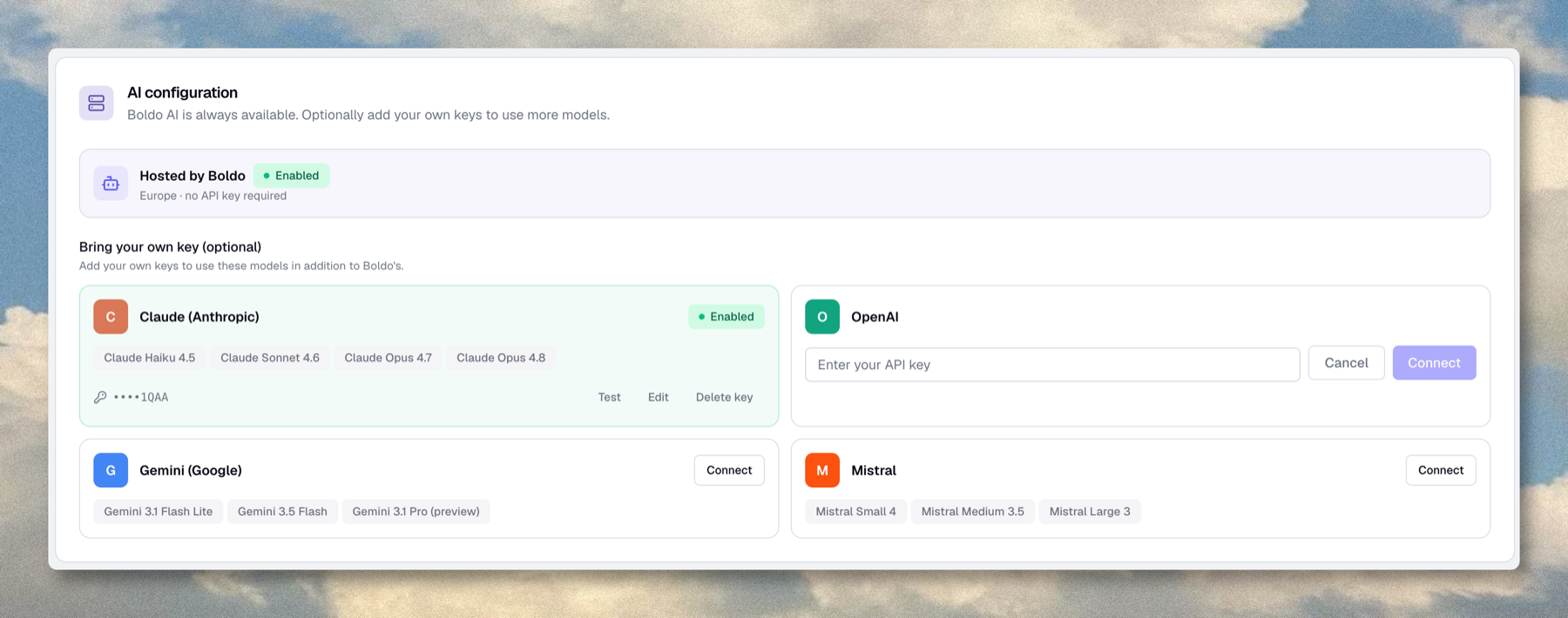
Managing a key is an administrator task. Use Connect to add a key to a provider that has none, Edit or Delete to update an existing one, and Test to re-check a key live. The test reports "Key valid", "Rejected by provider", or "Can't verify right now", which helps you spot a revoked or expired key.
Treat a provider key like a production secret. Boldo encrypts keys and never shows their full value. Only administrators can configure these keys.
Choose a model when you write
When several models are available, the prompt composer lets you choose before sending. Models are grouped by provider, with Boldo-hosted models first, and the recommended default is marked.
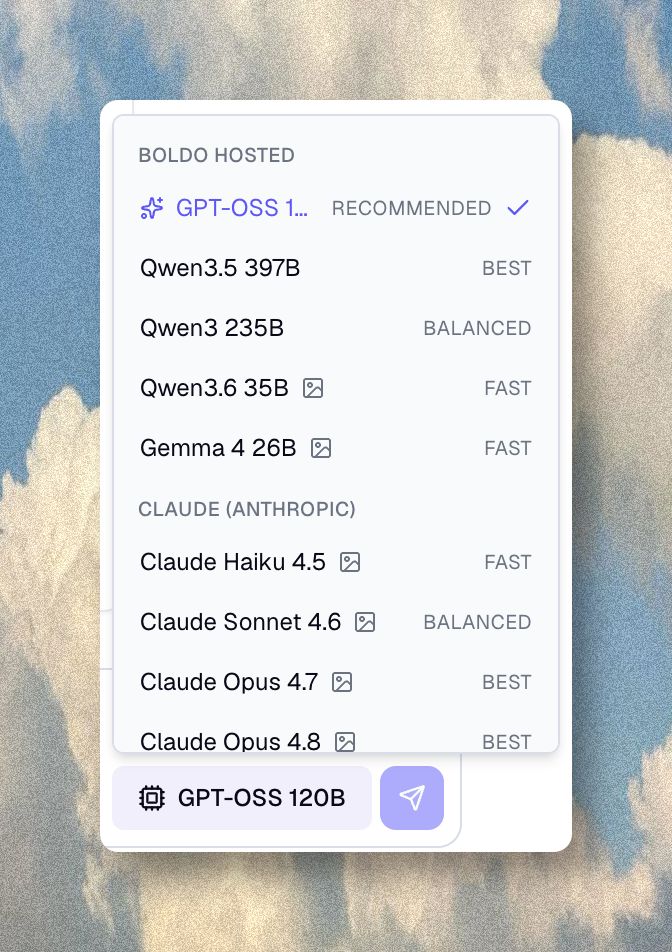
Vision: models that can read images are marked with a small image icon. All BYOK models (Claude, GPT, Gemini, Mistral) accept images; only some Boldo models do. To work from a screenshot, a photo, or an exported diagram, pick a model with the image icon.
Budget: Boldo models draw on the organization's hosted budget; BYOK models use the matching provider key.
Force the output language
The language setting forces the language of generated content (descriptions, asset proposals, autocompletes, names, and labels). It does not change the language of chat replies, which always follow the language of your message.

Auto follows the conversation language, while English and French force the language. Setting a language keeps generated proposals and descriptions consistent across the organization.
Monitor usage and budget
The Usage tab shows organization-level AI activity. A time-range selector (7 days, 30 days, 90 days, Current month, or 12 months) controls the figures below, such as conversation count, message count, usage by user, and models used.
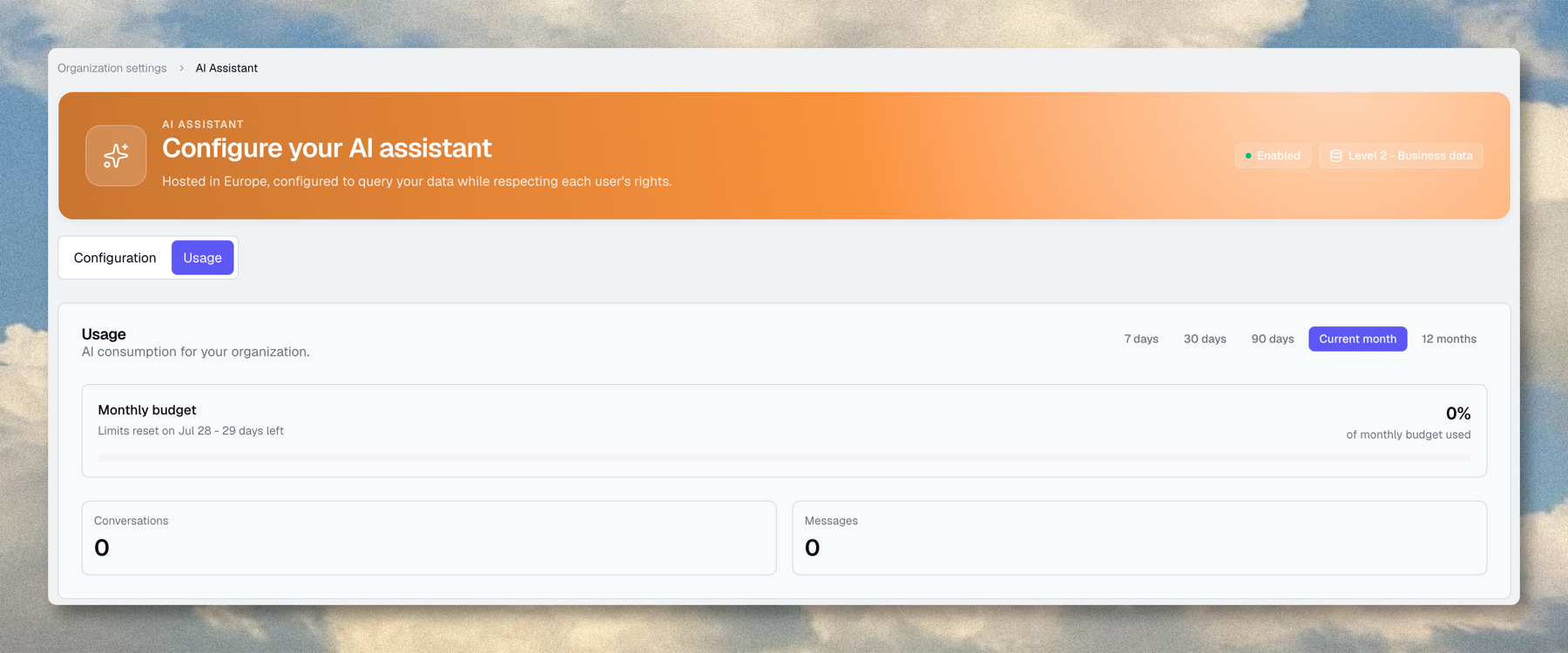
The Monthly budget card always reflects the current monthly period. It shows the percentage of budget used, the date the limit resets, and the days left. The budget applies to Boldo-hosted usage; BYOK usage is billed through your provider key and does not consume the hosted budget.
Grant AI access to users
AI is controlled both by plan availability and by user access. AI access is off by default for every user. Even when your plan includes AI, an administrator must turn the access switch on, per user, before that user can use the assistant.
Open a user in user management and turn on AI access, then validate. You cannot grant yourself AI access; only an administrator or owner can change another member's access. Use this when AI should reach a specific group first, or when only trained users should prepare AI proposals.
Connect an external assistant with MCP
Boldo exposes a Model Context Protocol (MCP) server so compatible assistants can query your Boldo data and documentation. Use MCP when you want an external assistant to read your architecture context while access stays limited to a chosen organization and to the user's Boldo rights.
MCP access is read-only. Connected assistants can query data, but cannot change your Boldo knowledge base.
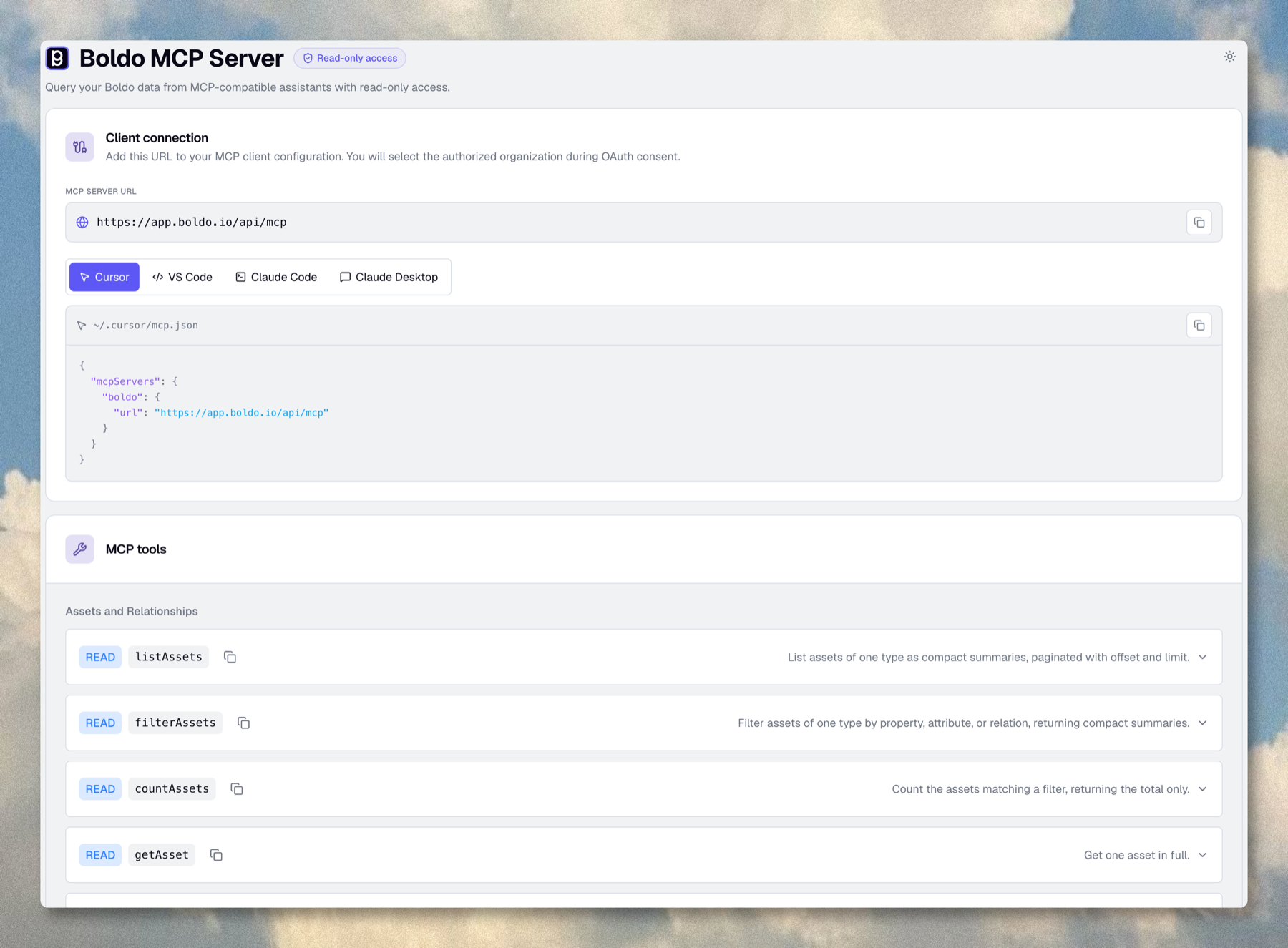
Check access under Organization → Developer. When MCP is available, the page shows the connection card and a link to its documentation. Copy the MCP server URL (for example https://app.boldo.io/api/mcp), add it to your MCP-compatible client, start the OAuth flow from the client, then select the Boldo organization to authorize. Approve the connection only if you started it.
What MCP can query
| Area | Typical use |
|---|---|
| Assets | Search, inspect, and resolve assets. |
| Metamodel | Read asset types, properties, and relationship types. |
| Diagrams | Inspect the contents of a diagram. |
| Charts | Inspect a chart's configuration and context. |
| Views | Inspect saved views. |
| Nested maps | Inspect the structure of a nested map. |
| Process flows | Inspect a flow's context (plan dependent). |
| Documentation | Search the Boldo documentation. |
The exact tools depend on the organization's AI access level. With Metamodel, MCP exposes the structure and documentation tools; with Business data, it also exposes read tools for the data the user is allowed to see.
API or MCP?
| Need | Use |
|---|---|
| Build scripts, automation, or system integrations | API |
| Let an assistant inspect Boldo from a conversational client | MCP |
| Write or update Boldo data programmatically | API |
| Give an AI agent read-only contextual access | MCP |
Use cases
This section shows the main families of use, with concrete examples. A good prompt gives context and states the expected result. For any creation or change, the assistant prepares a proposal you review before applying; permission rules and organization limits apply to the final validation.
Mention another asset with @ so the assistant finds and links it (for example, "link this application to the @CRM business capability").
Find assets and save a view
Goal: list assets that answer a business question, then keep the result as a reusable view.
Prerequisite: Business data access level and read rights on the relevant assets.
Can you show me all my applications with a criticality score of 5?
The assistant reasons over your inventory and returns a table of matching applications, with their status. It then offers to save that filtered list as a view for quick access later. Save it as a new view: the saved view opens with criticality shown as 1 to 5 stars, so the result becomes a permanent part of your workspace rather than a one-off answer.
Create views, charts, and nested maps
The assistant can prepare proposals for views, charts, dashboards, diagrams, and nested maps. In-context changes, such as updating a view, a chart, or a map, are offered when the relevant item is open on screen.
Chart: cybersecurity monitoring. Visualize a cybersecurity indicator, such as the compliance or criticality level of applications, as a chart. Review the proposal, then save the chart. You can add it to a dashboard as a widget.
Create a chart that breaks down applications by criticality level,
keeping only active applications, for cybersecurity monitoring.
The assistant breaks down applications by criticality and previews the chart. Click Create chart to open it, here as Active Applications by Criticality (Cybersecurity Monitoring), grouped by the 1 to 5 star criticality. From the chart editor you can adjust the measure, grouping, and theme, then add it to a dashboard as a widget.
Nested map: data governance. Represent a hierarchy computed from relationships, for example Capabilities → Domains → Applications. A nested map computes hierarchies dynamically from relationship paths rather than drawing them by hand, which makes it the tool of choice for capability mapping.
Create a nested map for data governance:
Data domains → Capabilities → Applications, from the existing relationships.
The assistant resolves the relationship paths and previews the nested map. On confirmation it opens in the nested map editor, with data domains, capabilities, and applications laid out as computed columns rather than hand-drawn nodes. From there you can refine the levels and styling, the same way you would edit any saved nested map.
Enrich data
When AI is enabled, asset forms show an AI bar at the bottom. Type a request to fill, refine, or link fields, in both create and edit modes. The assistant updates the form fields directly and can search for and attach related assets. Changes apply to the form and are not saved, so review them before validating, and use Undo AI changes to revert.
Field enrichment uses organization data, so it is available only at the Level 2 - Business data access level.
Enrich a capability. From a capability's form, ask the AI bar to fill fields, set values, and link a related asset in a single request.
Fill the missing fields, suggest a description, set Score Capacité to 4,
and link this capability to the @CRM Service application.
The AI bar fills the capability's fields, suggests a description, sets Score Capacité, and links the serving application, all in one proposal. Review the changes on the form, then Apply batch changes. Nothing is saved until you validate the asset.
Autocomplete. Let the assistant propose a field's content from the asset's context. The Output language setting (see above) keeps generated autocompletes and descriptions consistent across the organization.
Fill the missing fields of this asset and rewrite the description.
Explain the inventory or the metamodel
Use the assistant to inspect and explain your Boldo data: explain the current diagram or flow, find assets that answer a business question, summarize the relationships around an application, compare what a view or chart shows, or understand the metamodel. When the answer depends on the current screen, keep the relevant item open before asking. The assistant can display the requested view, chart, diagram, nested map, or asset directly in the conversation.
Explain the architecture around @CRM: its main dependencies,
the connected applications and capabilities, and the missing relationships to check.
The assistant reads the data model and the asset, then answers in the conversation: a breakdown of the connected applications and capabilities, the governance context, and a numbered list of missing relationships to verify. The @CRM mention tells it exactly which asset to analyze.
Analyze a use case
Beyond description, the assistant helps you reason about a situation: cross-reference assets, identify dependency chains, and estimate an impact.
Goal: assess the consequences of a component or technology becoming obsolete on the rest of the information system.
Prerequisite: Business data level and populated relationships (applications, components, technologies, lifecycle).
Analyze the impact of this technology becoming obsolete: list the applications
that depend on it, their criticality and lifecycle status, then identify
the at-risk dependencies to handle first.
The assistant reads the data model and returns a structured table of the components and applications that depend on the technology, with their status, then highlights the at-risk dependencies to handle first. You get a result you can act on, not a vague answer.
Ask for structured reasoning and a checklist rather than a vague answer. Compare "Check this" with "Explain the main dependencies of this diagram and list the missing relationships to verify": the second gives a result you can act on.
AI can make mistakes. Always verify impact analyses before turning them into remediation or planning decisions.
Appendix: writing good prompts
A good prompt gives enough context and defines the expected result.
| Weak prompt | Better prompt |
|---|---|
| "Check this" | "Explain the main dependencies in this diagram and list the missing relations to verify" |
| "Create apps" | "Prepare assets for these five applications, with owner, criticality, and lifecycle status" |
| "Fix the view" | "Update this view to show only active applications, grouped by business domain" |
And always: for a change, review it before applying.