Create and manage API keys
An API key authorizes a program to access one Boldo organization. Each key has its own type and roles, while its owner's membership also affects access.
Your plan must include the API. Editors can manage their own keys; Administrators and the Owner can also manage other members' keys.
Create and save a key
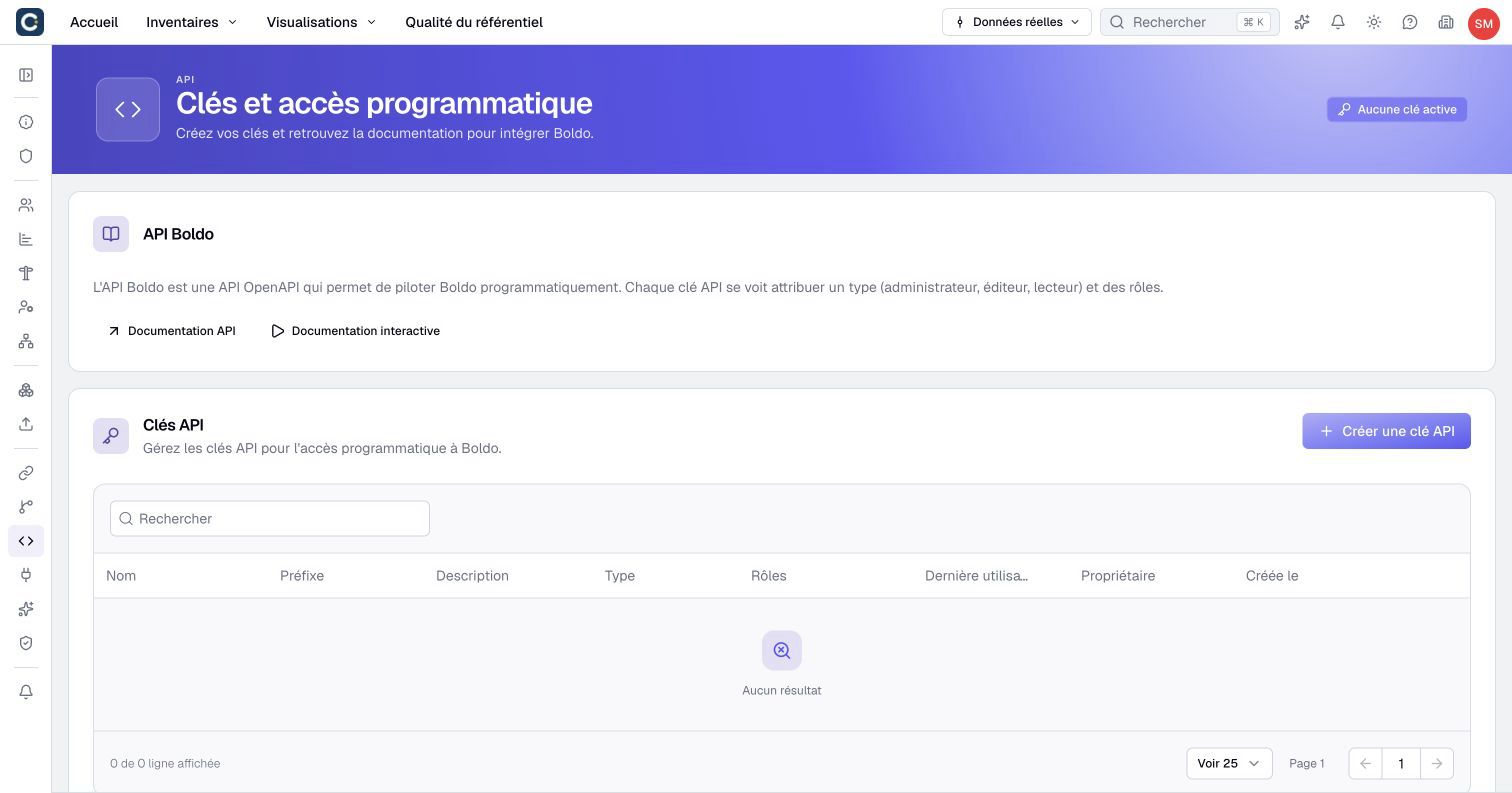
- Select the target organization and open Organization settings > API.
- In API Keys, click Create API Key.
- Enter a Name identifying the integration. Optionally add a Description.
- Choose Type: Viewer, Editor or Administrator, within the choices available to you. The initial choice is Viewer.
- Select the required Roles. Left empty, the selection gives the key your roles if you are an Editor with roles, and the No role permissions otherwise.
- Click Create Key.
- In API Key Created, copy the complete value into your integration's secret storage.
- Click I've saved my key, then test a limited API read.
The name accepts up to 100 characters and the description up to 500. Owner is not a key type. The creation form does not offer an expiration date.
The full key is displayed only at creation and after a regeneration, in a dialog that only I've saved my key closes. The list retains its prefix and configuration, but cannot reveal the full value again. If you lose it, regenerate the key. Do not include the key in screenshots, tickets or shared request examples.
Understand effective permissions
The effective type is the lower of the key's type and its owner's member type. An Administrator key owned by an Editor therefore acts as Editor.
A key without roles uses the No role permissions; it does not inherit its owner's roles. No role counts as a role of its own: an Editor who holds roles cannot hand it out, so they cannot empty a key's roles, and a key they create without roles receives theirs. The key's assigned roles determine its business data access. They are not continually intersected with the owner's current roles. An Administrator can assign roles the owner does not personally hold, or none. An Editor can assign only their own roles and cannot grant a type above their own. Roles assigned by an Administrator outside the Editor's scope remain protected when that Editor changes the key. Through the API, a key creates or changes keys within its own type and roles, whatever its type, No role included: a key scoped to some roles cannot obtain its owner's other roles, and a key it creates without roles receives its roles.
An Administrator key still respects business permissions on assets, properties and access domains. Start with the minimum type and roles your integration needs; consult the access model for their respective scope.
Edit or transfer a key
- Find the key in API Keys, using its name, prefix and Last Used information.
- Open its Actions menu and choose Edit.
- Change its name, description, type or roles as permitted.
- As an Administrator or Owner, use Owner to transfer it to another member of this organization if needed.
- Click Update Key.
- Test the integration again, especially after changing the owner or roles.
Changing the configuration does not reveal or replace the secret. A transfer preserves the assigned roles, but the recipient's type can reduce the effective type.
Rotate or revoke access
Regenerate a key to replace its secret, for example after an exposure. The key keeps its name, type, roles and owner; only the secret and its prefix change.
- Open the key's Actions > Regenerate key.
- In Regenerate API Key, check the prefix and click Regenerate.
- In API Key Regenerated, copy the new value into the integration's secret storage, then click I've saved my key.
- Test the integration. Last Used stays empty until the new secret is used.
The previous secret stops working immediately, with no grace period: requests that still send it receive HTTP 401 until the integration is updated. To switch without interruption, create a second key, deploy it, then delete the old one.
Editors regenerate their own keys, including a key an Administrator transferred to them with roles they do not hold: the transfer entrusts them with the key. Administrators and the Owner regenerate any key. An integration can also regenerate its own key with POST /api-keys/{id}/rotate; the response is then the only copy of the new secret. Through the API, a key regenerates another key only within its own type and roles.
To revoke a key:
- Open its Actions > Delete.
- Check the Delete API Key confirmation.
- Click Delete.
- If the integration moved to another key, verify that this connection still works.
Deletion revokes subsequent requests with that key. It does not remove data the integration previously created. A deleted key cannot be recovered.
If the owner loses all active sign-in methods for this organization, their keys stop working. Suspension retains the keys, so reactivation can restore their use. Removing membership deletes the associated keys. Disabling one sign-in method does not stop keys if another remains active.
API calls also check the organization's status, API availability and allowed IP addresses. They do not repeat an interactive SSO or two-factor prompt on each request. For errors, use the API diagnostic table.