Move and copy items
Move and copy actions help you decide where a view or visualization should live. This is how you publish work, keep drafts private, or adapt shared material for your own use between personal and organization spaces.
From personal space to shared space
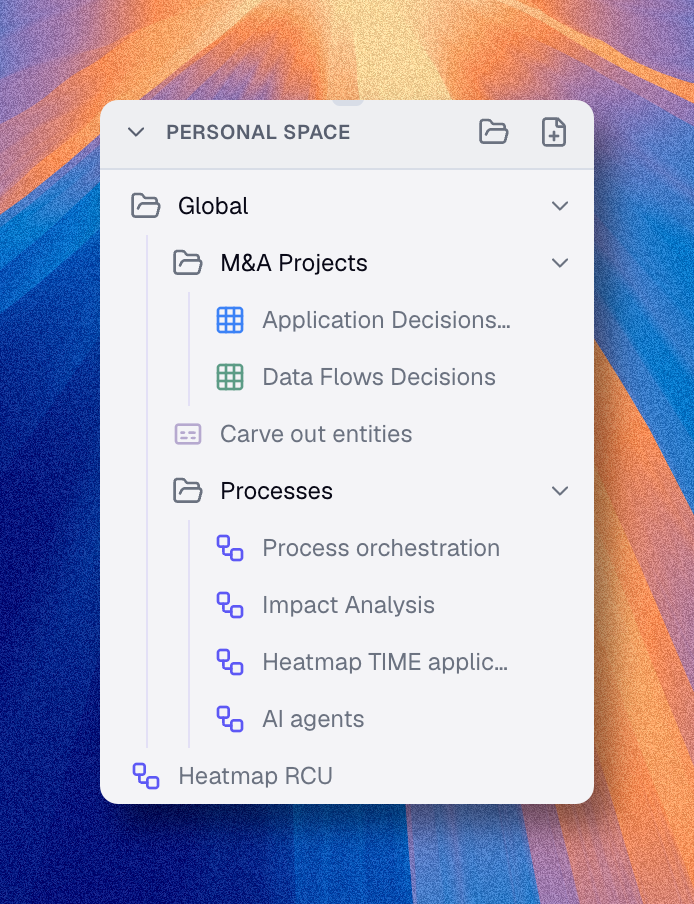
When an item lives in your personal space, you can send it to shared space in two ways:
- move it without keeping a private version
- move it and keep a copy in your personal space
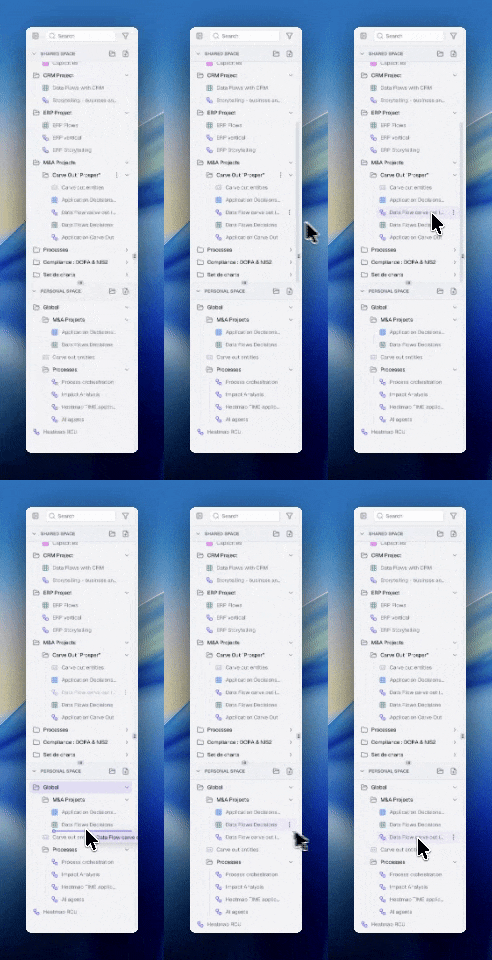
You can start this flow from the item's ⋮ menu in the catalog, or by dragging the item from your personal catalog to the shared catalog. Drag and drop opens the same move dialog, and if you drop the item on a folder, that folder is preselected as the destination.
- Select the item in your personal space
- Open the item's ⋮ menu and choose Move to shared space, or drag the item to the shared catalog
- Select the destination folder if needed
- Review access domains when your organization uses them
- Decide whether to keep a copy in your personal space
- Confirm
The keep-copy option matters:
- if you keep a copy, you preserve your private version
- if you do not, the item simply becomes shared
From shared space to personal space
When an item already lives in shared space, you cannot move it back to personal space. You can only copy it.
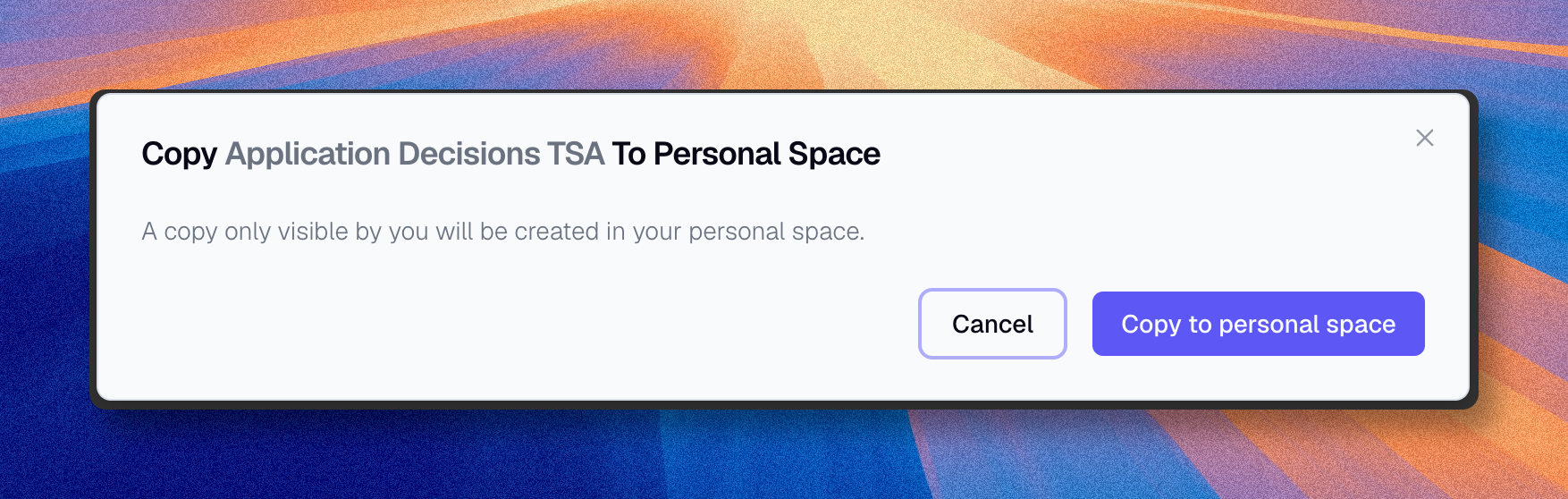
You can start this flow from the item's ⋮ menu in the catalog, or by dragging the item from the shared catalog to your personal catalog. Drag and drop opens the same copy dialog, and if you drop the item on a folder, that folder is preselected as the destination.
Use this when:
- you want to adapt a shared diagram without changing the official version
- you want a private working copy
- you want to experiment before publishing changes
- Open the shared item in the organization space
- Open the item's ⋮ menu and choose Copy to personal space, or drag the item to your personal catalog
- Pick a destination folder if needed
- Rename it if you want to distinguish it from the shared version
- Confirm
Domains and access
When items live in the organization space, access may also depend on domains.
That means:
- moving an item can require choosing or reviewing domains
- folder domains can affect where the item should be placed
- shared does not always mean equally visible to every user
If your organization uses property rights and domains, check those settings carefully before publishing.