Review assets without an owner or access
Three problems require different decisions: nobody owns an asset, an owner cannot read it, or a former member still carries responsibility. Assigning a name does not automatically solve all three.
The organization-wide review requires an Administrator or Owner account and an active quality program. Your business permissions still limit the assets you can see and modify.
Assign unowned assets
- Open Repository quality and its To handle tab.
- Expand Assets without an owner if needed.
- For one editable row, select an owner or use Assign me.
- Check the resulting ownership before continuing to another row.
Assignment from this list takes effect immediately. There is no final page-wide Validate button. This differs from changing owners inside an asset form.
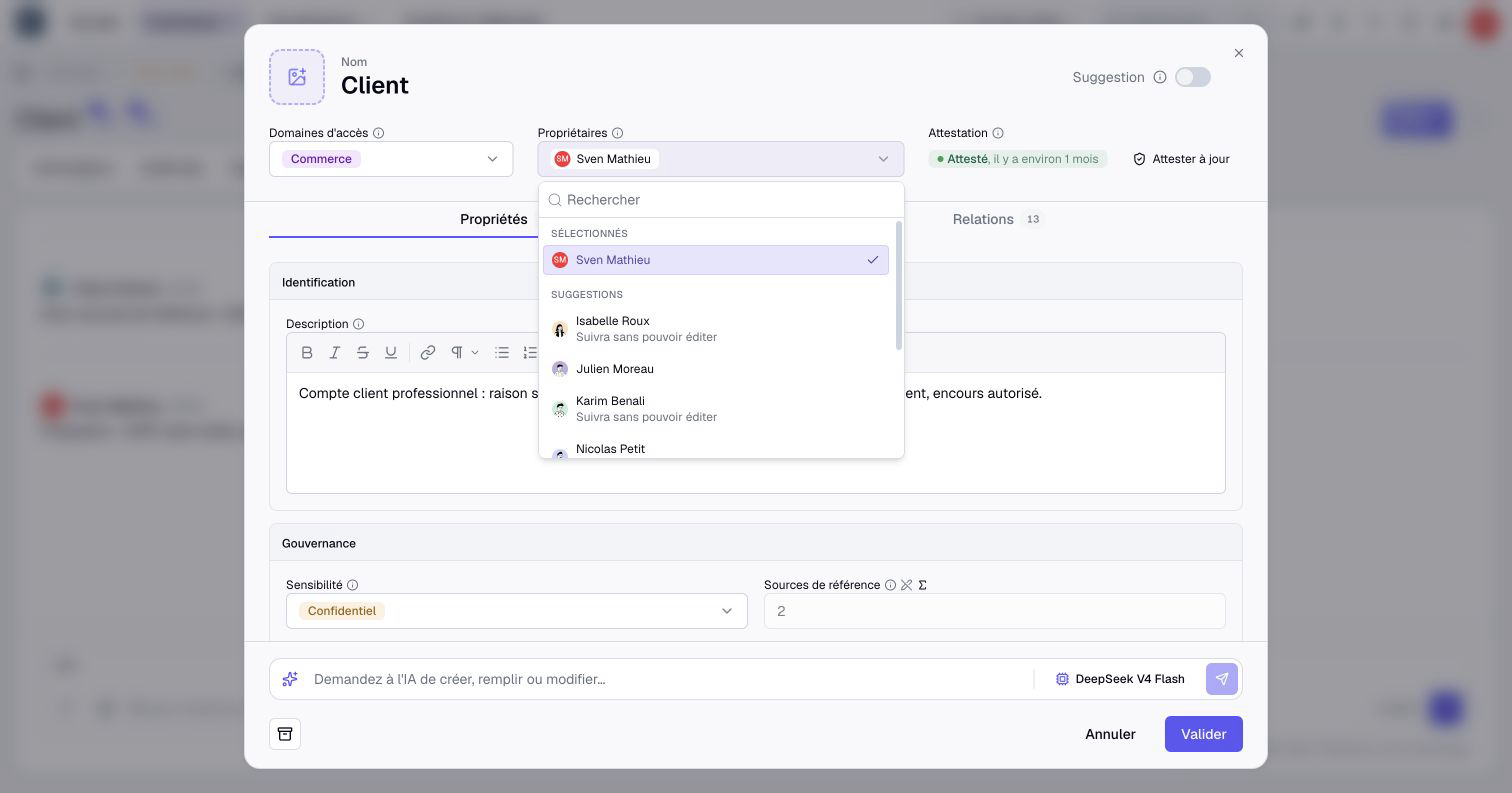
For a guided session, select Review all on the unowned-assets queue. The queue and its assignments follow the selected context. In a scenario, this review assigns owners in that scenario.
Work through the queue
- Read the asset and its access domains.
- Search for a member or role to find suitable people.
- Select one or more people, checking Can edit, Read only or No access beside their names.
- Select Assign, or the button naming the number of selected people.
- Check the saved result and select Next asset.
- Use Skip for now if you cannot make an informed assignment.
You are assigning individual members. Selecting people found through a role search does not assign responsibility to the role itself.
If you can see an asset but cannot edit it, the review explains that restriction. Move on or ask someone with the relevant rights to handle it; your administrator account type alone does not bypass every asset permission.
A session loads up to 200 assets. Finishing it does not necessarily finish the entire repository. Return to the queue for further work. Skipped items remain unresolved and can appear again; session navigation is not a permanent saved checkpoint.
Resolve missing read access
Under Owners without read access, inspect each person's count and the example assets shown. The preview displays only a few examples, not necessarily every affected asset.
Decide whether that person should receive access or whether someone else should take responsibility. An administrator can diagnose permissions; someone allowed to edit the asset can change its owners.
The warning does not change permissions automatically. It also reflects only the assets accessible to the administrator viewing the report. A clean report in a restricted scope is not proof that no ownership problem exists elsewhere.
Handle departed owners
In real data, Owners who left the organization identifies responsibilities left by inactive or former members. Transfer opens the handover dialog. Choose a replacement and confirm with Transfer, or select Leave without owner to remove the former member’s responsibility. Other owners remain.
Administrative transfer and removal can cover the person's archived assets and scenario copies too. They do not grant rights to the replacement or mark the assets freshly attested. After the handover, check responsibility and access, then let the new owner review the information.