Track and coordinate reviews
Use Repository quality to identify where review work is needed and who can handle it. The report brings together ownership, completeness and freshness.
You need an Administrator or organization Owner account, with the quality program active on a compatible plan. Your business permissions still limit the assets included.
Find the work that matters
- Select the data context you want to review. Choose Real data for attestation and reminders.
- Open Repository quality and read its quality, asset count, ownership coverage, completeness and freshness indicators.
- Open To handle to resolve missing owners, owners without read access and departed owners.
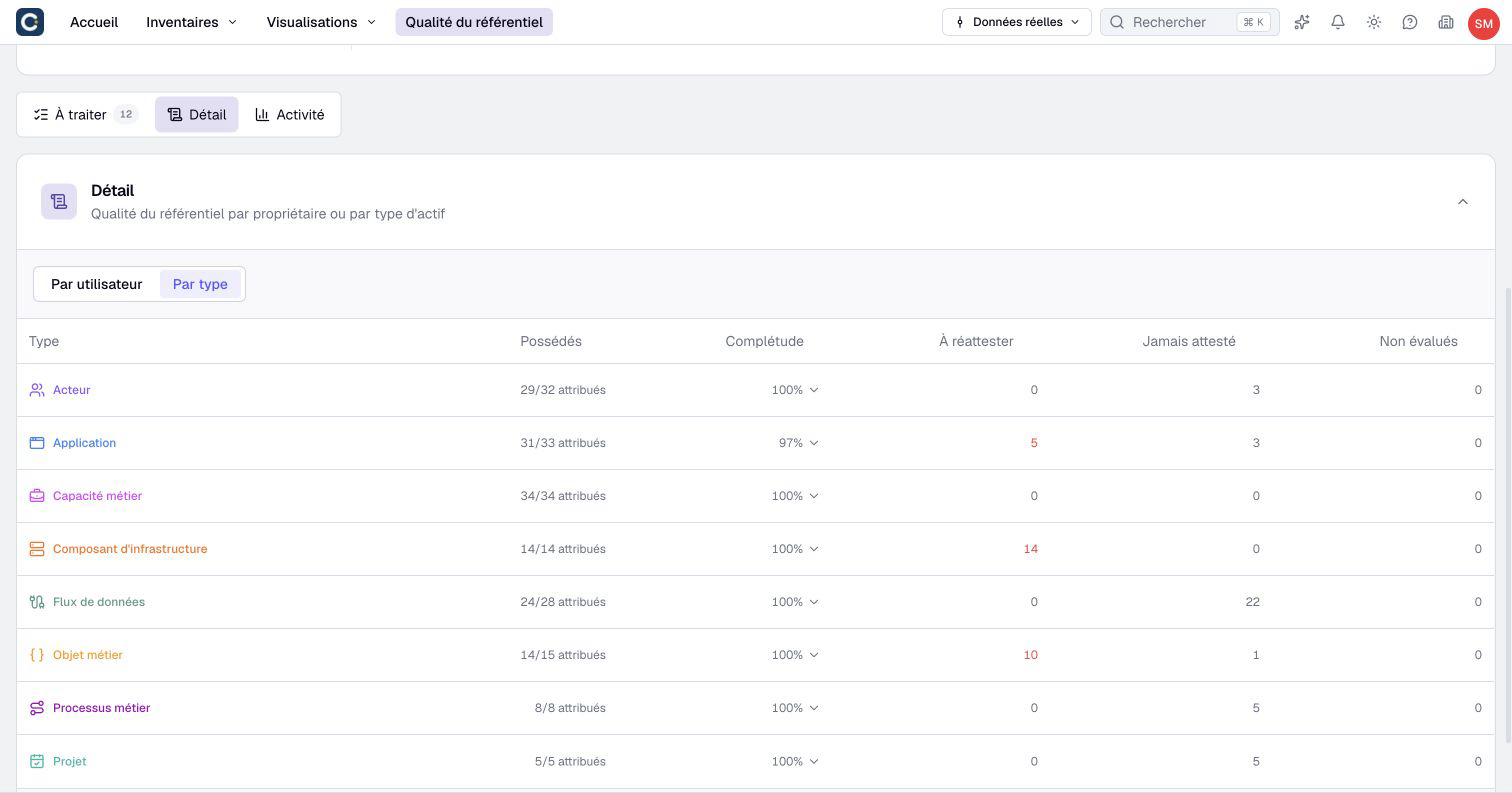
- Open Breakdown, then choose By user or By type.
- Sort the relevant column and open a count or measure to inspect its details.
- Open the affected assets and assign the next action: attribute responsibility, complete information or attest after review.
The report and its inventory links follow the selected context. In a scenario, review ownership and completeness; freshness indicators, reminders and departed-owner administration are unavailable. The quality score still uses real-data freshness, as explained in combined scores.
In real data, the To handle count combines unowned assets with rows for inactive owners and owners without read access. It is not a count of distinct assets.
Read the breakdown
By user opens by default. A person's counts and measures can open a breakdown by asset type. Co-owned assets appear under each owner, so adding user rows can count an asset twice.
Under By type, the ownership ratio opens the unowned inventory selection when owners are missing. To re-attest and Never attested open the corresponding selections.
A completeness measure opens details by property and the assets with missing information. Use this to identify a common gap before asking every owner to review an entire asset.
A low score does not identify a factual error by itself. Read what the indicators measure before comparing teams or types.
Follow activity
Open Activity. Initially all event types are included. Clicking a type isolates it; clicking additional types adds them to the selection. Removing every selected type restores all types. A filter change updates both the chart and feed and returns the feed to its first page.
The chart and the paginated feed cover the same last twelve weeks. Attestations are separate events from content edits. Click an attestation event to open the asset's activity history. Other event types can open comments or suggestions instead.
Use activity to see whether reviews are progressing, then return to the remaining work. A busy activity feed does not prove that every pending item has been resolved.
Send a reminder
In real data, under Breakdown → By user, the bell action is Send an email reminder. Selecting it triggers the reminder directly, without a message-writing preview.
A reminder requires work to handle and compatible recipient preferences. It is limited to one reminder per day, organization and person, using the configured time zone.
Read the result: sent, already sent today, reminders disabled or nothing to remind. A sent result does not confirm delivery to the recipient's inbox.
Schedule the weekly summary
- Open the organization's Repository quality settings.
- In Owners' weekly digest, enable Send the weekly digest.
- Choose its weekday.
- Check each setting after changing it: scheduling changes save automatically.
The quality program and plan must remain active. Active members with work to handle receive the summary according to their email preferences.
The summary includes work counts, weekly accomplishments and links to Home. It does not list individual asset names. Its pending-suggestion count measures owned assets with suggestions, including suggestions the recipient made on their own assets. The separate daily suggestions digest excludes those self-authored suggestions. Manual reminder and weekly summary preferences are independent.
The summary goes out at the organization's email time: an administrator sets its hour and time zone in My preferences > Notifications, under Email schedule. That time also applies to the daily suggestions digest. The weekly day and switch do not enable that separate digest.
See quality program settings for administration and notifications for personal preferences.