Get help
Use the documentation for procedures and explanations. If you need help with a specific situation, send a support request from Boldo and follow it in your account.
Find the right procedure
Use the documentation's navigation or search to find the action you want to perform. Start with the task, such as importing assets, sharing a diagram or reviewing information quality.
Inside Boldo, global search also offers documentation results. Choose the documentation category to distinguish help pages from assets, visualizations and application commands.
For an unavailable item or action, first check the organization and scenario you are viewing. Access may differ between organizations. An administrator can diagnose permissions when your access differs from a colleague's.
Send a support request
- Open the application page where you need help.
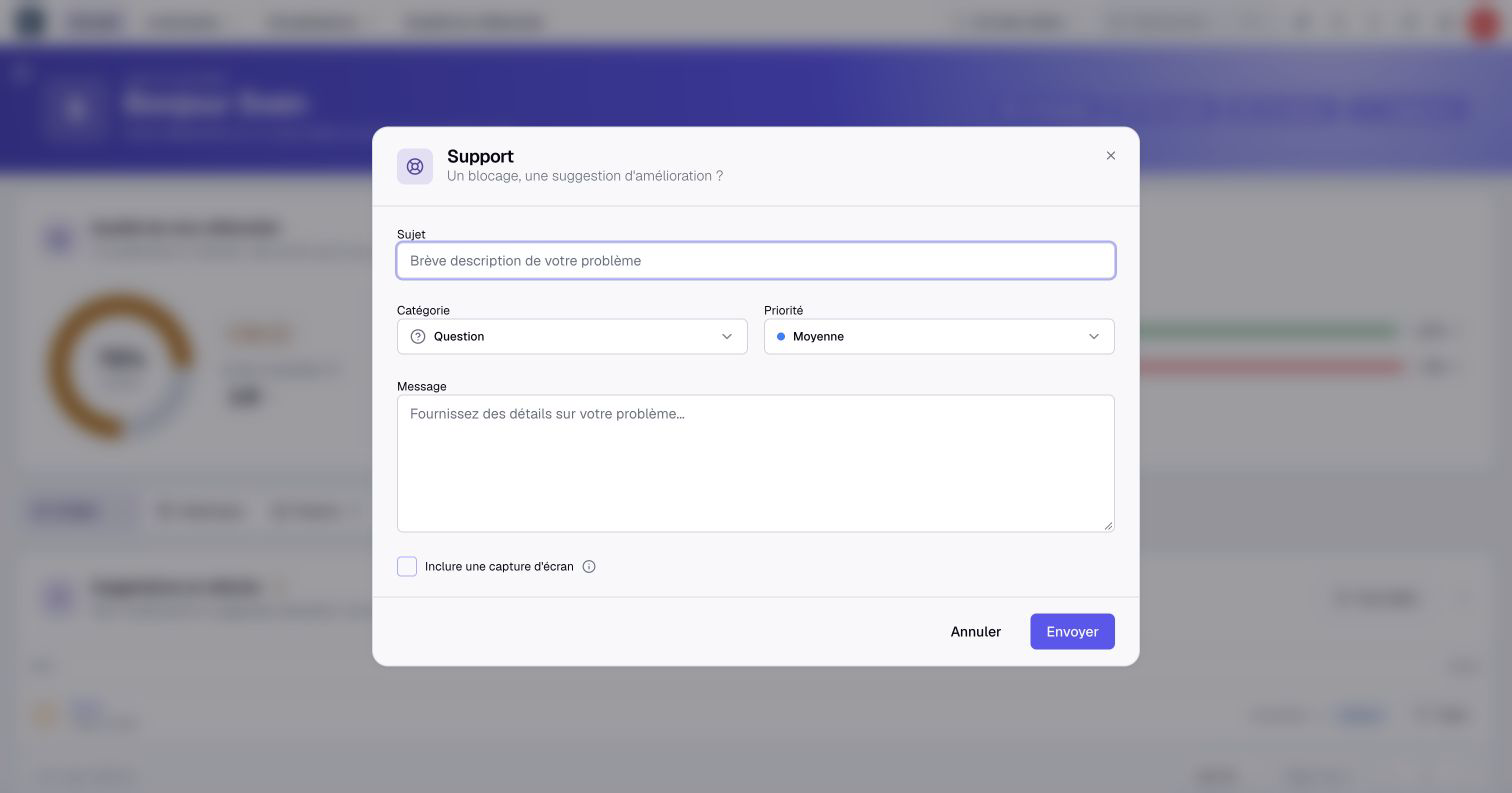
- Select the Support icon in the top bar.
- Enter a concise Subject describing the action and problem.
- Choose a Category: Bug, Feature Request or Question.
- Choose a Priority matching the impact on your work.
- Write your Message, including the steps and the result you obtained.
- If useful and appropriate, enable Include a screenshot when the option is available.
- Select Send and wait for confirmation.
The subject accepts up to 500 characters and the message up to 10,000. Priorities are Low, Medium, High and Urgent. Explain the impact in the message; selecting a priority does not itself specify a response time.
The quick support form includes the current page address and browser and operating-system information. The screenshot option is off by default. When selected, it captures the application page behind the dialog; review what that page contains before including it.
You can also start a request from your avatar: Account settings → Support → New Ticket. Fill in the same subject, category, priority and message fields, then select Create Ticket. This dialog does not offer the automatic screenshot option.
Describe a reproducible situation
A useful report identifies the organization, real data or scenario context, and the item concerned. Give the action's name, a short sequence of steps, the expected result and the actual result.
For example: “In our Planning scenario, I open the Applications view, filter by owner and select an asset. The asset page reports access denied.” Add the time and exact error text, including a request identifier if one is displayed.
Use a minimal example. Do not include passwords, verification codes, authentication QR codes or API keys. Screenshots and attachments should contain only information needed to explain the request.
Follow a ticket and reply
- Open Account settings → Support.
- In My Tickets, choose Open or Closed.
- Open the ticket you want to follow.
- Read the conversation and enter any additional information.
- Press Enter to send your reply. Use Shift+Enter for a new line.
Use the attachment control to add up to five files to a message, each no larger than 10 MB. Supported files include PNG, JPEG, WebP, GIF and SVG images, PDF, TXT, CSV, DOC and DOCX documents.
Once the request is resolved, use Close. A closed ticket does not show the reply composer; use Reopen when you need to continue the conversation. On an open ticket, use the pencil beside the subject to edit it, or the category and priority selectors to change those values.
If submission or loading fails
If support is temporarily unavailable, retry later. For an oversized attachment, reduce the file size or remove it before trying again.
If sending a request with a screenshot reports an error, first check My Tickets. The request may have been created before the screenshot upload failed. Open the existing ticket and add the missing information instead of immediately creating a duplicate.