Organize your work from the home page
Home brings together work awaiting your attention, the suggestions you sent, recent activity on the knowledge base and your favorite visualizations. Use it to choose a task, then check the asset's information before deciding what to change. Home opens on To do when you have this tab, otherwise on My suggestions.
The worklist and its guided reviews follow the selected data context. In a scenario, you can review suggestions and complete assets there. Attestation remains limited to real data: its review asks you to select Back to real data before continuing.
Understand your priorities
Open Home, then select To do. The tab is offered from the Editor account type, to asset owners when repository quality is active, and to anyone with suggestions on their assets. It lists these categories:
| Category | What it contains |
|---|---|
| Suggestions | Assets you own with pending suggestions, and suggested new assets naming you as an owner. |
| To attest | Assets you own that were never attested, have a re-attestation request, or have passed their type's revalidation delay. |
| Incomplete | Assets you own with at least one counted property still empty (completeness below 100%). |
Suggestions follows ownership in every plan: it lists the suggestions on the assets you own, your own included, and the creation suggestions naming you as an owner. A suggestion on an asset without an owner appears in no one's Suggestions; it waits on the asset. A creation suggestion without an owner only waits in the type's suggestions list. To attest and Incomplete require repository quality to be available and active, and appear once you own an asset. To attest is available only in real data.
The rows you can process come first, the most recent suggestion first. A row you cannot process follows them, marked Waiting on another member, with its Review action disabled: you cannot edit the asset or create it, as a Viewer or without the edit right in its domain, for example. Hover the action to see who can accept its suggestions. Review the suggested information before accepting; approval still checks the required property permissions and creation limits.
Counts refer to assets in each category, not to individual suggestions. One asset can appear in several categories, so the number beside To do is not necessarily a count of distinct assets. That number leaves out the rows you cannot process: another member must act on them, so they stay listed without counting as work for you.
An empty category only describes its own selection. For example, an empty incomplete list does not prove that every asset in the organization is 100% complete. The organization-wide list of assets without an owner belongs to repository quality administration, not your personal Home worklist.
Each category has its own pagination, initially ten assets per page. Use the rows-per-page selector to change this number and the Previous and Next arrows to navigate.
Suggestions reads in four columns: Asset, Change, Suggested value and Status, which shows Waiting on another member when someone else must process the row. An asset with several suggestions lists the fields they change and their number, such as 3 changes; its chevron unfolds them, one row per suggestion.
Open one task or review a category
To work on one asset, use the action on its row. Selecting its name opens its preview, so the list stays in place; use Ctrl+click (Cmd+click on Mac) or the middle mouse button to open its page in a new tab. Complete opens the completion action; Review concerns pending suggestions. The available action depends on your rights.
For a guided review:
- Open Home and the To do tab.
- Find the category you want to work through.
- Select Review all beside its title.
- Read the current asset and its position in the review.
- Perform the appropriate action below, or select Skip if you cannot decide yet.
- Continue through the remaining assets, then return to Home or use the offered command to review what remains.
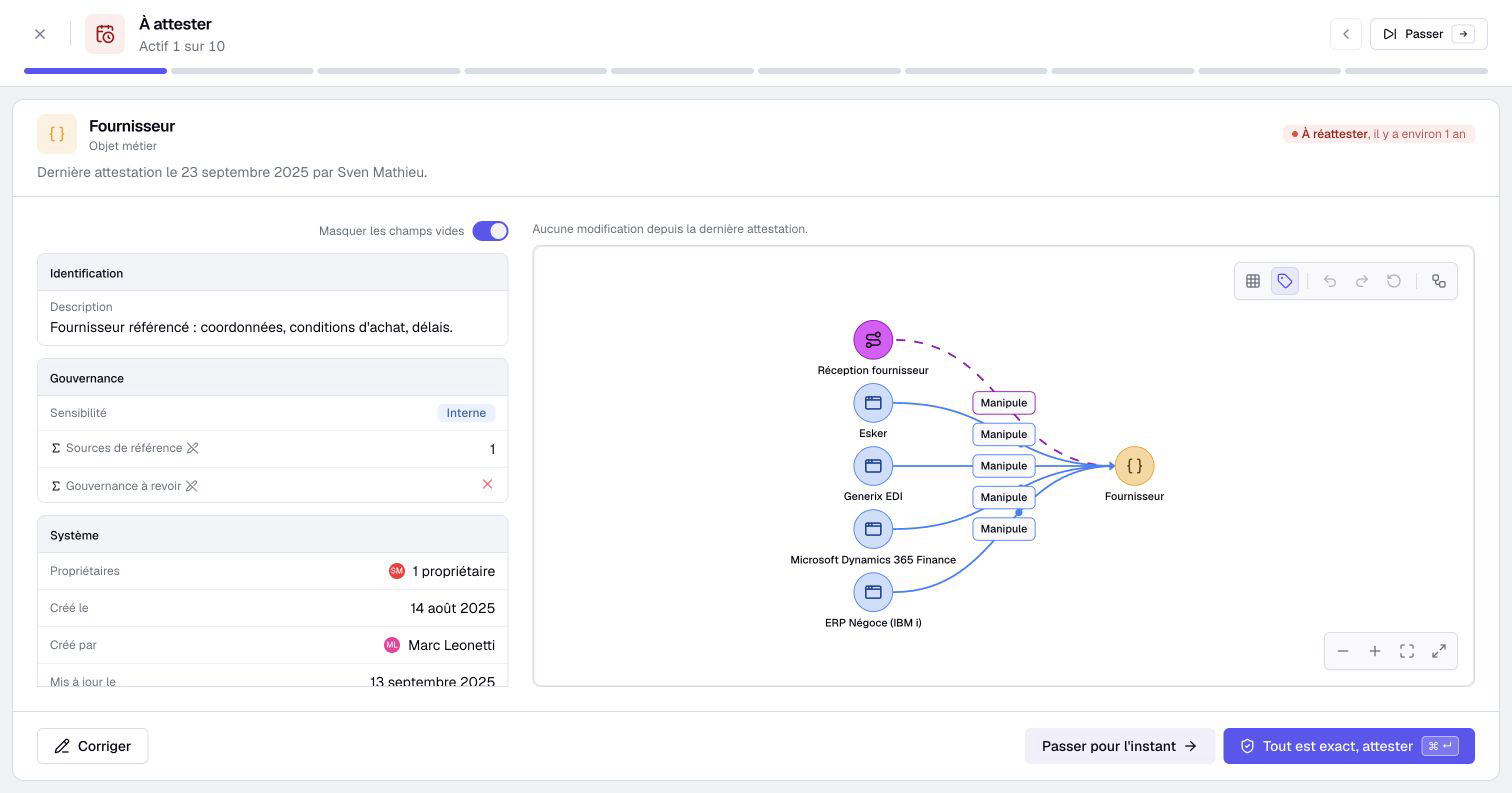
Review all starts a guided sequence; it does not approve every change automatically. In Suggestions, it only goes through the rows you can process. A review loads up to 200 assets at a time. If more remain, the final screen lets you start another batch.
Complete missing information
Read the existing information and fill in the missing properties you are allowed to change. The projected completeness shows how your current entries affect the score. Select Save and continue to submit them.
If the asset is readable but you cannot edit it, the review can instead offer a suggestion workflow. Suggest and continue submits suggested values; it does not make them accepted data. Some missing properties can remain inaccessible to your profile.
Use Edit everything when you need the broader editing form. Enter verified information rather than filling fields solely to improve a score.
Attest an asset
Read the information and review the changes presented since the last attestation. If a correction is needed, use Correct or Suggest a correction, according to your rights.
Select Attest only after checking the information. Passing through the page or completing a property does not perform this attestation. See attesting an asset for its conditions and effects.
Process suggestions
Read the current value, the suggestion and its context before accepting or rejecting it. The choices shown depend on your rights to the affected information. A hidden value is not evidence that it is empty.
For a creation suggestion, review the asset’s properties and suggested relationships together. Create adds the asset and accepts eligible relationship suggestions. Relationships that cannot be accepted yet remain pending. Refuse discards the suggested asset. Opening the review alone creates nothing.
A review may contain several suggestions for the same asset. Check the result of each one; opening Review all does not accept them in bulk. The suggestion workflow describes how to accept or reject them.
Skip, return and resume
Skip or Skip for now advances without resolving the current task. The asset stays eligible for the worklist. Previous returns to the preceding asset, and the progress strip lets you revisit an item in the current review.
The left and right arrow keys navigate when focus is outside editing controls, menus and dialogs. The right arrow skips; it does not save the current form.
If entries are unsaved, Boldo asks whether to Stay on this asset or Discard changes. Discarding affects the pending form, not changes already saved earlier in the review.
Leave the review, or Escape outside editing controls, menus and dialogs, returns to the starting page. Unsaved changes still require a decision. To continue later, open Review all again: the remaining work is loaded again, without a promise to restore your previous position or unsaved draft. At the end of a batch, the resume command refreshes the remaining list.
Follow your suggestions
My suggestions lists the changes you suggested: those still pending, and those accepted or refused in the last 30 days, with the reviewer's note when there is one. The trash button of a pending suggestion withdraws it after confirmation. Every member has this tab; for a Viewer, suggestions are the way to change the knowledge base.
Read activity and favorites
Activity displays what changed on the assets you can read, for every member. When repository quality is active and you own assets, My assets restricts it to them and Everything restores the whole feed. Its chart and its paginated feed cover the same last twelve weeks. Use the event-type filters to adjust both the chart and the list; attestation events appear only with repository quality. An event can have another member as its author: this is not only a log of actions you performed yourself.
Selecting an event opens the corresponding asset context, such as its activity, comments or suggestions. Your access and the asset's current state still determine what can be opened.
Favorites lists visualizations you have starred. Select a row to open one. Removing its star removes the favorite, not the visualization itself. Below, Recently opened lists the assets and visualizations you opened lately in this browser; it is cleared when you sign out.
When repository quality is active, My repository quality summarizes the assets you own. Read its indicators within that personal scope; they are not the quality score of the entire organization. An unavailable measurement is different from a measured score of zero.
In a scenario, freshness measures are hidden but the personal quality score still includes real-data freshness. See combined scores.
Click the Assets owned count or an available Completeness or Freshness measure to open its breakdown by asset type. Open a type’s link to inspect its inventory selection. Freshness measures every asset you own, whatever its type. An asset is fresh when attested, with no pending re-attestation request and within its type's revalidation delay, if any.