Find your way around Boldo
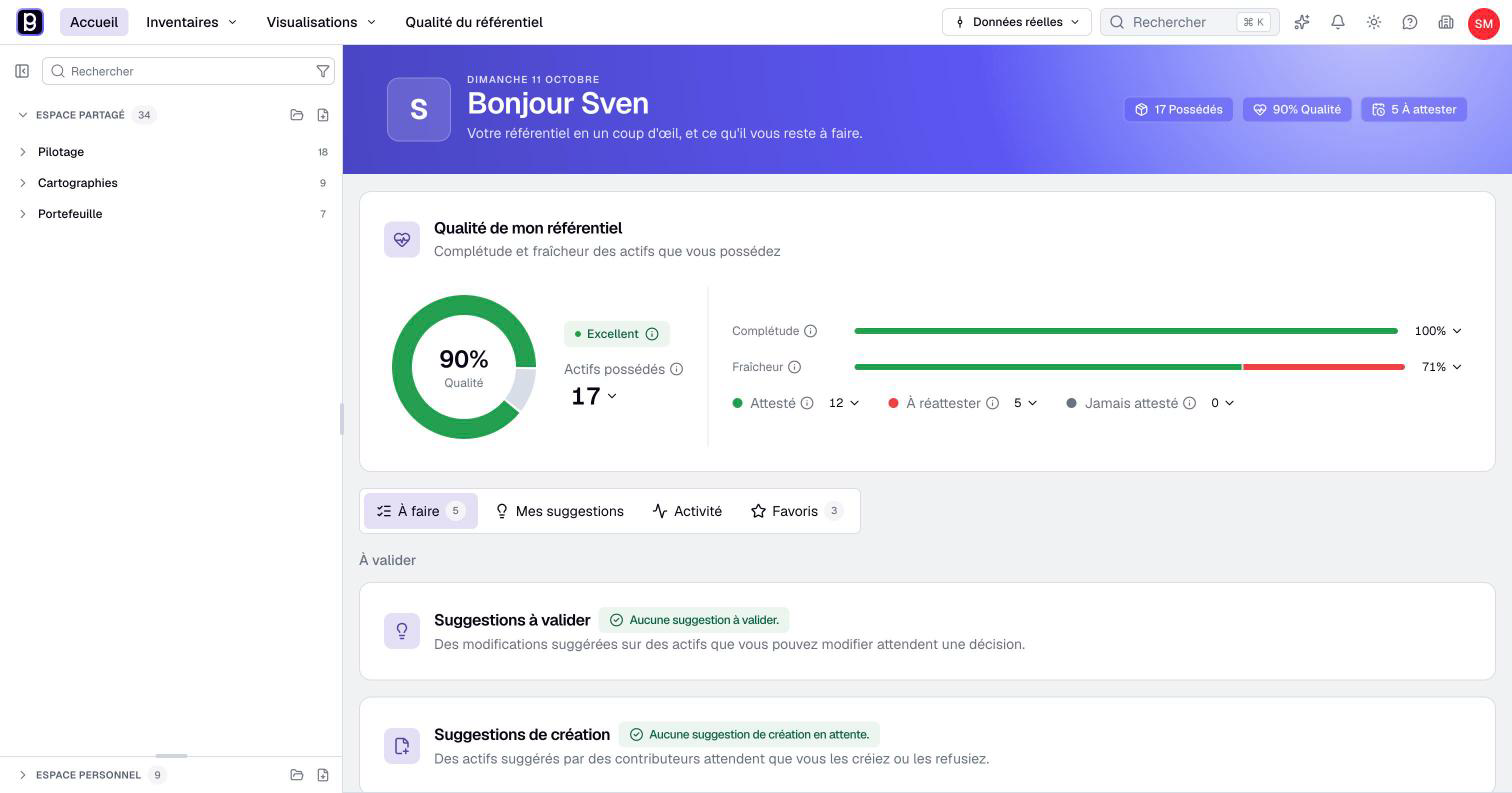
After opening an organization, use the top navigation to choose your activity and the catalog to find saved visualizations. The central area displays the selected page, asset or editor.
Choose the right entry point
| Entry | Use it to |
|---|---|
| Home | Review your priorities, activity and favorite visualizations. |
| Inventories | Find assets by type and work with them. |
| Visualizations | Browse views, diagrams, charts, nested maps, impact analyses and dashboards. |
| Search | Find an asset or visualization without navigating through each list. |
The available asset types come from your organization's model. Their names and grouping can differ from examples in this documentation.
To open an inventory:
- Select Inventories in the top navigation.
- Choose the asset type you want to examine, from the menu or the inventory selection page.
- Locate the asset in the resulting list.
- Open its page to inspect its properties and relationships.
For a saved representation, start from Visualizations or use its entry in the catalog. The knowledge base concepts explain the difference between an asset and a representation of it.
Use the catalog
The side catalog contains folders and saved visualizations. Its search and Filters help narrow down the content displayed there. This search concerns the catalog; the top Search command is the broader entry point for finding assets and visualizations.
Shared space contains organizational content available to you. Personal space contains your personal content and is available from the Editor account type. Readers do not have the same personal creation area.
- Expand the relevant space and folder.
- Select the visualization by name.
- Check its title in the central area before working on it.
A personal visualization can use shared assets. Its location does not make edits to those assets private. Also distinguish a filter hiding an entry from missing permission: removing a catalog filter cannot grant access.
Check the organization and working context
Your account avatar or initials opens account settings. On Account, use My Organizations to verify the current organization or select another one. When several organizations are available, the Boldo logo also provides a switcher.
When scenarios are available, the top selector indicates real data or the selected scenario. Check it before entering changes. The selected scenario is a working context, not a personal folder or another organization.
The home worklist and its guided reviews follow the selected context. In a scenario, you can review suggestions and complete assets there. Attestation requires real data; its review asks you to return to that context.
Some review and full-screen pages hide the usual navigation. Use the page's exit command to return, rather than assuming the organization or its content has disappeared.
Find account, organization and assistance commands
The account entry concerns your identity and personal settings. The organization entry concerns the current organization and the settings your profile is allowed to access. Changing your account preferences does not change every member's preferences.
The top bar also provides notifications, the theme switch and help. The AI assistant appears when the organization has access to it and has enabled it. Its absence is not solved by looking for it in a different inventory.
The Repository quality navigation entry requires an Administrator or Owner account, an eligible plan and activation for the organization. The personal quality information on Home has its own scope: it is not the organization-wide administration page.
Interpret missing or disabled commands
A command can depend on the current page, selected item, account type, data permissions or an enabled feature. For example, viewing an asset page does not guarantee that every property is editable.
Before requesting access, check the organization, working context and selected object. Then describe the command you expected, the screen you reached and any displayed message to your administrator. Do not create a duplicate asset just because an existing one cannot be edited.
Save work before leaving an editor. When Boldo asks about unsaved changes, staying preserves the current form; abandoning discards those pending edits. Leaving a page does not undo changes already saved.