Search and find an item
Global search helps you open an asset or visualization without navigating through its inventory or folder. It also provides shortcuts to pages, available actions and documentation, and can pass a question to the AI assistant.
Find an asset or visualization
- Check the organization and the real data or scenario context in the top bar.
- Select Search, or press Ctrl+K on Windows/Linux or Cmd+K on macOS.
- Enter a distinctive part of the item's name.
- Select a category to narrow the results, such as assets, diagrams or views.
- Select the result to open it.
Search uses the current organization's data and your access rights. Shared visualizations must be accessible to you; your personal visualizations can also appear. Another person's personal content does not become accessible through search.
A search displays up to 20 results across its categories, excluding recent items. If you cannot see an expected item, refine the name and select its category. This list is not an exhaustive inventory.
The search field inside an inventory serves a different purpose: it narrows that inventory. Use inventory filters when you need to find assets by property values or relationships.
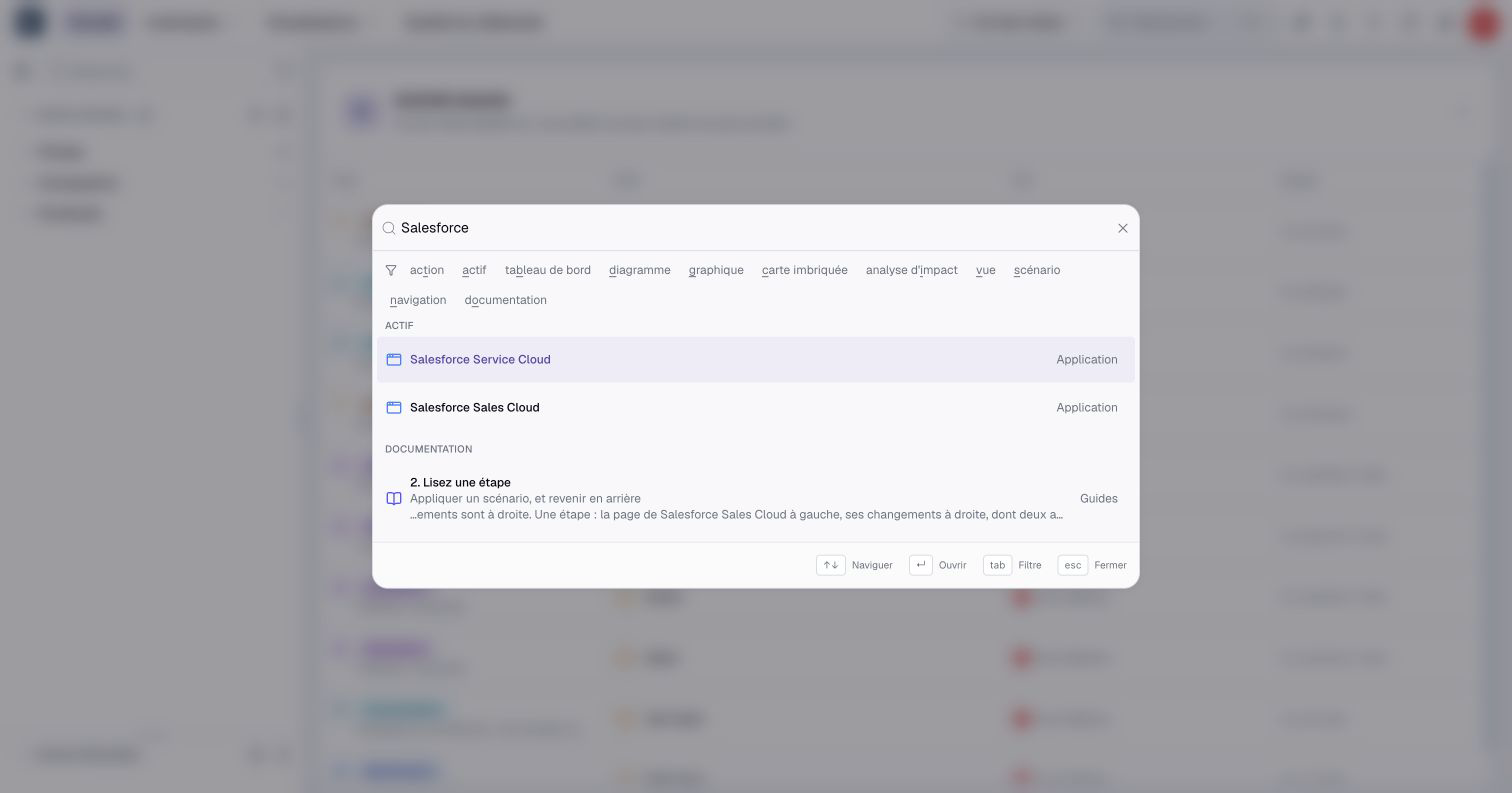
Recognize the kind of result
An asset result opens the asset. A visualization result opens a view, diagram, chart, nested map, dashboard or impact analysis. A navigation result opens a Boldo page, such as your preferences. Search for an asset type with “inventory” to open its inventory. Administrators can add “metamodel” to find asset-type and relationship-type settings.
A scenario result enters that scenario when it is active and ready, or opens its history when it is closed. Scenarios still being prepared are not offered. Available results follow your scenario access.
An action result starts a task, such as creating an asset or a diagram. It does not mean that an item with that name already exists. Creation actions depend on your account's permissions; search does not grant additional rights.
Documentation results search page titles, section titles, keywords and article text in your interface language. Each result shows the passage, its page and category, with a short excerpt. Selecting it opens the matching page or section in another tab.
General search shows up to four documentation results to leave room for other items. Choose Documentation, or enter /o before your query, to see up to 20 documentation results, with at most two passages from the same page. For example, /o COUNT_DISTINCT opens the function reference at Relationships and aggregates.
The documentation index updates periodically. A newly published correction may take a little time to appear. Guides are included. For What's new, use its navigation on this site.
For assets and visualizations, search by name. Do not rely on global search to find a sentence buried in a description or every value of a property.
Ask the AI assistant
When the AI assistant is available to you, search can pass it your text as a question.
- Open Search and type your question.
- Select Ask the assistant, then press Enter.
The row comes after the results. It comes first when search finds nothing or when your text ends with a question mark. To ask without searching, choose AI assistant among the categories or press Tab once: what you type is then a question, even if it starts with a prefix. Backspace in the empty field returns to search.
The question opens a new conversation in the assistant panel, or on the AI Assistant page if it is open. As in the panel, the assistant receives the page you are on as context. See Ask and enrich with the AI assistant.
Use category prefixes and the keyboard
You can choose a category with its button or type a prefix followed by a space and your search terms. For example, /a Payroll searches assets whose names match Payroll.
| Prefix in the English interface | Category |
|---|---|
/a | Assets |
/v | Views |
/d | Diagrams |
/c | Charts |
/n | Nested maps |
/b | Dashboards |
/m | Impact analyses |
/s | Scenarios |
/i | Navigation |
/t | Actions |
/o | Documentation |
Prefixes follow the interface language. In French, charts use /g, nested maps /c, impact analyses /i and navigation /n. AI assistant has no prefix: choose its button or press Tab once.
While the palette is open, Tab moves to the next category and Shift+Tab to the previous one. Use the up and down arrows to select a result, Enter to open it and Escape to close the palette.
For an asset, visualization or navigation page, use Ctrl+click on Windows/Linux, Cmd+click on macOS or the middle mouse button to open another tab. See the keyboard reference for context-specific commands.
Return to a recent result
- Open Search without entering a term.
- Find the item in the recent results, if any.
- Select it to reopen its destination.
Recent results contain up to ten items from search, visited assets and visited visualizations. They are shared with Recently opened on Home. They stay in this browser, separately for each account, organization and real data or scenario context. They are not a history of every page you visit or a list synchronized across devices.
Use Delete beside a recent result to remove that shortcut. This does not delete the asset or visualization. For a durable selection of useful content, use favorites.
When an item does not appear
Check the organization, scenario and spelling first. Remove an overly restrictive category and try a more distinctive part of the name.
Access can also change: a deleted item, a private visualization or data outside your readable domains may no longer appear. A recent shortcut does not preserve access. Ask an administrator to check your permissions if someone else can open the item and you cannot.