Build and read a chart
A chart summarizes a population. To interpret it, identify three things: which assets are selected, what is measured and how contributions are grouped.
For example, count applications by lifecycle, or sum their costs by owner. Those questions require different measures even when they use the same population.
Configure the chart
- Open Charts → Create chart. Enter its name, space and destination, then choose Create.
- Choose Chart type, then the Asset type forming its population.
- Apply a filter if only part of that type should contribute.
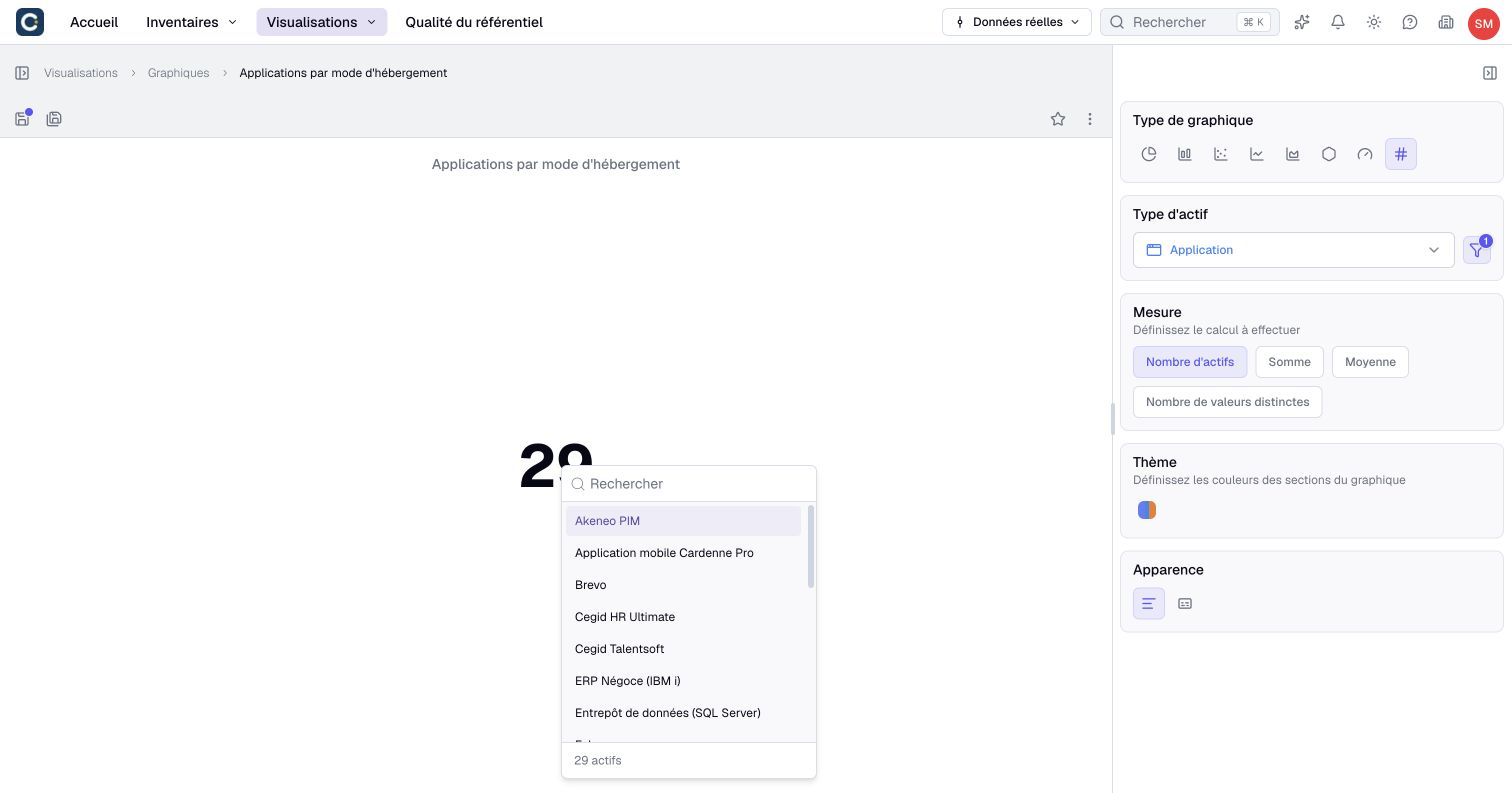
- In Measure, choose Assets count, Sum, Average or Distinct value count.
- For a measure other than the asset count, choose Measured property.
- When offered, choose the Group by dimension and any additional dimension requested by the chart type. Metric and Gauge do not use this setting.
- Adjust Theme and Appearance, then inspect the result.
- Select Save to keep the configuration. Use Save as to create a separate variant.
Creation requires an account and plan allowing it. Editing a saved shared chart also requires permission to edit that item.
Sum and Average offer compatible numeric fields. Depending on the model and your access, measures and dimensions can use asset properties, system attributes or relationship properties. An attribute available as a dimension is not necessarily available as a numeric measure. A saved dimension on an attribute your plan or the quality program no longer offers still applies, with a padlock; choose another field to replace it.
For a relationship measure, check the relationship, direction and neighboring type before selecting the property. After changing the aggregation, check the measured property again: its selection can change.
Choose a form and measure
| Form | Typical reading |
|---|---|
| Pie chart | Contributions by category. |
| Bar chart | Comparison between categories. |
| Bubble chart | Comparison using two required dimensions. |
| Line or area chart | A series over the chosen grouping. |
| Radar chart | A profile across categories. |
| Metric | One aggregate result, without a required grouping. |
| Gauge | A measured portion compared with the global population. |
Line and area charts require a date or numeric grouping. Switching to these types clears incompatible grouping fields. Metric and gauge types remove grouping; check the configuration after changing type.
For a pie chart grouped by a list property, slices and legend follow the choices’ order in the metamodel. To change that sequence, ask an administrator to reorder the property’s choices.
A line chart is not automatically a historical snapshot of the repository. Its values follow the configured fields and current accessible data.
Distinct value count counts distinct measured values, not assets. Sum and Average exclude absent measured values; an absent value is not automatically zero.
For a gauge, configure Measured portion. Its value uses the global filter combined with this additional filter. Its total uses the global filter alone. Without an additional condition, value and total are equal; this is not a freely entered target threshold.
Understand multiple contributions
With a multiple-choice dimension, one asset can contribute to several categories. Adding their counts does not necessarily give the number of unique assets.
Grouping by related asset deduplicates repeated links to the same target. Different targets with the same name can still share a displayed category label. Relationship-property dimensions can also place an asset in several categories.
A measure based on a relationship property counts each eligible link carrying a value. Suppose one application has two parallel relationships with shares of 75% and 25%. Their sum is 100, while the detail can show only one source application.
When measure and grouping use the same relationship and direction, the grouping follows that same relationship instance. Combining different relationships can create multiple contributions. Check the business meaning before treating such a total as a count of unique assets.
The filter selects the starting assets, not necessarily the individual links to measure. A “share exceeds 70%” filter can retain the application above while keeping contributions of 75 + 25 = 100. Examine all contributing links in the selected population when interpreting the measure.
Choose value or percentage labels
Where available, Show percentages displays percentage labels while the numeric axis keeps the original values. It is an alternative to displaying values; the two display choices are exclusive. This changes the labels, not the underlying measure or population.
Open the underlying assets
- Select a chart segment, point or metric value.
- Inspect the asset list behind it.
- Search the list or scroll down to load more assets.
- Open an asset's preview to check its information and relationships.
The detail lists distinct assets, not every numeric contribution. A metric without a dimension can even show assets in the filtered population that have no contributing value. Its row count is therefore not the denominator of every average or the number of links in a relationship measure.
Use the detail to explain surprising results. Compare the configured relationship direction, property and filter with the actual assets before changing the chart.
Interpret empty results and save the right thing
Missing grouping values can form an empty-value category. A missing measured value can instead be excluded from the calculation. These are different effects.
If the chart asks for an asset type, measure, property or dimension, finish that configuration first. If it has no data, check the population filter, recorded values, permissions and current scenario.
If a relationship metric is missing its label or unit, check the measured property in the configuration and the values on the links. Do not interpret the displayed number without its business unit.
Saving stores the chart definition. Exporting an image produces a presentation of the result; it does not save pending settings. The saved chart continues to use accessible repository data. Its versions preserve definitions rather than freezing every underlying asset value.