Compose a dashboard
A dashboard brings several readings of the knowledge base into one page. It saves widgets, text and layout; the assets and visualizations shown inside remain separate sources.
You need at least an Editor account and permission to edit the dashboard. Each source has its own access rules. Sharing the dashboard does not automatically share every asset or visualization it references.
Create and arrange widgets
- Open Dashboards → Create dashboard, enter its name, space and destination, then select Create.
- Open it and choose Unlock to edit if it is locked.
- Select Add widget, or press Ctrl/Cmd+I.
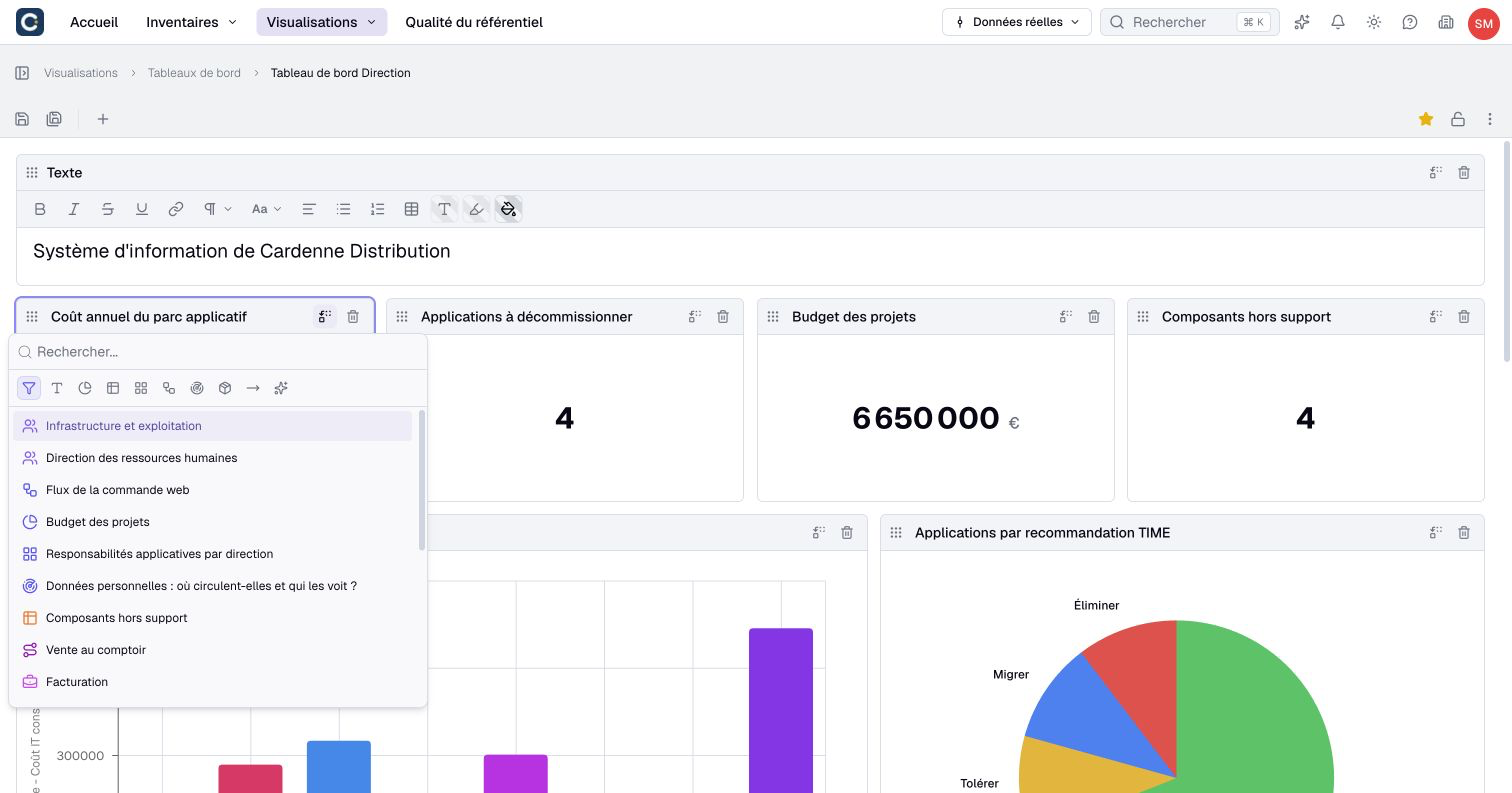
- Open Choose what to display on the new placeholder and select its content category.
- Search for an existing source, or create one when the selected category offers that action.
- Move the widget using its header or handle, and resize it to suit the content.
- Select Save, then reopen the dashboard to check the saved result.
Available content includes text, charts, views, nested maps, diagrams, impact analyses, assets, relationships and AI suggestions when enabled. A newly created source is independent of the dashboard.
You can override a widget's displayed title without renaming its source. Resetting that override returns to the source title. Replacing or removing a widget does not delete the referenced source.
A dashboard supports up to 20 widgets, including text and suggestion widgets. Its responsive layout can change with screen width; do not expect identical pixel positions on every display.
Write text and tables
Choose a text widget, then enter the explanation readers need. Its toolbar offers formatting, links, headings, lists, size and alignment.
Use Insert table and choose initial dimensions. The initial picker offers up to eight columns and six rows; it is not the final table-size limit.
Select a cell, then open Table in the toolbar to add or remove rows and columns, toggle headers, merge or split compatible cells, or remove the table. Clicking a cell alone does not open that menu. Check the selected cells before using those actions. Splitting merged cells does not redistribute their earlier contents: the text remains together in the first cell. Save the dashboard after editing the text.
Keep titles and explanations close to the data they describe. A useful dashboard makes its population and interpretation clear rather than simply collecting unrelated visualizations.
Display an asset and refresh sources
In dashboard edit mode, an asset widget's Change view menu offers properties, relationships, a diagram or a flow when its type supports processes. Flow is a display mode of an asset widget, not a separate widget category.
If the type no longer supports a flow, the widget returns to properties. Editing the source, when offered, requires the source's own permissions and changes the knowledge base.
In reading mode, hover over a compatible source widget to find Refresh widget, Open or Full screen. Refresh widget reloads that source; Refresh data reloads the dashboard's embedded sources. Text widgets do not offer those commands in reading mode.
A view widget loads rows progressively as you scroll, without a page-size setting. An embedded relationship view is limited to 200 relationships. Open the source for its complete working interface; the widget is not a frozen export.
An archived asset remains visible in its widget with the This asset is archived banner. Use Open to access its page and restore it when your permissions allow. Archiving is distinct from permanent deletion.
If a source is inaccessible, missing or in error, the widget reports that state. Its saved configuration is not automatically deleted. Check source access separately from dashboard access.
Use an AI suggestion widget
- Choose a suggestion widget and describe the result you need, within 2,000 characters.
- Select the requested kind of result and start generation.
- Review any existing content offered for reuse and the proposed result.
- Adjust the name or regenerate when needed.
- Explicitly confirm creation, or choose the existing source to reuse.
- Check the source placed in the widget and save the dashboard.
AI availability depends on your plan and configuration; generating a process also requires that feature. Generation alone is not confirmation that a new source has been created.
Confirmation can create a real visualization, asset or process. If you close while generation or an unapplied proposal is present, read the confirmation rather than assuming the work has been saved.
Save a draft or make a copy
Save or Ctrl/Cmd+S stores the current dashboard content and layout. Locking the canvas is not saving. Resolve the unsaved-changes prompt before leaving.
Save as or Ctrl/Cmd+Shift+S creates a new dashboard from the current draft. Duplicate uses the saved dashboard. Save first when a duplicate must include recent edits.
After Save as, an unsaved-changes prompt can still concern the original dashboard: the copy has already been created. Discard changes leaves the original unchanged and opens the copy containing your draft. Cancelling that navigation does not delete the new copy.
When duplicating to the shared space, your own personal embedded visualizations can also be duplicated as shared sources. Assets and relationships remain references, and already shared sources are not all copied anew. Save as does not perform that same conversion of personal sources.
A dashboard is not a frozen export. Its sources are read again with current data and permissions. Restoring a dashboard version restores its widgets and text, not every source's earlier data.