Configure a diagram’s display
A diagram can show an application's name, lifecycle or other properties according to the explanation you want to give. Set consistent defaults by type, then adapt individual cards when they need more detail. These choices change the diagram's presentation without changing inventory values.
You need an Editor account or higher and permission to edit the diagram. Open the diagram and choose Unlock to edit if necessary. To add its content first, follow Build a diagram.
Choose the label for an asset type
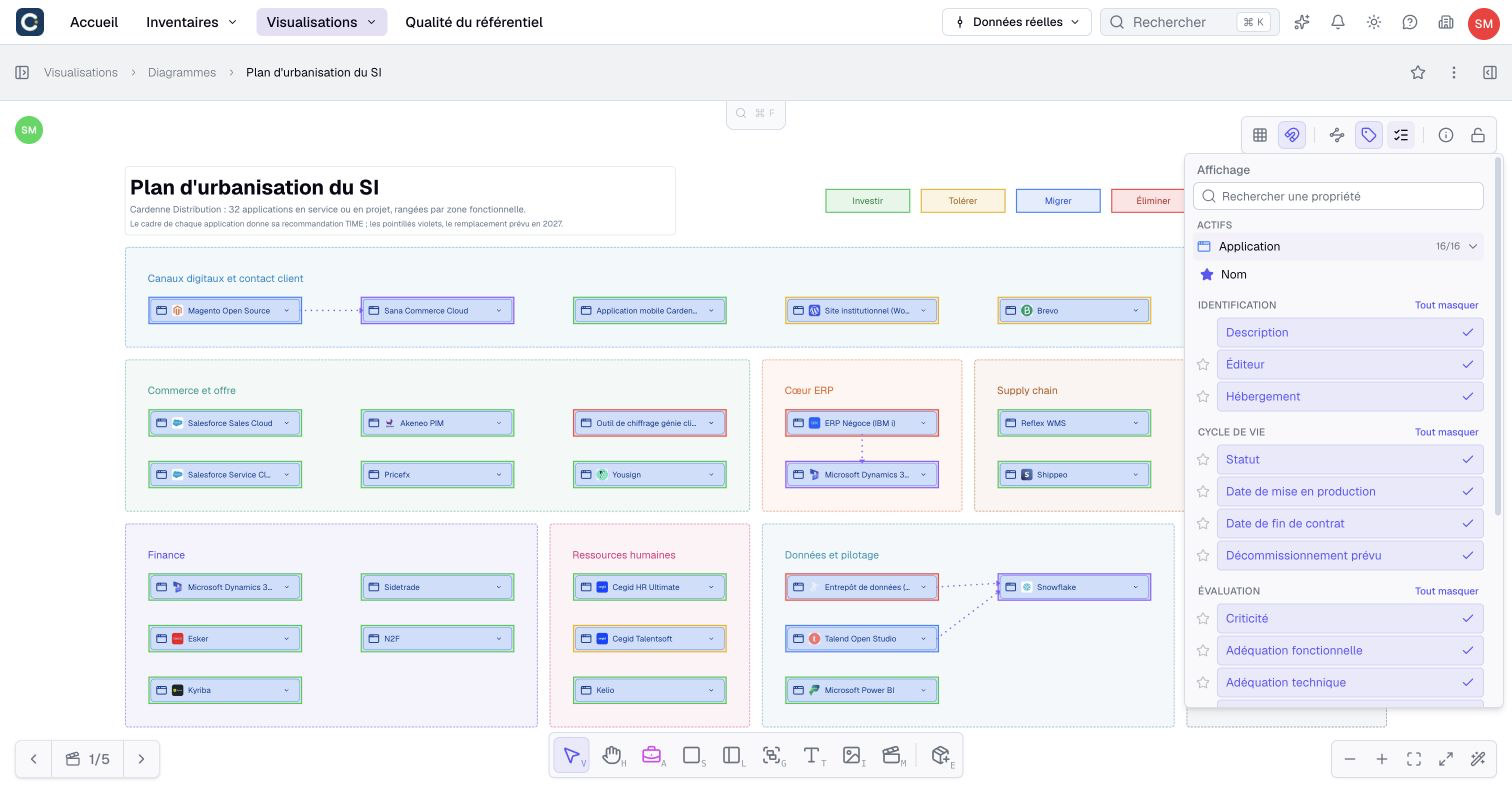
- Open Display in the diagram controls.
- Search for a type or property name, then expand the relevant asset type if needed.
- Use the star beside Name or an eligible property to choose the label for that type.
- Check several assets of that type on the canvas, including one whose chosen property is empty.
The panel lists types used in the diagram first. Searching includes other types too and expands the matching results. A type-name match shows its properties; a property-name match narrows the displayed properties. Clear the search to return to normal browsing, or use the option to show other types.
Long-text and rich-text properties cannot be used as labels.
For example, you can use an application code as the label and show its lifecycle as a property. The eligible choices depend on the type's properties. Choosing a label does not rename the inventory assets.
Show properties on cards and relationships
- In Display, expand an asset type.
- Select the properties to display. Beside a category heading, use Show all or Hide all to change the group together.
- Expand a card on the canvas to inspect the displayed values.
- Expand a relationship type in Display and choose its visible properties.
- Check the values beneath the relationship names on the canvas.
With an active search, a category's Show all or Hide all affects only the properties currently listed. Clear the search before changing the entire category.
These are the diagram's defaults for each type. Expanded cards adapt their height to the content. To show or hide category headings, use the individual card settings below.
Showing a property does not make its data available to a person who lacks permission to read it. Nor does hiding it from a diagram change its visibility in the inventory or other visualizations.
Customize one card or relationship
- Select an inventory-asset card or a represented business relationship.
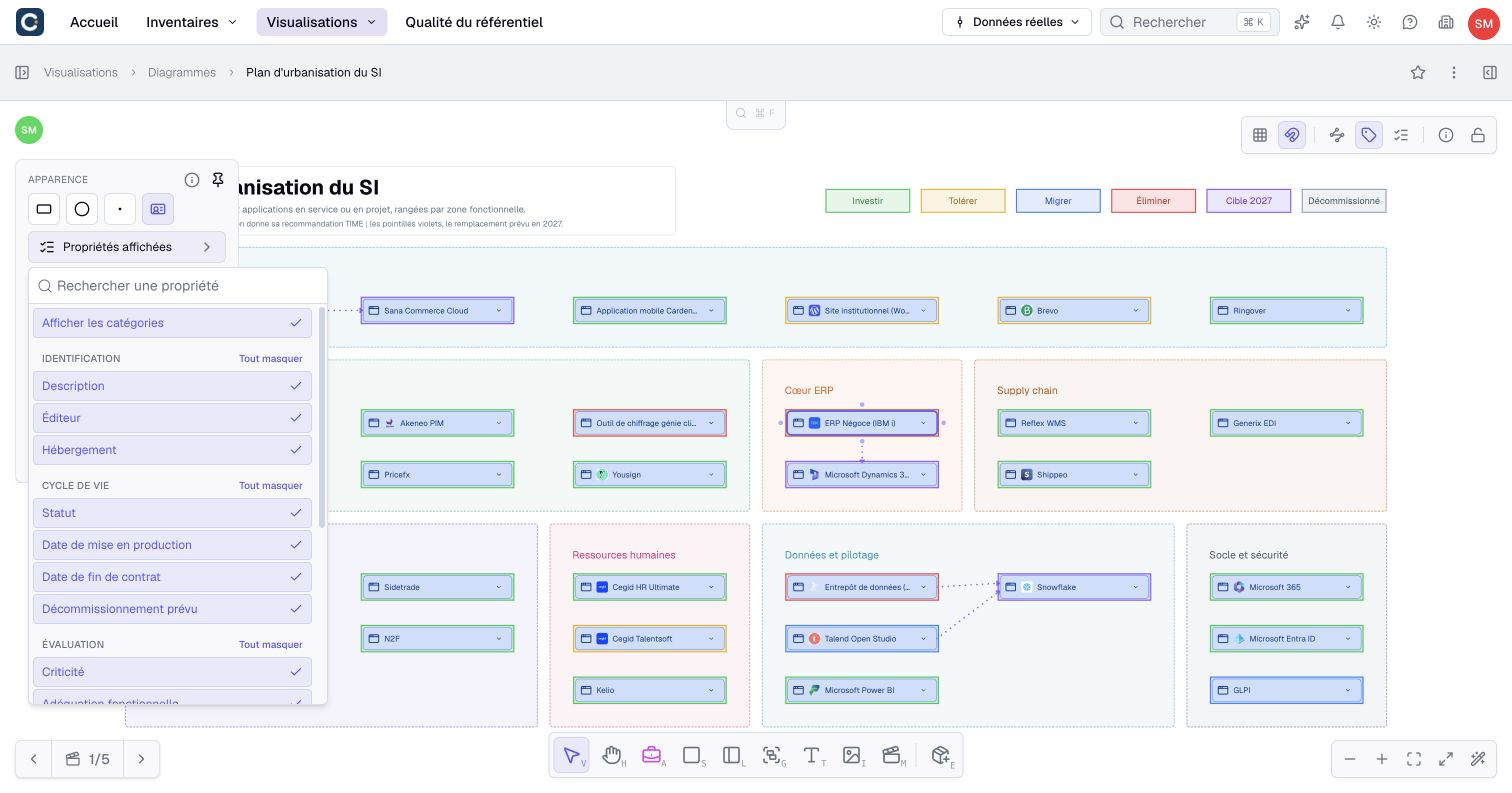
- Open Displayed properties in its contextual controls.
- Choose the properties to display for this appearance. On a card with property categories, use Show categories to show or hide their headings.
- Check the result on the canvas.
- To return to the diagram's defaults, use Reset when offered.
This setting applies to the selected appearance. Several appearances of the same inventory asset can therefore show different details. In a multiple selection, these controls require compatible cards or relationships of the same type.
If a card does not follow a change made in Display, check whether it has its own selection of properties. Reset that selection when you want it to follow the defaults again.
Adjust text and colors
Select the object and use its contextual controls to adjust the available text size and color settings. For a rectangular asset representation, you can choose the title's position and font size.
For a text object, the font size chosen in the toolbar applies to all of its text. The color picker offers neutral shades and your seven most recently chosen colors. Recent colors stay in the current browser; they are not synchronized between devices.
To move, align or resize objects, adjust connection routes or hide parts of the canvas, follow Arrange and present a diagram.
Check the result before presenting
Diagram changes are saved automatically. Reopen the diagram to check the saved presentation, and inspect its rendering in a dashboard if it is used there. The displayed data still follows the inventory and the reader's permissions.
For a simpler presentation, keep only the properties that support your explanation. Use cameras and image exports for framing, and named versions to preserve useful reference compositions.