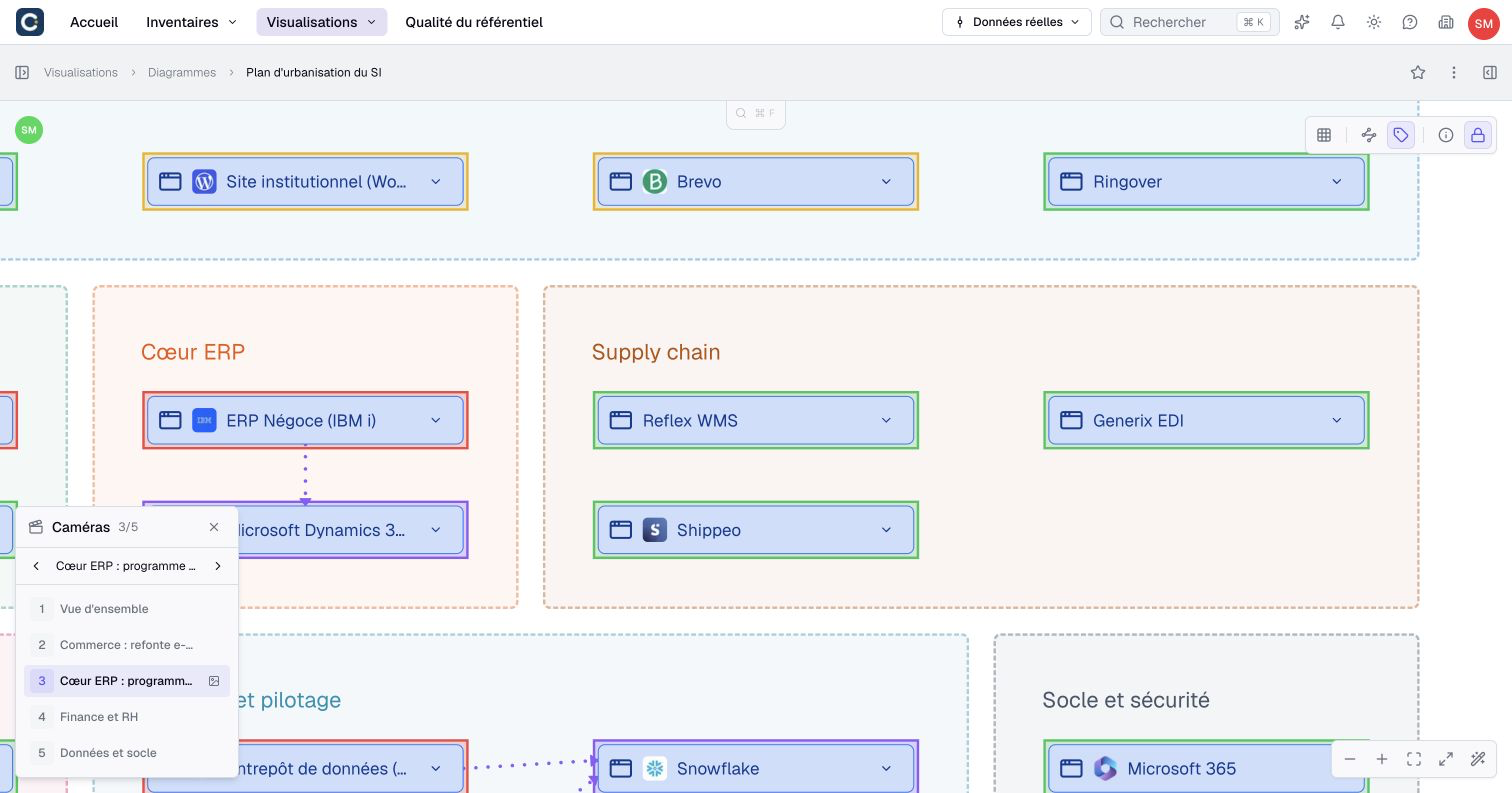
Arrange and present a diagram
A readable diagram guides attention. Arrange its content first, then use cameras to move between chosen areas without repeatedly searching or zooming during a presentation.
Reading, navigating and exporting require access to the diagram. Arranging objects and managing cameras require permission to edit it and an unlocked canvas.
Arrange the composition
- Unlock the diagram and select the objects to arrange. Shift+click adds or removes an object from the selection.
- Use Align to line up their left edges, centers, right edges, tops, middles or bottoms.
- Use Distribute to space eligible selections horizontally or vertically.
- Choose Same width, Same height or Same size to match the largest selected dimensions.
- Check the result and use Undo if needed.
Dragging resize handles can also resize other eligible objects in the selection. Locked objects are protected. Text alignment changes text inside an object; it does not align the objects themselves.
Arrange automatically positions several selected objects according to their connections. With one simple group selected, it arranges that group’s children. Choose a vertical or horizontal arrangement, then inspect the result: this is not necessarily a single row or column.
A group can contain a single object. Its Group size can be Fit to content or Free size. Choose the latter to resize the container manually. It still expands when needed to contain its objects and cannot shrink past them.
Helper lines follow your personal preference; holding Ctrl (Cmd on Mac) temporarily reverses it. Alt+drag duplicates instead. Grid visibility and snapping are separate settings.
Manage layers and visibility
- Open the diagram’s element list and select Layers instead of By type.
- Drag rows to change their stacking order or move objects into or out of a group.
- Select several rows to move them together. Shift+click selects a range of visible rows.
- Use the visibility control beside a row to hide or show that object.
You can also hide a selection with Ctrl/Cmd+Shift+H. The element list remains available in full screen and lets you show hidden objects again. Positioning commands in an object’s controls also change stacking order.
:::warning Shared visibility Hiding is saved for everyone viewing the diagram. Hidden objects and their affected links disappear from the canvas and image exports. This is not a personal filter or an access restriction. Viewers can read the state but cannot change it. :::
Hiding a group also hides its contents. Showing it again preserves each child’s own hidden setting. To remove the container while keeping its contents, use Dissolve group.
Adjust a link’s path
Select a free arrow or represented relationship, then drag its line or control points to adjust the path. On an elbowed path, drag segments to reposition the bends; snapping helps align them. Double-click a control point to remove it.
The path follows the connected objects when they move. Reset path, or choosing another path type, removes manual adjustments. These changes affect the drawing, not the relationship’s inventory data.
Navigate and point
Use H for the hand tool, or hold Space while dragging to move around the canvas. V returns to the cursor. Zoom in, Zoom out, Fit view and Full screen also work without arranging objects. Fit view excludes camera frames and hidden objects.
Your zoom and viewport are personal. Use cameras for named areas you can revisit. Press ? to open the diagram’s shortcut reference.
For a presentation, activate Laser pointer beside the full-screen control, or press K. Drag to draw a temporary trail in your participant color, visible to collaborators. Escape leaves the tool. The laser is available in read-only mode and does not select objects, change the saved diagram or add an Undo step.
Create camera views
- In edit mode, choose Camera in the bottom toolbar and place its frame around the area to present.
- Resize the frame. Hold Shift to preserve its proportions while resizing.
- Give the camera a name using its contextual toolbar or detail.
- Create additional cameras for the other areas of your explanation.
- Open the Cameras list and drag row handles to set their order.
- Select a name or number to frame that camera, then use previous and next to rehearse the sequence.
The camera panel appears when at least one camera exists. Previous and next wrap around at the ends of the list. Left/Right navigate cameras when nothing is selected; Page Up/Page Down also work with a selection, including in read-only mode.
Clicking a camera name navigates to its framing. Use the row's Select action when you want to select and edit the frame itself. Reordering and editing frames require edit mode.
Cameras define presentation areas; they do not copy the objects they contain. A change to the underlying composition affects what that framing shows.
Understand the two kinds of lock
The canvas lock applies to your session. Other collaborators can continue editing. An object's Lock property is shared and protects that object from editing.
Locking a group also locks its descendants. Unlocking a child can unlock its ancestors, so check the resulting group state before continuing.
Ctrl/Cmd+L depends on context:
| Current state | Result |
|---|---|
| Canvas locked | Unlocks the canvas for an authorized editor. |
| Canvas unlocked, objects selected | Toggles the selected objects' lock. |
| Canvas unlocked, nothing selected | Locks the canvas. |
Use the visible canvas control when you simply want to return to reading mode without changing object locks.
Export the right framing
- Decide whether you need the entire composition or one camera view.
- For the entire diagram, use its Export to image command.
- For a camera, use its export action in the camera list or detail.
- Wait for the export result and accept the browser’s download prompt if one appears.
- Open the PNG and check labels, images, background and framing before sharing it.
The global export uses the bounds of non-hidden canvas objects, including visible cameras, not merely the current viewport. A distant camera can therefore add empty space to the image, even though Fit view excludes cameras. A camera export uses its rectangle without including the camera frame itself.
Export dimensions adapt to the content. Do not assume a fixed resolution. Inaccessible embedded images can be omitted, so inspect the downloaded file rather than treating a completed download as proof that every image is present.
An exported PNG is a static picture. It does not keep the diagram interactive or save a new version. Use the sharing procedure when readers need the live diagram and its permitted data.