Build a diagram
A diagram is a canvas for explaining an architecture. It can show inventory assets alongside drafts, shapes, text, images, groups and lanes.
The canvas and the knowledge base are connected, but they are not the same thing. Removing a graphical object does not automatically archive its asset. Drawing a free arrow does not create a business relationship.
Create and open for editing
- Open Diagrams → Create a diagram.
- Enter its name, space and destination, then choose access domains when offered.
- Select Create to open the canvas.
- If it is locked, select Unlock to edit before changing its composition.
A new empty diagram starts unlocked; a populated diagram opens locked. You need at least an Editor account and permission to edit the diagram. Unlocking does not grant additional rights.
The global lock protects your current session from accidental graphical changes. It does not reserve the diagram or prevent another collaborator from editing it. See presentation and locking for object locks and keyboard behavior.
Add inventory assets
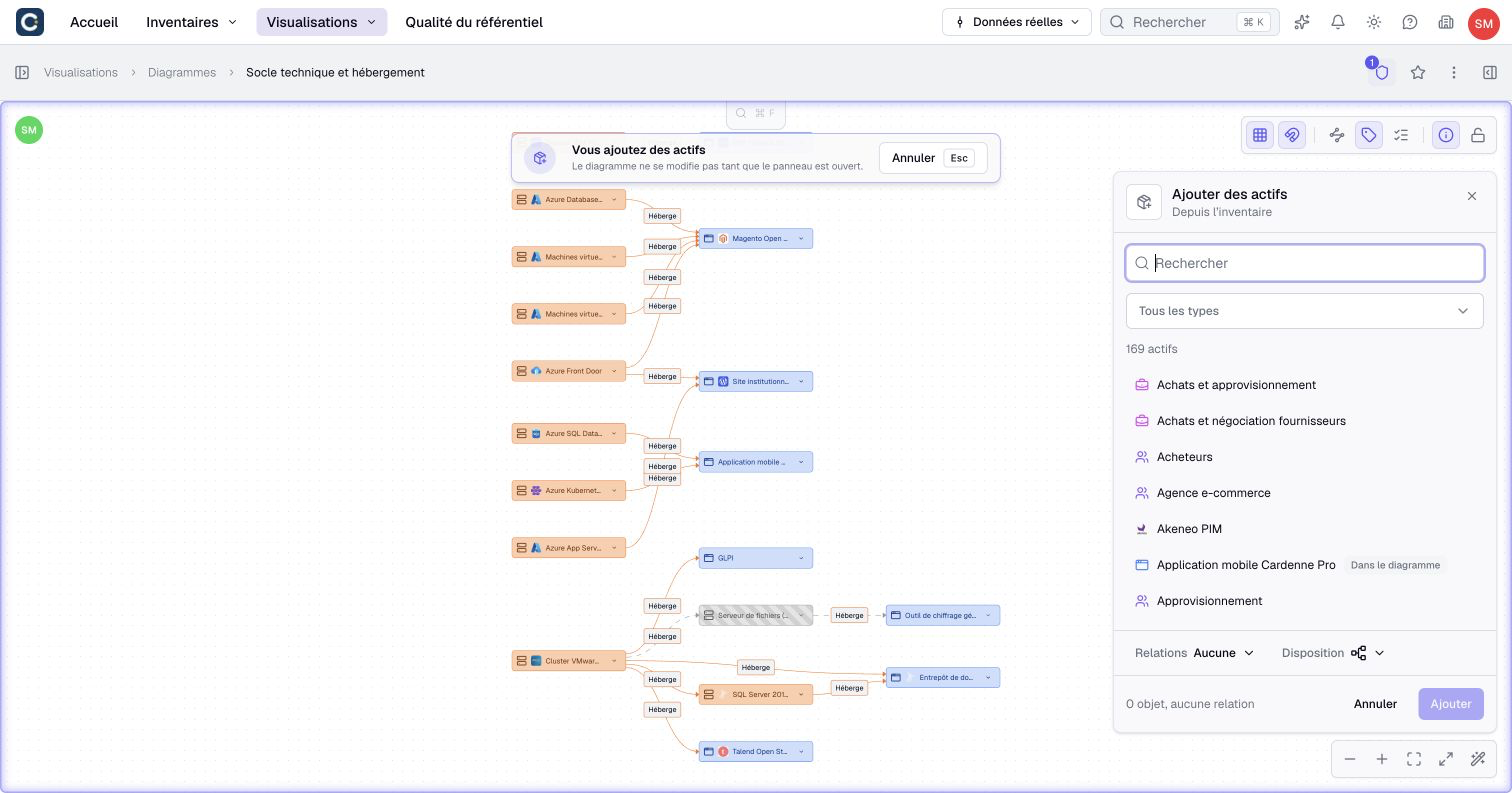
- Select Add assets in the bottom toolbar, press E outside text entry, or choose it from the canvas right-click menu.
- In the right-hand panel, search by name and filter by asset type.
- Add the assets you want. Use the quantity controls to represent the same asset more than once.
- Keep None, the default, to add assets without links. Choose Between them or With the diagram to draw relationships.
- Choose a layout: along relationships from left to right or top to bottom, a grid, a row or a column.
- Inspect the temporary objects and links directly on the canvas, then confirm the addition with its button or Enter.
Between them draws links between the added assets. With the diagram also draws their links to assets already present. Each addition accepts 50 objects, including repeated appearances. You can add an asset already on the canvas. Copies refer to the same inventory asset; links use its first appearance, preferring one already on the canvas.
The additions appear near the center of the visible canvas, or at the point where you opened the right-click menu. They remain a preview until you confirm. While the panel is open, diagram editing pauses; you can still pan and zoom to inspect the composition.
Choose Cancel or press Escape to discard the preview and restore the framing and selection you had before opening the panel.
Place a draft
Choose an asset type from the bottom toolbar, then place it on the canvas. Enter a name and select an Inventory result to link it to an existing asset. A name without a selected result leaves a Draft, even when an inventory asset has the same name.
To create an inventory asset from a draft, select Add to inventory and complete the creation form. This requires permission to create that type. A draft can also become a shape when you only need a visual annotation.
Add related assets
- Select an inventory asset and choose Add related assets to open the right-hand panel.
- Search its neighbors and add the ones you need. Add all applies to the whole list or one relationship group, within the 50-object limit.
- Choose With this asset for links to the starting asset only, or With the diagram for wider connections.
- Check the temporary objects around the starting asset on the canvas, adjust the layout, then confirm.
The starting asset keeps its position. The new appearances are arranged around it; repeated appearances still refer to the same inventory asset.
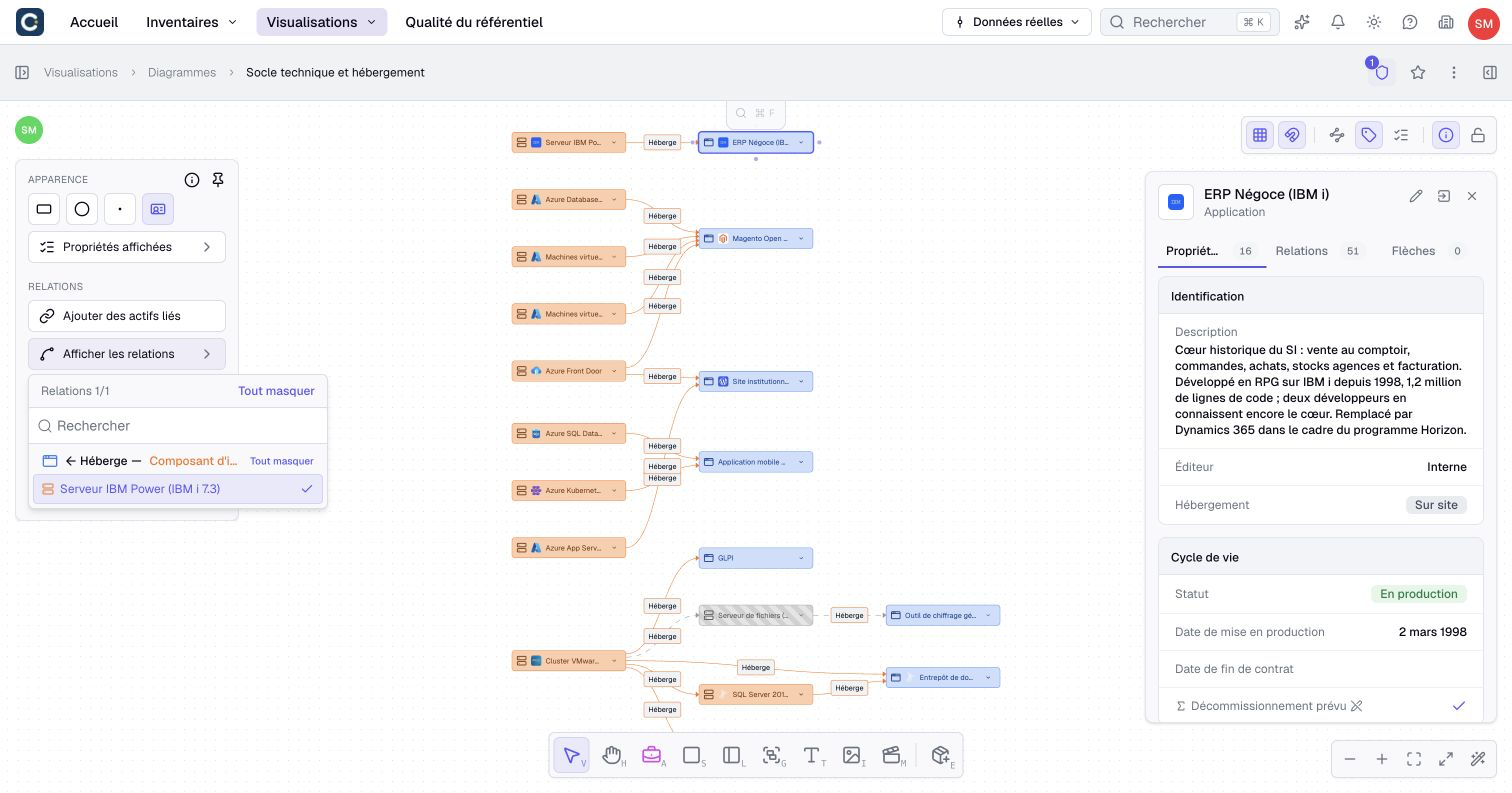
To change links between assets already present, select an asset and open Display relationships. Relationships are grouped under headings by type and direction. Search the list and select individual relationships or a whole group. Hovering a relationship highlights its target. This menu does not add missing neighbors: use Add related assets for that.
For parallel relationships, inspect the individual instances and their properties before choosing which links to show.
Add graphical content
Use the bottom toolbar to place shapes, Text, Image, Group or Lane objects. Click for the default size, or drag to draw an object at the size you need.
Selecting one object or link opens a contextual toolbar. Dock toolbar on the left keeps it in a side panel; this preference stays in your browser. Multiple selection uses the left panel, with separate object and relationship controls. Relationship settings apply to selected links and links between selected objects, not every outgoing link.
Right-click an object to act on the selection. Right-click the canvas for creation, adding assets, pasting or selecting all.
On a touchscreen, drag the background to pan and pinch with two fingers to zoom, even over an object. With the cursor tool, hold the background, then drag to draw a selection rectangle. Hold an object or link without moving, then release to open its context menu. A held touch released on the background opens the canvas menu.
For an image, choose a file and wait for the upload result. The image picker accepts JPEG, PNG, WebP, GIF and SVG. You can also drop a compatible image file onto the canvas.
Groups and lanes organize graphical objects. They do not create business relationships between the enclosed assets. Keep the visual convention understandable to readers with a title or explanatory text.
Draw a free arrow between graphical objects, then adjust its label and appearance. To represent an existing business relationship, use the relationship controls instead. Creating or changing an actual inventory relationship remains a separate, permission-controlled operation.
Reconnecting a represented business link to another object turns it into a free arrow on this canvas. It does not move the inventory relationship to a different asset.
Choose displayed information
Open Display to choose labels and visible properties by asset or relationship type. A selected card or relationship can also have its own Displayed properties settings. These choices affect the diagram without changing inventory values.
Follow Configure a diagram’s display for the steps, property categories, individual overrides, text and colors.
Turn an arrow into a business relationship
- Connect two different inventory assets and select the arrow.
- Choose Edit in its toolbar, then select the appropriate relationship type from the offered choices. Check the source and target shown in the selector.
- Boldo reuses a matching existing relationship or creates one when your permissions allow it. Selecting the type can therefore create a relationship immediately; there is no diagram Save step to confirm that creation.
- Open the connection's detail and check that it is identified as a Relationship, with the expected endpoints.
- If editable relationship properties are available, choose Edit in that detail, complete the fields and select Validate. Check the result in the relationship inventory.
If an endpoint is a draft, or both appearances refer to the same asset, choosing a compatible type still leaves a graphical arrow. Without permission to create the relationship, a new connection can also remain an arrow. Check its recorded result rather than relying on its label. For parallel relationships, verify the actual instance and values before editing.
Removing the represented link from the diagram does not archive the inventory relationship. Use the relationship workflow when you intend to change its business lifecycle.
Detach or dissolve a group
Select a group's border and open its context menu. Ungroup appears when the group belongs to a parent: it detaches that group while keeping the group and its contents. Dissolve group removes the selected container while keeping its children on the canvas.
Deleting a group is different: it removes the group and its contained graphical objects. It does not archive the inventory assets they represent.
Start from an inventory view
- Open an asset inventory or view and select the population you want to show.
- Choose Convert to diagram.
- Select the relationships to include and inspect the asset and link counts.
- Enter the diagram's name, space and destination, then create it.
- Open the generated composition and arrange it for your explanation.
Both the current filter and free-text search affect this conversion. This differs from an asset view's saved definition, which does not retain free-text search.
Conversion is limited to 500 assets. Narrow the population if it is too large. The result is an initial composition, not a promise that later view-filter changes will rebuild the diagram automatically.
Save and distinguish data edits
Diagram changes are saved automatically through the collaborative editor. There is no ordinary Save button to copy from the chart workflow. Check that your changes remain when you reopen the diagram before relying on it for a presentation.
Do not assume offline editing or instantaneous persistence. Graphical Undo/Redo does not undo separate inventory operations such as creating or modifying an asset.
Editing a real asset through its detail obeys that asset's rights, independently of the diagram lock. A permitted person may edit the asset from a locked diagram; otherwise suggestions may be offered.
Grid, snapping, relationship labels and information-panel preferences affect your reading. Zoom and framing are personal. Use cameras and image exports to prepare a repeatable presentation, and versions to keep named composition milestones.