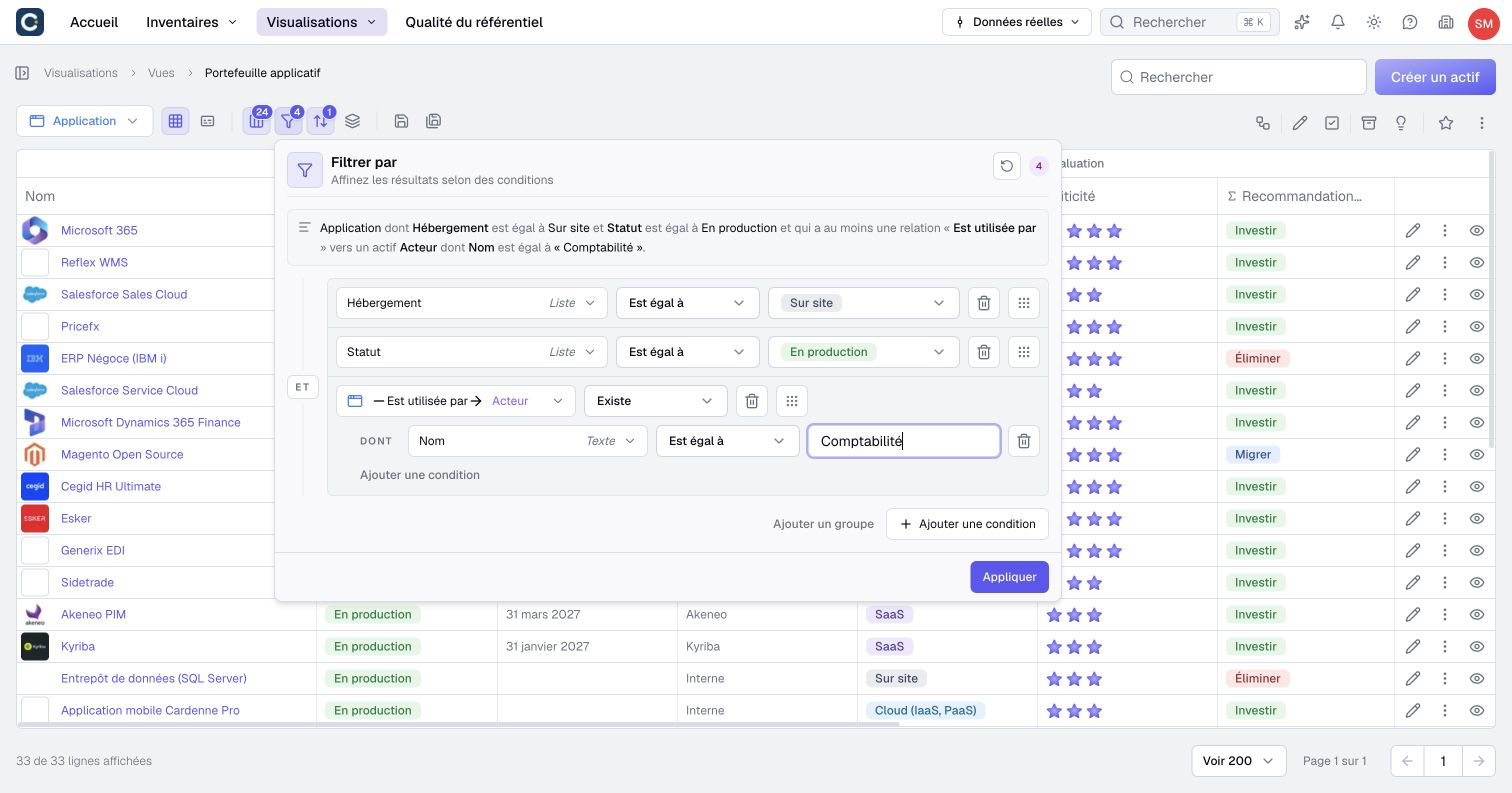
Filter assets and relationships
A filter selects the population shown by an inventory or visualization. Sorting and grouping organize that population without defining which assets or relationships belong to it.
Before adding rules, state what you want to retain: for example, “Applications in production that support a critical capability.” Then identify which facts belong to the application, capability or relationship.
Build and apply criteria
- Open Filter by and add a condition.
- Select a field, then an operator available for that field type.
- Enter the requested value or values. Empty and non-empty checks do not need a value.
- Add other conditions and choose AND or OR for the group.
- Read the summary and select Apply.
- Inspect the result, then save the view or visualization if the filter must persist.
AND requires every condition in the group. OR accepts at least one. Subgroups let you express a combination such as “Production AND (Critical OR Important).” The general editor allows up to three nested subgroup levels; specialized filter sections may offer fewer group controls.
The available operators depend on the field. Text, numbers, dates, Boolean values and multiple-choice properties do not all have the same comparisons. Choose among the offered operators rather than expecting a universal list.
Closing without applying leaves the active filter unchanged. Reset clears the rules being edited; select Apply afterwards to remove them from the active filter too.
Filter through a relationship
In an asset filter, choose the relationship and its direction. Exists requires at least one accessible relationship satisfying the condition; Does not exist requires none. With no refinements, these test presence or absence of that relationship type and direction.
- Add the relationship condition and choose Exists or Does not exist.
- Use the add control inside that relationship block to refine the related asset or relationship properties.
- Keep all constraints that must match the same link inside this block.
- To allow different links to satisfy separate conditions, add another relationship block in the outer group instead.
- Choose the outer AND/OR combination, apply and inspect the result.
A relationship's direction is part of the question. “Application serves capability” and the reverse reading start from different populations. Check the source and target types shown by the selector.
You can refine a relationship condition using properties of the related asset and properties carried by the link. These are different facts: a target's lifecycle belongs to that asset, while an allocation percentage may belong to the individual relationship.
Require the same link to match
Suppose an application has two links: one to a Production target with a share of 20%, another to a Retired target with a share of 80%.
A single relationship condition refined with “target is Production” and “share exceeds 50%” does not match this application. Neither link satisfies both requirements.
Two separate relationship conditions joined with AND can match: one link satisfies Production, while another satisfies the share requirement. Put the refinements inside the same relationship condition when they must describe the same link.
This distinction matters especially with parallel relationships. Two links between the same assets can carry different property values.
Filter relationship rows
The relationship inventory separates criteria for the source asset, target asset and relationship properties. Start with the section that owns the information you are testing. The three sections are combined with AND: a row must satisfy its source, target and relationship-property sections. Within each section, its own group logic still applies.
- Choose the relationship inventory and direction you need.
- Add source or target criteria to select the endpoint assets.
- Add relationship-property criteria for the individual link.
- Apply and inspect the remaining rows, including parallel instances.
A relationship property's value is not treated as a property of its source asset. Two rows between the same endpoints can therefore produce different results.
More complex groups that cannot be represented in the specialized sections can use the general filter editor where offered.
Interpret missing values and exclusions
A negative condition does not necessarily mean “filled and different.” Comparisons such as not equal, does not contain or not in can also include absent values. Add a non-empty condition when available if you need to exclude missing information.
For a multiple-choice field, matching any requested value differs from requiring every requested value. Choose the overlap or all-values operator that fits your question.
A negative relationship condition means that no accessible link satisfies its constraints. It can include an asset with no visible relationship at all.
Filters respect your access and real data or scenario context. No result is not proof that no matching data exists elsewhere. Check context, permissions and incomplete criteria before concluding that a population is empty.