Analyze the impact of a change
An impact analysis finds assets reachable from selected sources through the relationships you choose. It supports a business assessment; it does not predict every real-world consequence or modify the analyzed assets.
Define the question first. For example: which capabilities can be reached from these applications through their support relationships? The chosen direction and filters determine the answer.
Create and configure an analysis
- Open Impact analyses → Create impact analysis, enter its name, space and destination, then select Create.
- Choose the asset type of your Sources.
- Select Manual selection to choose source assets, or By filter to define a source population.
- Choose the relationships to follow and each direction offered.
- Inspect the calculated result and any configuration warnings.
- Select Save to keep the configuration, or Save as for a separate variant.
Creating and saving requires at least an Editor account and a plan that allows it. Modifying an existing analysis also requires permission to edit that item. The calculation uses the assets, properties and relationships you can read in the current real data or scenario context.
Switching source mode can clear the current selection or filter; read the confirmation. An empty selection or an unconfigured filter is not an instruction to analyze every asset.
Results update when the configuration is valid. There is no separate Run step to add. A relationship that cannot be reached from the configured types can produce a warning; check the path and direction.
Choose where a filter acts
Different filters answer different questions:
| Setting | Effect |
|---|---|
| Source filter | Chooses where the analysis starts. |
| Filter propagation | Restricts which target assets and relationship-property values can be traversed. |
| Continue with between stages | Selects reached assets eligible to start the next stage. |
| Stop conditions | Keeps matching assets among the reached results but stops propagation from them. |
| Displayed assets | Limits the result shown without changing the traversal itself. |
For a traversal filter, inspect the related asset's criteria and the properties of that specific relationship, then select Apply. A relationship value belongs to the link, not automatically to either endpoint.
A display filter can leave hidden intermediate assets as context in Graph and Tree, while Table lists only the displayed impacted assets. Do not mistake hiding a result for stopping propagation through it.
Split a path into stages
- Open Advanced options and choose Split into stages.
- Define the relationships and maximum number of levels for the first stage.
- Add the next stage and its relationship rules.
- Use Continue with to restrict which reached assets pass forward, if needed.
- Repeat within the available limits, then check stage and level information in the result.
Up to five stages and 200 relationship rules across the whole analysis are supported. The next stage starts from eligible reached assets, not only the previous stage's final leaves. Assets stopped by a stop condition do not pass forward.
Auto is bounded, not unlimited. The whole analysis shares a maximum depth of 30 levels, with capacity reserved for later stages. A chosen depth limit and a server safety limit are distinct reasons for stopping.
Read graph, tree and table
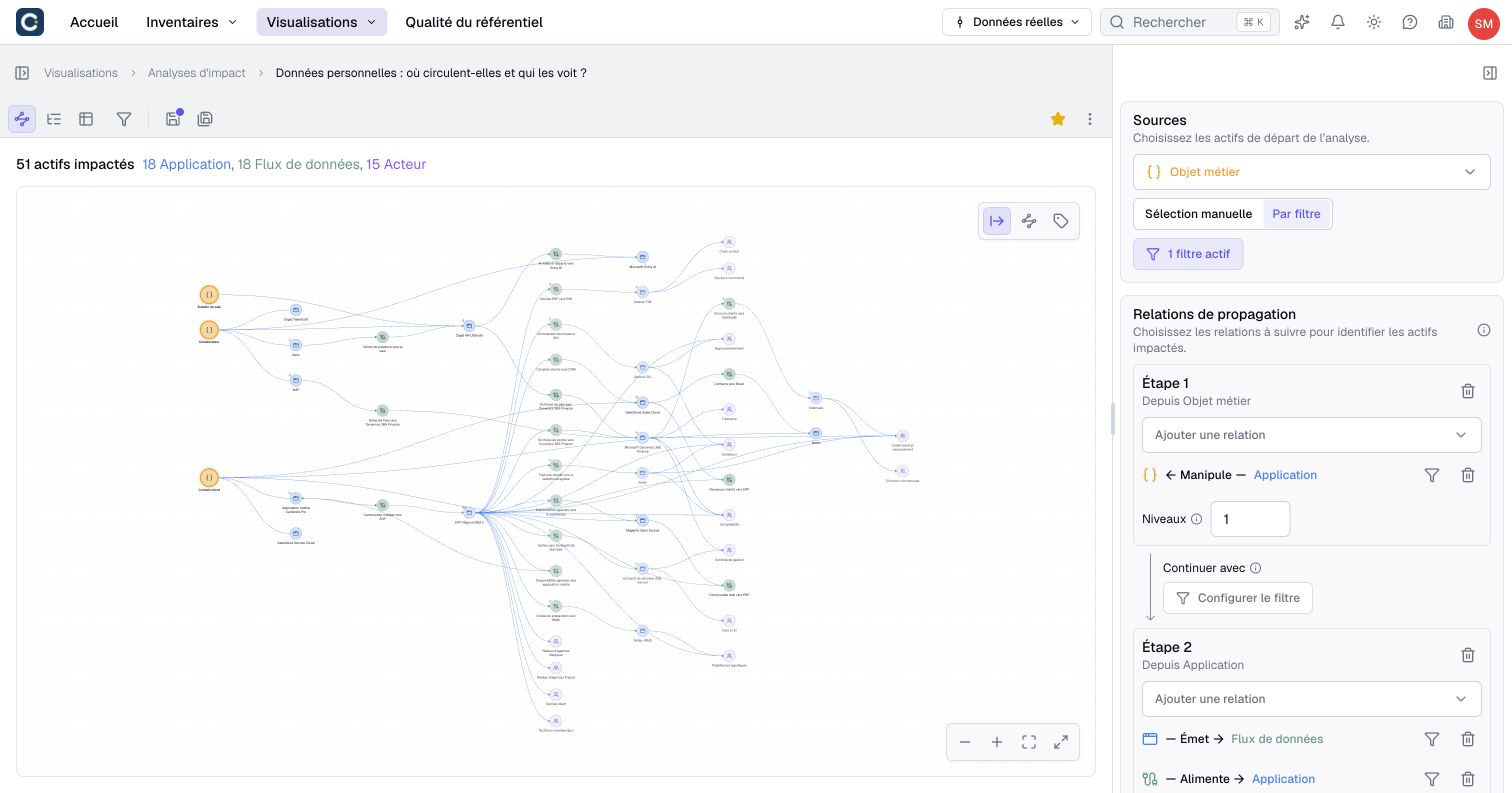
Graph shows sources, reached assets and connecting context. Arrows retain their business direction even when the analysis traverses them backwards. Parallel links remain distinct in this view.
Choose Lay out from the sources, left to right in the graph controls to read the propagation from its starting points. Choose it again to return to the arrangement based on relationship direction. This changes the arrangement, not the calculation or the business direction of arrows. Save the analysis to keep your choice; image export and conversion to a diagram use this arrangement too.
Tree builds branches from available path examples, placing each asset once per stage across the tree. It can reappear in another stage or as a terminal return to a source. The tree does not show a separate branch for every path. Path badges can count more paths than the examples currently displayed.
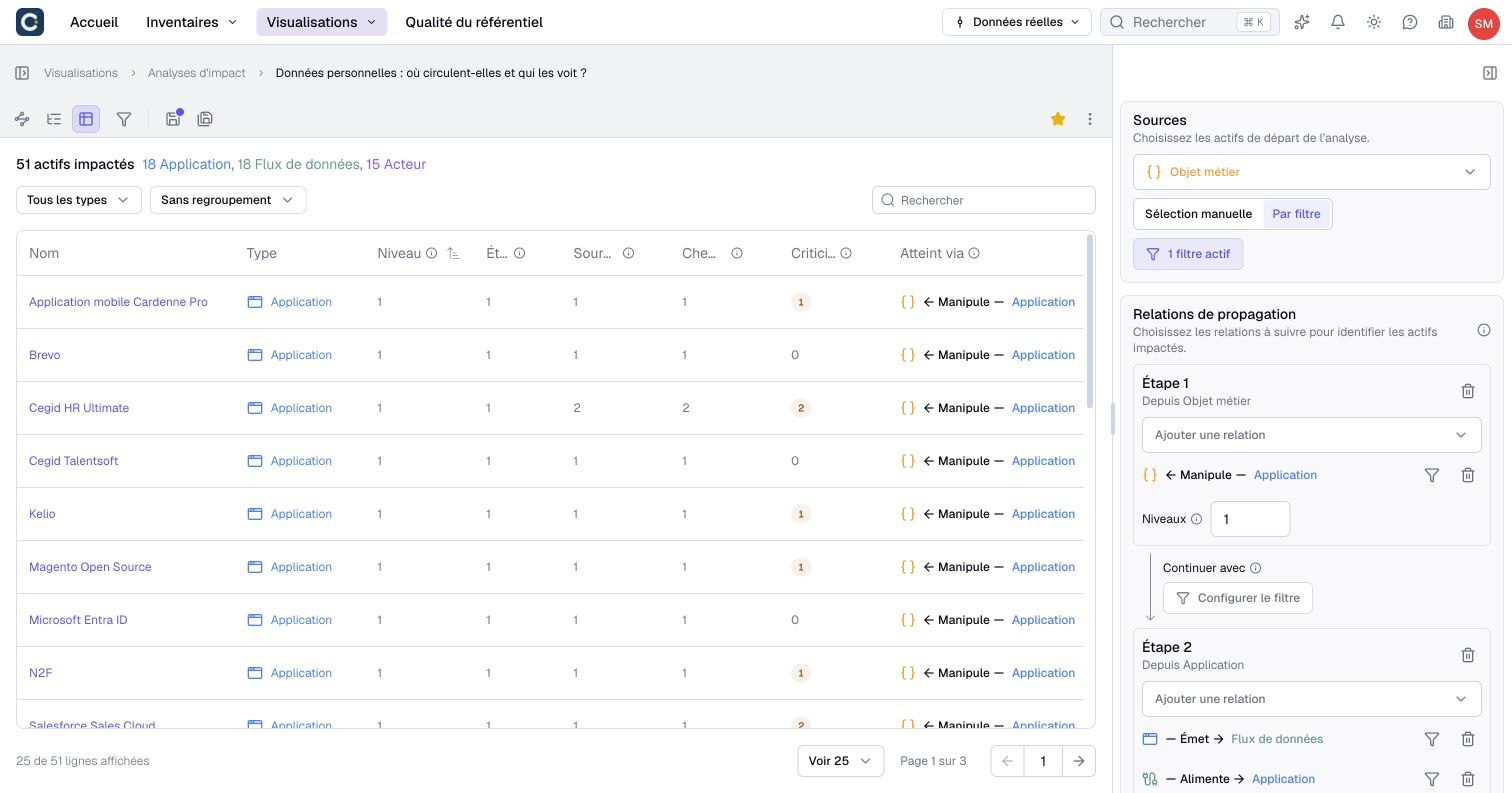
Table lists distinct impacted assets with their type, level, stage and sources where relevant, path count, criticality and incoming relationship information. Sort, search or group to inspect the result. Initial sources are excluded from the impacted-asset count.
Level is a retained minimum distance from the sources under the chosen rules, not elapsed time or cost. Criticality counts other assets whose reachability necessarily depends on passing through this asset in this analysis. An alternative route can reduce it; it is not a manually assigned business-risk score.
Interpret paths and limits
A passage filter can show No effect when it only selects asset types that the next stage already requires as starting points. That type filter adds no restriction. Remove the redundant filter or refine its conditions if you intended to narrow the traversal. This diagnostic does not mean that no assets were impacted.
The result does not enumerate every possible walk around cycles. Parallel relationships of the same type between the same path states can share a path representation, while remaining distinct in the graph. A path identifies relationship types and directions, not necessarily each link instance.
At most 100 sources are used. An oversized filtered population is ordered by name and identifier, then shortened with a warning. Chosen sources you can no longer access are set aside and reported. An archived source is set aside and reported as archived until it is restored. If every source you can see is archived, the analysis says so instead of showing results.
The calculation also limits propagation states to 5,000. An asset encountered at different stages can occupy several states, so this is not a promise to process 5,000 unique assets.
Only examples of paths are materialized, generally up to ten for a target state, within a global budget. Counts can exceed displayed examples and can themselves reach a ceiling. Read warnings about sources, depth, nodes and paths before interpreting the result as complete.
If Boldo reports that the analysis is too heavy to compute, reduce its sources, relationships or levels before trying again. Narrowing Displayed assets alone does not reduce the traversal.
An omitted asset is not proof of no impact: rules, missing relationships, access and calculation limits all affect coverage.
Export or create a diagram
Under Actions > Export, table CSV/XLSX exports and Paths (CSV) / Paths (XLSX) exports contain different information; Image downloads the graph in graph view. Choose the one you need, accept any browser download prompt, and inspect the file. Path exports contain available examples, not a guaranteed exhaustive list.
To create a canvas from the result, choose Convert to diagram, provide its name, space and destination, and confirm. You need permission to create a diagram and at least one impacted asset.
Conversion includes sources, impacted assets and necessary hidden intermediates, up to 500 assets in total. It recalculates the result during creation, so changed repository data can alter the final content. Inspect the resulting diagram before presenting it.