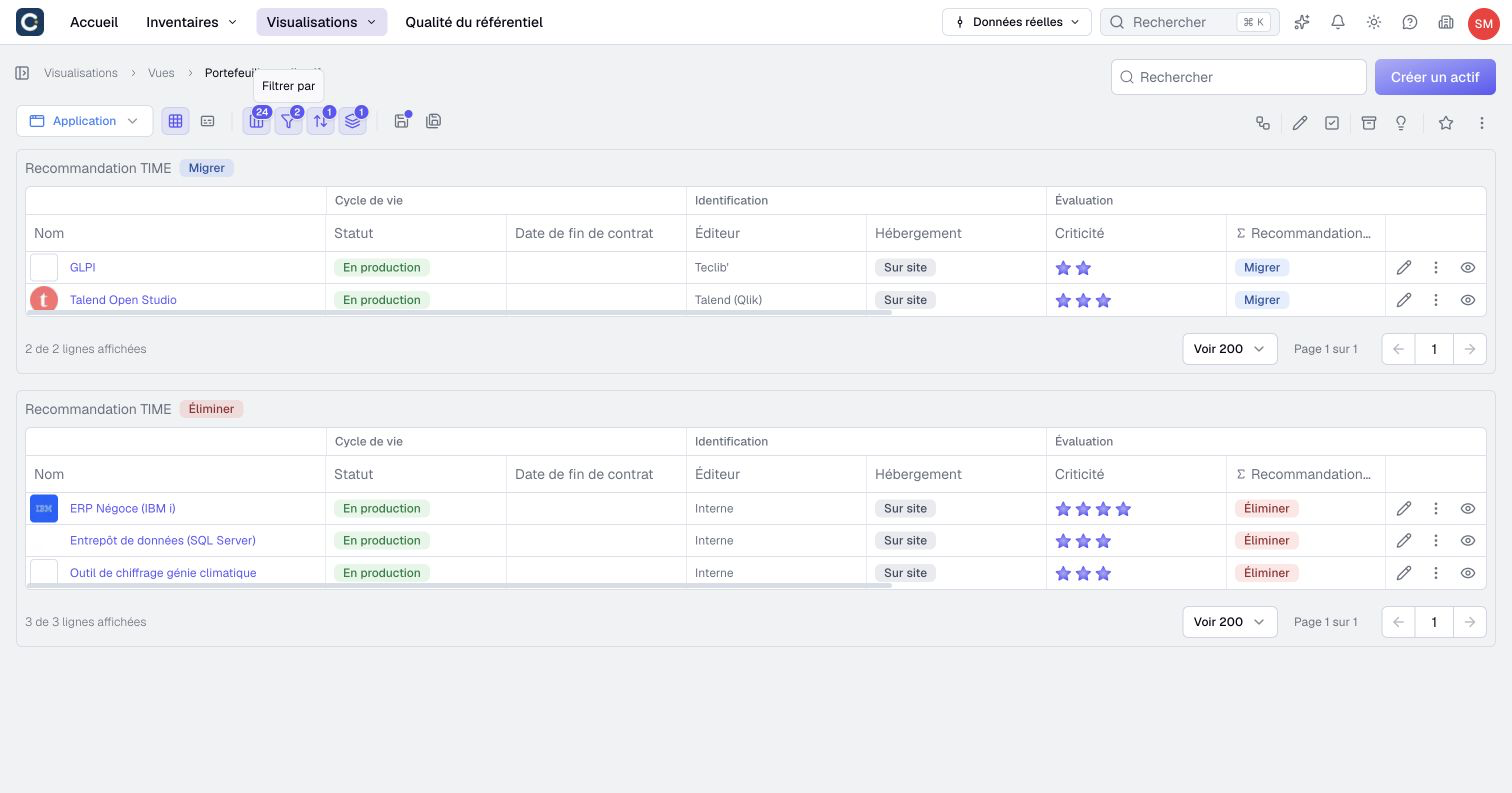
Create and find an inventory view
A view saves how you read an inventory: its displayed information, filter, sorting and grouping. It gives you a repeatable entry point into the knowledge base without duplicating its assets or relationships.
For example, keep a view of applications owned by your team with their lifecycle and costs. Changes to those applications remain visible through the saved view.
Prepare an asset view
- Open the inventory for the asset type you want to follow.
- Choose Table or Card.
- Open Organize and tick the properties, relationships and system attributes to display, then select Apply.
- Open Filter by, add your criteria and select Apply.
- In Sort by, choose fields and directions, arrange their priority and select Apply.
- In Group by, choose and order up to three grouping levels, then select Apply.
- Check the resulting population and presentation before saving.
Only available, readable fields are offered. Some system attributes also depend on your plan or the quality program. A saved filter, sort or grouping on such a field still applies: it shows a padlock and the feature it needs, and can be removed but not edited. The asset name is structural rather than an ordinary column you can hide.
In Organize, search for a column and drag rows to change the common order of properties and relationships. When the type has property categories, you can show them with Show categories and move a whole category. In table mode, adjust column widths to make the important information readable. Grouping organizes the result; it does not replace the filter that selects the population.
With a search active in Organize, Show all and Hide all affect only matching columns. Clear the search to apply them to every column, then select Apply. The same rule applies to a category’s show/hide command.
Sorting or grouping by owners, creators, or the people who last modified or attested an asset follows their displayed names. With several owners, their names are compared in alphabetical order. Empty values and former members appear after current members. Sorting still applies to the rows inside each group.
Save and reopen
- Select Save as.
- Give the view a name that describes its purpose.
- Choose Space: Personal or Shared, according to the intended audience.
- Select its Destination and any Access domains offered for that space and plan.
- Confirm creation and check the new view.
- Return to Views, search for its name and reopen it.
You can also find it in its folder or mark it as a favorite. A shared location does not give viewers additional rights over the displayed data.
An alternative is Views → Create view. Choose a name, asset type, space and destination, then configure the created view. This creation dialog starts an asset view.
Save a relationship view
Start from the relationship inventory, choose the relationship type and direction, and configure its columns and criteria. Select Save as to save that relationship view.
Its saved definition includes the relationship type, direction, layout, sorting, grouping, filter and free-text search. Each row remains a relationship instance, including parallel links where the model permits them.
The free-text search behaves differently between the two view kinds:
| View | Is free-text search saved? |
|---|---|
| Asset view | No. Use a filter on the name when this condition must persist. |
| Relationship view | Yes, along with its other saved settings. |
Do not judge an asset view's saved population only by a search typed before saving. Clear the search and use persistent filters for the criteria you want others to recover.
Update a view or create a variant
Open an existing view, adjust its settings and select Save to update it. Use Save as to create a separate variant. Closing a settings panel does not save the view itself.
Ctrl/Cmd+S saves an editable existing view; Ctrl/Cmd+Shift+S opens Save as. When table cell editing is active, its own save takes priority.
Saving a view does not replace the validation of pending cell edits. Finish the table editing workflow separately and check what was saved.
Unsaved settings in an existing view can trigger a navigation warning. Save them or deliberately discard them before leaving.
When saving or fields are unavailable
A Viewer can read and adjust the presentation available to them, but cannot create or save a view. A shared view you cannot edit cannot be overwritten; use an authorized copy when your account allows it.
Model and permission changes can make old fields unavailable. Boldo adjusts the view to those changes. Check the current configuration before interpreting a missing column as missing business data.