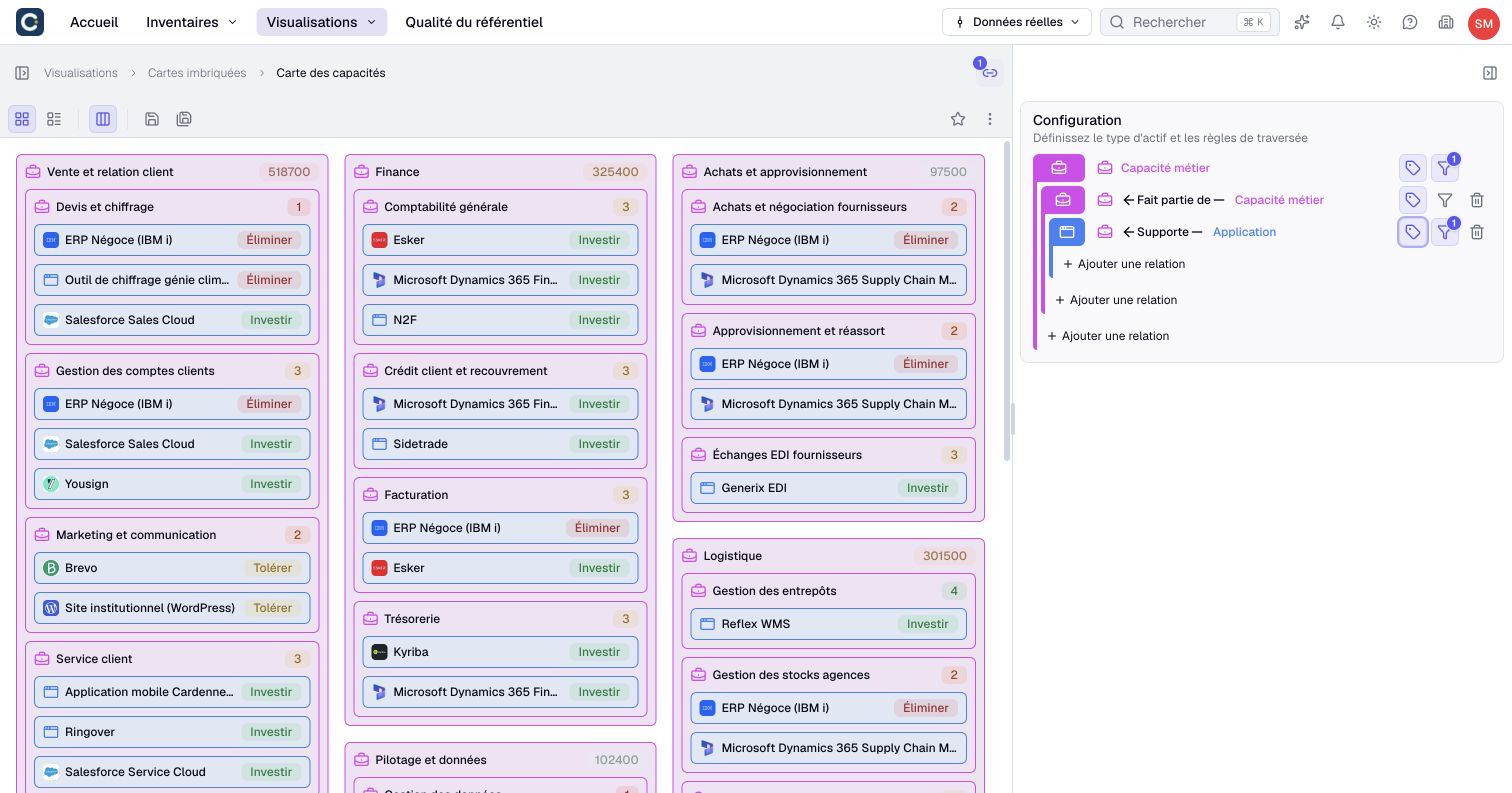
Build a nested map
A nested map shows how assets are organized through relationships. Start with a root asset type, then define the paths that place related assets inside or below those roots.
For example, start with business capabilities and follow their relationships to applications. The map uses existing links; putting rectangles inside each other does not create new relationships.
Creating and saving a map requires at least an Editor account and a plan that allows it. Modifying an existing map also requires permission to edit that item.
Create and configure the map
- Open Nested maps → Create nested map.
- Enter a name, choose the space and destination, and set access domains when offered. Select Create.
- Choose the root asset type and optionally filter the root population.
- Select Add relationship, then choose a relationship and its direction. This determines the next level's asset type.
- Add a filter on that level if needed, then add another relationship to continue the path.
- Add a sibling branch when you need to follow a different relationship from the same parent.
- Check the resulting hierarchy and select Save.
Use Save as to keep a separate variant. Saving retains the traversal paths, filters, colors, layout and distribution settings.
The map supports up to three relationship levels after the roots, with at most 50 traversal rules per level. A relationship with the same direction cannot be chosen twice among sibling branches. Choose the direction that answers your question, rather than assuming every relationship is read from source to target.
Changing the root type resets its filter, coloring and relationship paths. Changing a relationship resets that branch's descendants, filter and coloring. Save a variant first if you want to keep the previous configuration.
Filter and hide different things
A filter applies at the level where you configure it. A root can remain visible even when none of its descendants matches a child filter.
Hide this level removes a level from the presentation and brings its descendants up to the nearest visible parent. The path through the hidden level is still used. If there are no descendants, hiding the level does not create any.
Hide a level to simplify the reading, not to exclude its assets from the calculation. Restore its visibility when you need to explain how the displayed assets connect.
The same asset can appear under several parents. These are repeated appearances of one asset, not newly created copies.
Apply useful colors
- At the root or a relationship level, open Tag by.
- Choose an eligible property of the assets at that level.
- For categories, assign the colors you want readers to distinguish.
- For numbers, percentages, currencies or dates, define the ranges and their colors.
- Check representative assets against the configured colors and ranges, then save the map.
The selector excludes hidden properties and unsupported text fields. If the intended field is absent, check its type and configuration before assuming its values are missing.
Range boundaries are inclusive. When ranges overlap, the first matching range determines the color. Use distinct ranges when an ambiguous boundary would mislead readers. Values outside every range receive no specific color.
For a multiple-choice property, the first value determines the color; the rectangle does not show a separate band for every selected value. An unfilled rating is treated as empty, not as a positive rating category.
Reset in the color settings restores the palette. Reset in the Tag by panel header removes that level's highlighting. Reverse order reverses the colors where offered. Changing colors does not filter the population or modify its business values.
Choose a readable layout
Switch between Nested view and List view according to the hierarchy you want to show. Balanced distribution changes the arrangement; it does not select a different asset population.
Access permissions and the real data or scenario context determine which assets and relationships are available. A missing child may reflect a filter, direction, access restriction or absent relationship. Inspect the corresponding asset page when you need to distinguish them.
Reduce an oversized map
A map can be refused when it exceeds 20,000 node appearances, including roots and repeated assets in different branches. This is not a guarantee of 20,000 unique assets or a silently shortened result.
Narrow the root population, add appropriate level filters or remove unnecessary paths, then try again. Hiding a level only changes presentation and does not reduce that calculation.
For a summary of counts or costs, a chart may answer the question with less detail. Use a diagram when you need a manually composed explanation instead of a relationship-driven hierarchy.