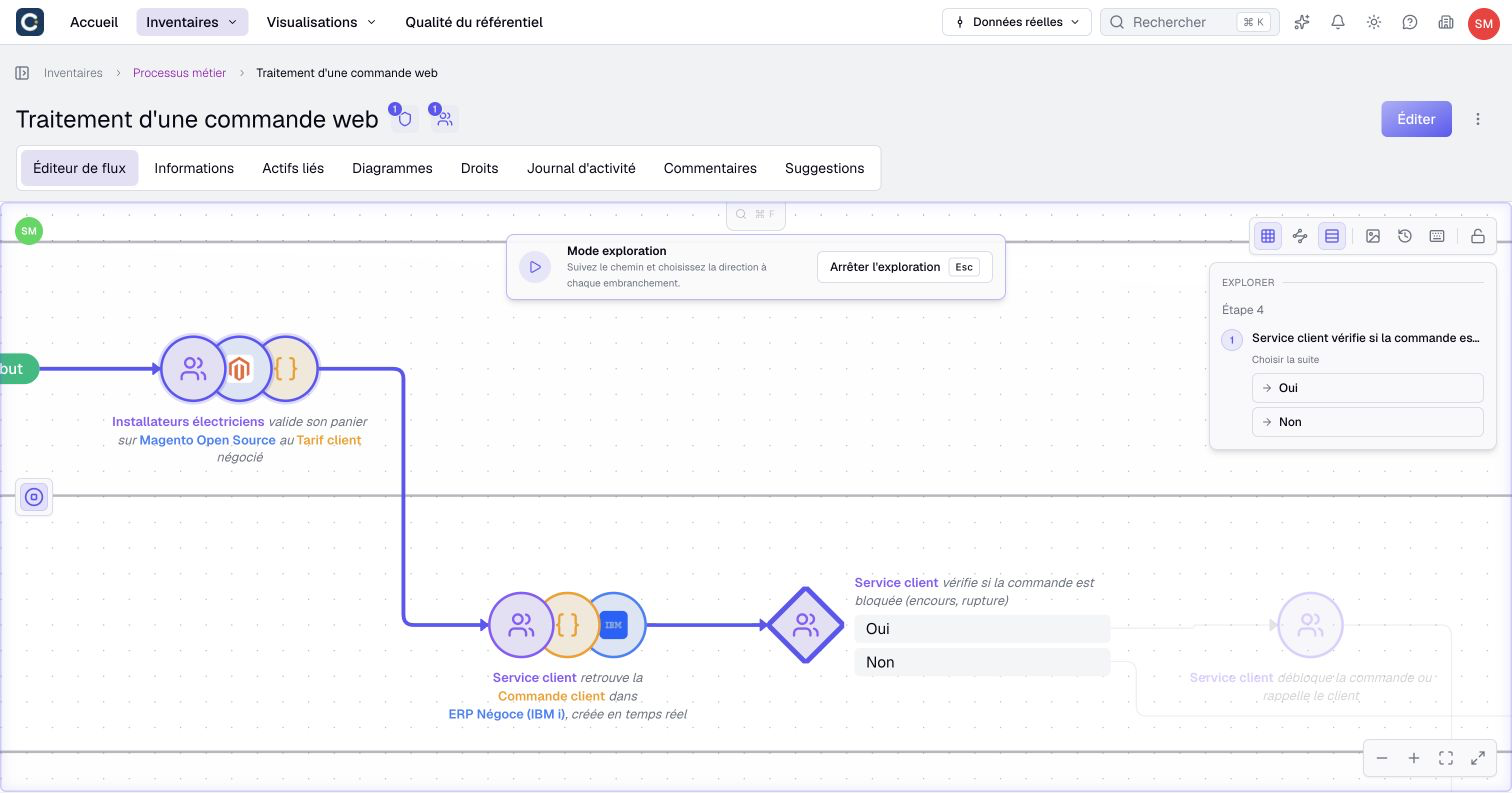
Explore and present a process
Exploration walks through a process visually. It helps explain alternatives and inspect how a path develops, without changing the flow's definition.
It does not execute business tasks, start an automated workflow or record a completed business case. The decisions you make are part of your current exploration.
Start a walkthrough
- Open an asset's readable Flow editor containing steps.
- Select Explore. The command is unavailable for an empty flow.
- Read the exploration panel and follow the highlighted path.
- At a choice, select the outgoing option that represents your example.
- Continue through the next decisions, checking where the path actually ends.
Reading the flow is sufficient; you do not need permission to build it. Construction controls are hidden during exploration.
Ordinary steps are followed automatically. At a choice, options use the outgoing flow's label, or the target's label when the flow has no label. Clear branch labels make the presentation easier to follow.
Examine loops and revisit a decision
A return offered from a Choice lets you revisit part of the process. If a return leaves an ordinary task, exploration does not offer it as a decision; convert that step to a choice in the editor when readers must be able to select the return. When the same choice is visited again, its visit number distinguishes the new decision from the previous one.
You can choose a different option on a later visit. This helps explain, for example, a rejected request that is corrected and submitted again.
To change an earlier decision, select another option on that decision's card. All later decisions are discarded, and the path is recalculated from that point. It does not preserve two alternate walkthroughs in parallel.
Go back removes the last decision. The reset icon, labelled Reset, clears all decisions. These actions affect exploration, not the saved process steps.
Read completion carefully
Exploration complete means that the displayed path is no longer waiting for a decision. It is not a certificate that the process is correct or that a business task was completed.
Check whether the path reached an actual end node. A dead end or traversal limit can also leave no decision waiting. Exploration is bounded to 200 step visits and does not follow loops indefinitely.
Use the walkthrough to identify a missing branch, unclear label or unintended dead end. Correct the underlying flow through its editing procedure, then start another exploration to explain the revised structure.
Finish or present another example
- Select Stop exploration to return to the normal flow.
- If needed, adjust the framing or inspect an asset reference in the ordinary view.
- Select Explore again to begin a fresh example.
Entering or leaving exploration resets the path and decisions. Do not rely on closing and reopening the page to resume the same walkthrough.
If others are following your presentation, distinguish the scenario you are discussing from the process definition shared with them. Presence or a shared viewport does not publish, approve or persist your chosen decisions.