Describe a process in an asset
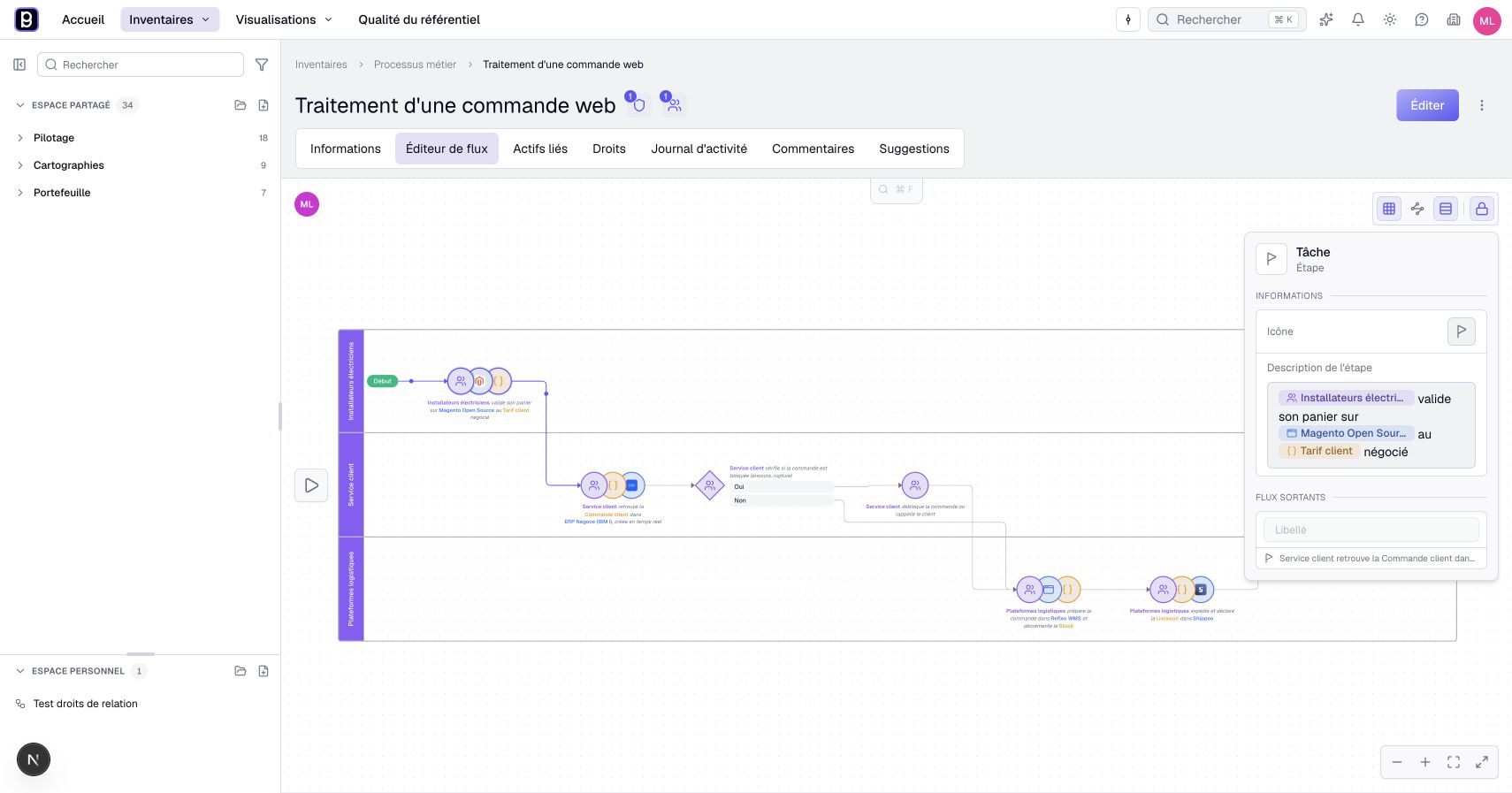
A process flow describes a sequence inside an asset. Its steps can refer to real assets, such as applications or actors, so the explanation stays connected to the knowledge base.
The asset type must support processes and your plan must include them. Reading and editing the flow have their own permissions. Permission to edit the asset's ordinary properties does not automatically permit flow editing.
Open and build the flow
- Open the process asset. Its page opens on Information by default; select Flow editor.
- Unlock the flow to edit it. You need at least an Editor account, an active asset and permission to edit its flow.
- Start from the initial start node. Hover over a step and choose its + action to enter insertion mode.
- Select the emphasized + beside the source to add a step, or select a valid existing step to connect it.
- Select the new step and enter its Step description and, if useful, an icon.
- Use the actions or context menu to choose Convert to task, Convert to choice or Convert to end where offered.
- Label and order alternatives in Outgoing flows, then inspect the resulting paths.
With an existing outgoing flow, adding a branch differs from inserting a step in the existing sequence. Read the insertion prompt and cancel that mode if it is not the change you intended.
The start node cannot be deleted. A step with outgoing flows does not offer every conversion to an end node. Finish the structure deliberately rather than using a label saying “End” on an ordinary task.
Positions are calculated automatically. Use structural insertion and movement controls to change the sequence; steps are not freely positioned like diagram objects. After deleting a step, inspect how the remaining path reconnects.
On a touchscreen, tap a step to reveal its actions. With editing enabled, drag its movement handle onto an offered connection or branch end to change the sequence. The flow recalculates positions after the move.
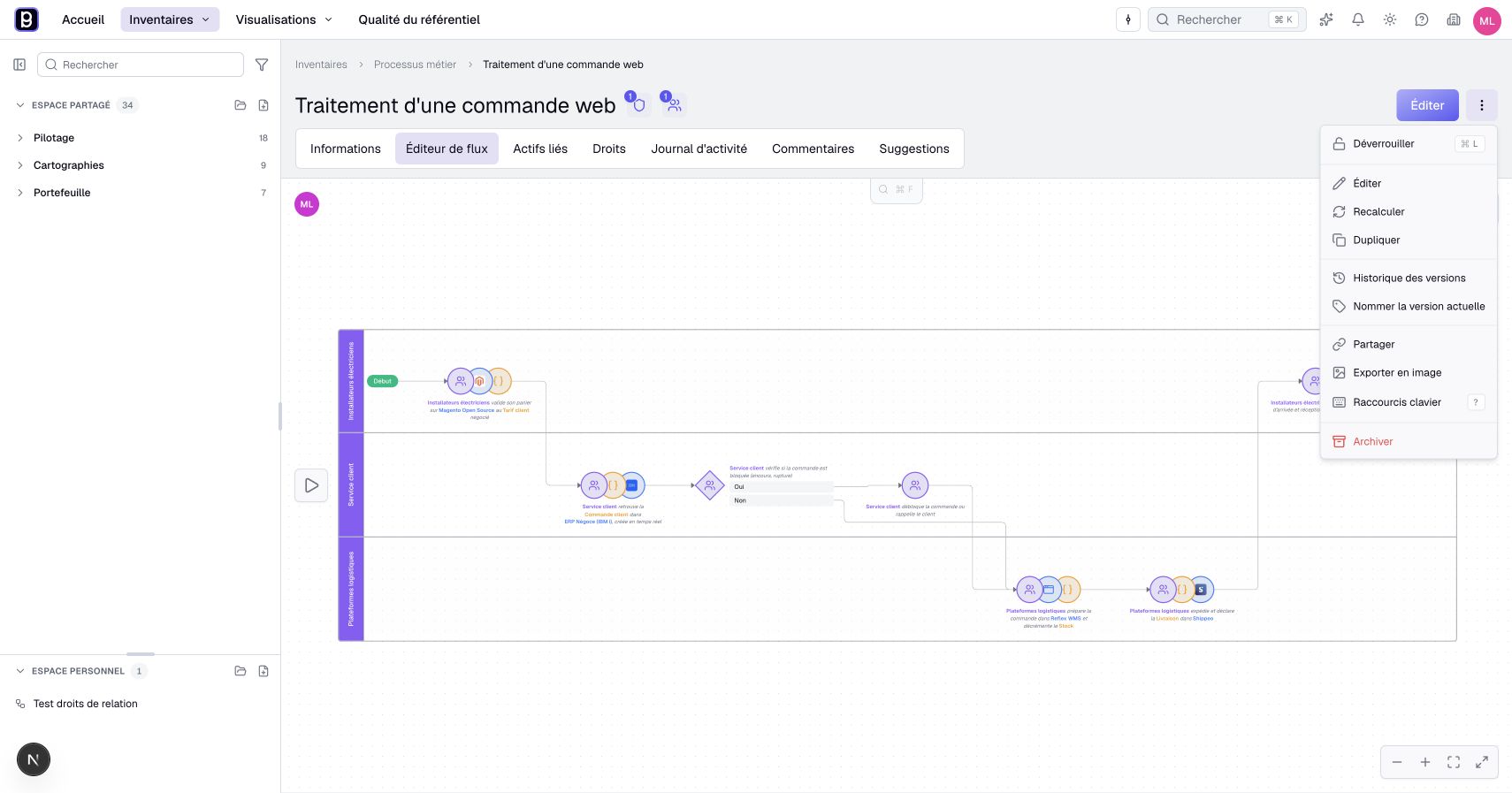
While Flow editor is open, the process page's ⋮ menu offers Version history, Export to image and Keyboard shortcuts. With flow-editing permission, it also offers the lock and Name the current version. The canvas toolbar keeps display settings, lanes and its lock.
Press ? outside text entry to open the same shortcut help, including for readers. Commands still depend on the lock, permissions and exploration mode.
Reference an existing asset or create one
- Edit a step's text and type @.
- Search for and select an accessible asset offered by the selector.
- Check that the text contains a reference, not merely a typed name.
- If you need a new asset, use the selector's +, choose its type when necessary, and validate the creation form.
- Check the new reference and the corresponding asset.
The types offered depend on the process type's configured relationships and your access. Creating an asset requires its own creation permission. An incomplete type reference can be replaced with a real asset using its selection action.
Saving the flow creates or reactivates the corresponding process relationships for referenced assets. Creating a referenced asset is a real inventory operation; graphical undo does not reverse it automatically.
Organize lanes
Open Lanes and choose the asset type that represents the responsibility or dimension you want to show. References to assets of that type determine each step's lane.
If a step mentions several assets of that type, the first determines its lane and the ambiguity is indicated. Revise the references when one responsibility per step is needed. Steps without a suitable reference appear in Unassigned.
Start and end nodes can inherit a single neighboring lane. Several neighboring lanes do not establish an arbitrary single owner.
Reorder lanes with their handles or the name/appearance sorting options. Unassigned comes last. Choose No lanes to remove that presentation dimension without deleting the references.
Remove a reference or delete the relationship
Deleting a mention removes its use in that step. It does not archive the asset or automatically remove its relationship to the process.
To remove that relationship deliberately:
- Remove every reference to the asset from the flow, checking all steps.
- Wait for the change to save.
- Open Linked assets not used in flow.
- On the intended asset's row, select the trash icon (tooltip Delete relationship).
- Check the remaining relationships and the asset page.
If the command is unavailable while a change is saving, wait for that indication to clear. If the asset is still reported as used, find its remaining references rather than repeating the deletion.
Delete relationship archives the corresponding process relationships, potentially including parallel relationships. It does not archive the target asset. Process relationships do not appear in the relationship inventory: to get one back, mention the asset again in a step, since saving reactivates its relationship, or restore a flow version that still references it. Archiving a process relationship elsewhere can replace asset references in the flow with type references; inspect the flow after such a change.
Save and review the result
If the saved flow cannot load, read the error before starting again. Use Retry for a temporary connection failure. When Version history is offered, you can preview an earlier state and restore it with flow-editing permission. See version recovery. Do not interpret this error as an empty flow.
Flow changes are saved automatically. Do not look for the chart's Save workflow, and do not assume that closing immediately proves persistence.
After restoring an archived process asset, reload its page before editing the flow. Changes made in the still-open archived session can otherwise be lost when the page is reopened. Check the saved flow again after your edits.
Use exploration to walk through the branches with a reader. Use versions to preserve a named reference before a significant redesign. Restoring a flow version can reactivate relationships for its restored asset references.