Manage visualization versions
A version preserves a visualization's definition or composition. Use named versions as reference points before important changes, then preview them before deciding to restore.
Versions cover asset and relationship views, charts, nested maps, diagrams, impact analyses, dashboards and process flows. A flow's versions concern its process content, not the entire history of its asset properties.
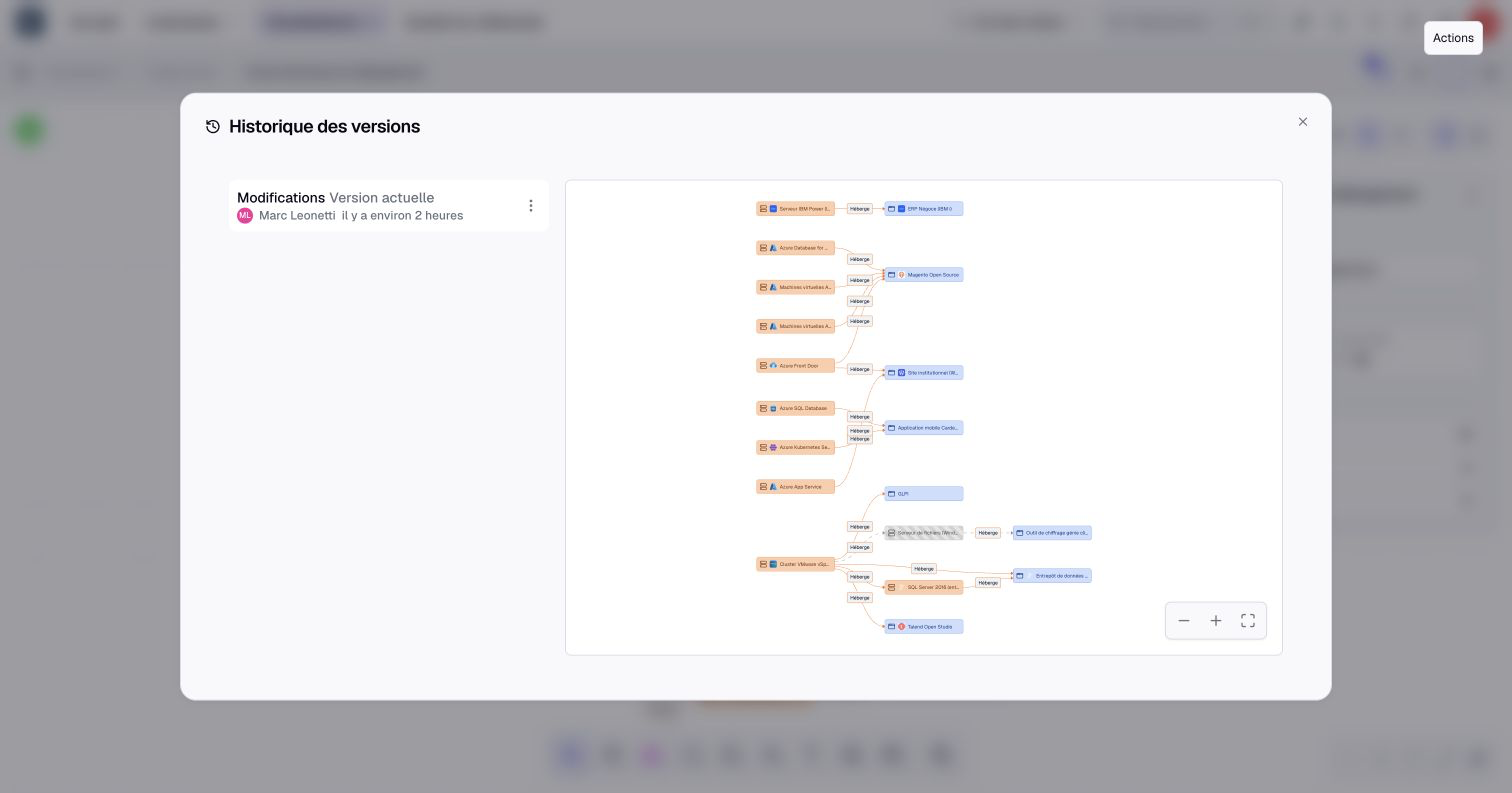
Open and preview history
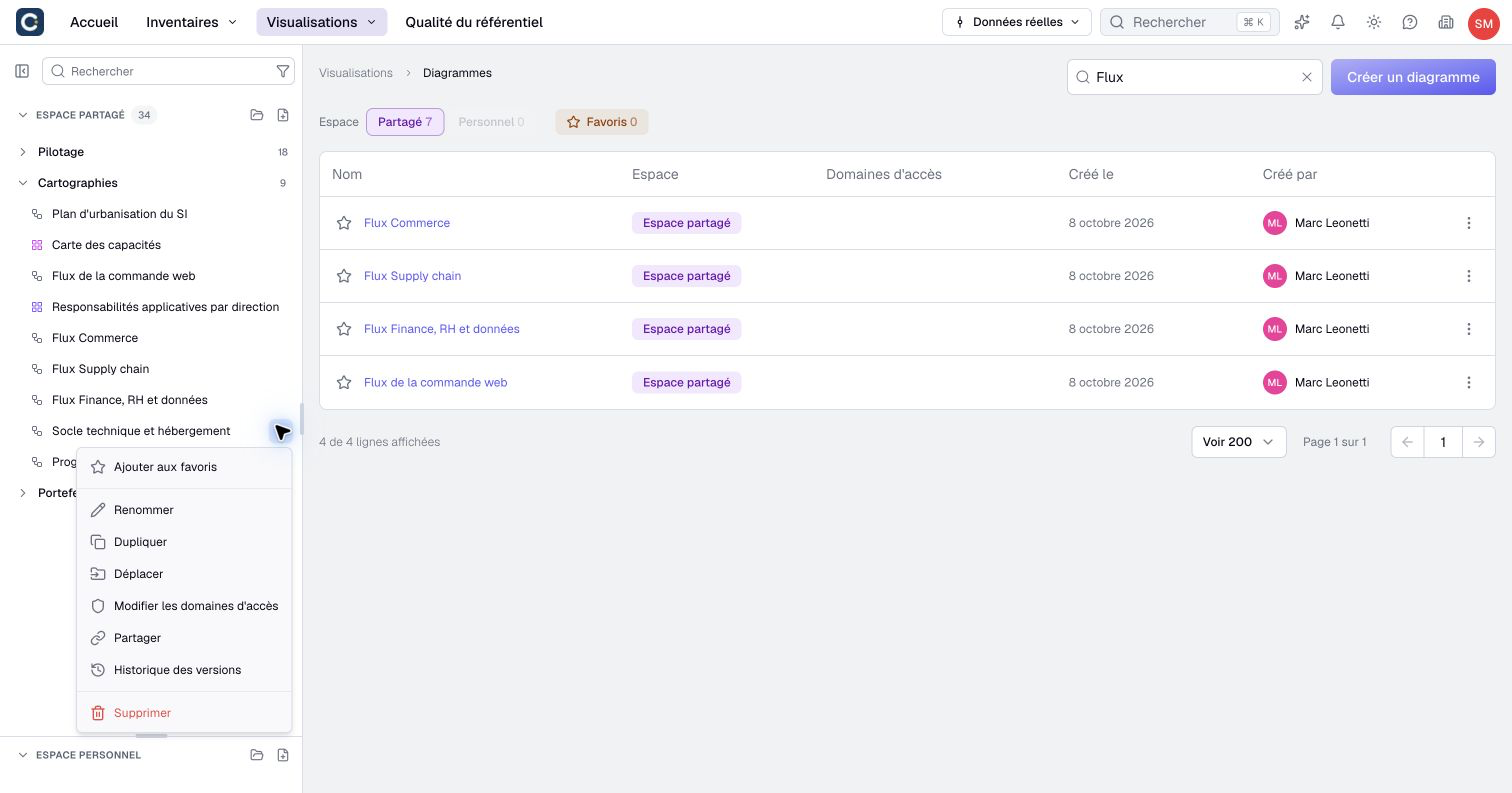
- Open the visualization's action menu and select Version history. You can also use its row menu in the side catalog, without opening its page.
- For a process, open Flow editor, then choose Version history in the page's ⋮ menu.
- Select a row and inspect its date, contributors, reason or name.
- Read the preview; Current version identifies the most recent entry.
Selecting a preview does not apply it. You need read access to the item to inspect history. Naming, restoring or deleting requires at least an Editor account and permission to edit it. Process-flow permissions, plan availability and asset state apply separately.
Work in the intended real data or scenario context. A version is not a way to bypass current permissions.
If a process flow cannot load its saved content, the error screen offers Version history. Open it, preview a usable version and restore it if you have flow-editing permission. The flow reloads after restoration. Retry reloads the page without restoring a version; use it for a temporary connection problem. An unreadable flow is not an empty process to rebuild.
Name a reference point
For visualizations that offer it, choose Name the current version, enter a non-empty name of up to 80 characters, then Validate. Save intentional pending changes first so the reference point is unambiguous.
Some version actions save the current draft or request a collaborative save before proceeding. Naming is not necessarily limited to the last state you explicitly saved earlier.
To name an existing version, open its row menu in history and choose Name or Rename. For a process, Name the current version is also available in the page's ⋮ menu while Flow editor is open.
A named version is protected from automatic cleanup and merging. Clearing its name removes that protection without immediately deleting the entry.
Restore a previous version
- Open history and select the older version you want.
- Inspect its preview and verify what the version covers.
- Choose Restore from its menu.
- Read the confirmation: the current configuration will be replaced for everyone using that item.
- Confirm, then inspect the current visualization and its data.
Restoring is a persistent change, not a personal preview. Coordinate it with collaborators who are editing the same item. Diagram and flow sessions reload their collaborative content; local Undo/Redo is not a guaranteed way to reverse that restoration.
A restoration normally records a new version, although identical content can be deduplicated. The latest entry does not offer restoration to itself.
If the preview is unavailable or incompatible, do not assume restoration is possible. Read the message and use another usable reference point.
Know what is restored
| Item | What to expect |
|---|---|
| View, chart or impact analysis | Earlier settings, evaluated against today's accessible data. |
| Nested map | Earlier paths, filters and colors; current list/nested presentation and balancing remain unchanged. |
| Dashboard | Earlier widgets, text and layout; referenced sources are read again, not all restored themselves. |
| Diagram | Earlier graphical composition; inventory assets still reflect current data and access. |
| Process flow | Earlier flow content and lanes; relationships for restored asset references can be created or reactivated. |
A preview may therefore show more or fewer assets than existed when that version was created. Restoring a diagram does not globally restore archived or edited inventory assets.
An older relationship-view preview can display system columns incorrectly. Check the restored view's configuration; if old filters remain on screen after a successful restoration, reload before interpreting the result.
For nested maps, check Nested view / List view and Balanced distribution separately after restoration. Do not assume that every presentation preference is part of the restored snapshot.
Named versions do not freeze every model dependency. Metamodel changes can adjust references for compatibility. Nor should you assume that restoring content restores the item's name, folder and sharing location.
Understand retention and deletion
Nearby saves can be grouped in a rolling 15-minute window, bounded to one hour from the group's first save. Identical content does not create another entry. History is not a list of every click.
Automatic cleanup keeps the latest 50 unprotected versions. Named versions are protected and do not count toward that limit.
To delete an older version, open its menu, choose Delete and confirm. A named version can still be deleted explicitly. This removes the historical entry without changing the current configuration. The most recent version cannot be deleted.
Before deleting a useful reference point, check whether removing its name is sufficient. Neither action is a way to delete the underlying assets.