Build and present your diagrams more easily
Preparing an architecture diagram often means choosing a few assets, making their connections readable and keeping only the details your audience needs. The diagram editor brings these steps together with previews when adding assets and more control over their display.
Add assets and preview their connections
Open Add assets, search the inventory and choose which relationships to include: between the assets you are adding, or also with those already on the diagram. Preview the layout before confirming. From an existing card, Add related assets lets you build out the diagram from its neighbors.
You can represent the same asset several times when it helps explain different parts of an architecture. Each appearance still refers to the same inventory asset. Adding another appearance does not create a duplicate in the knowledge base.
Show the information that matters
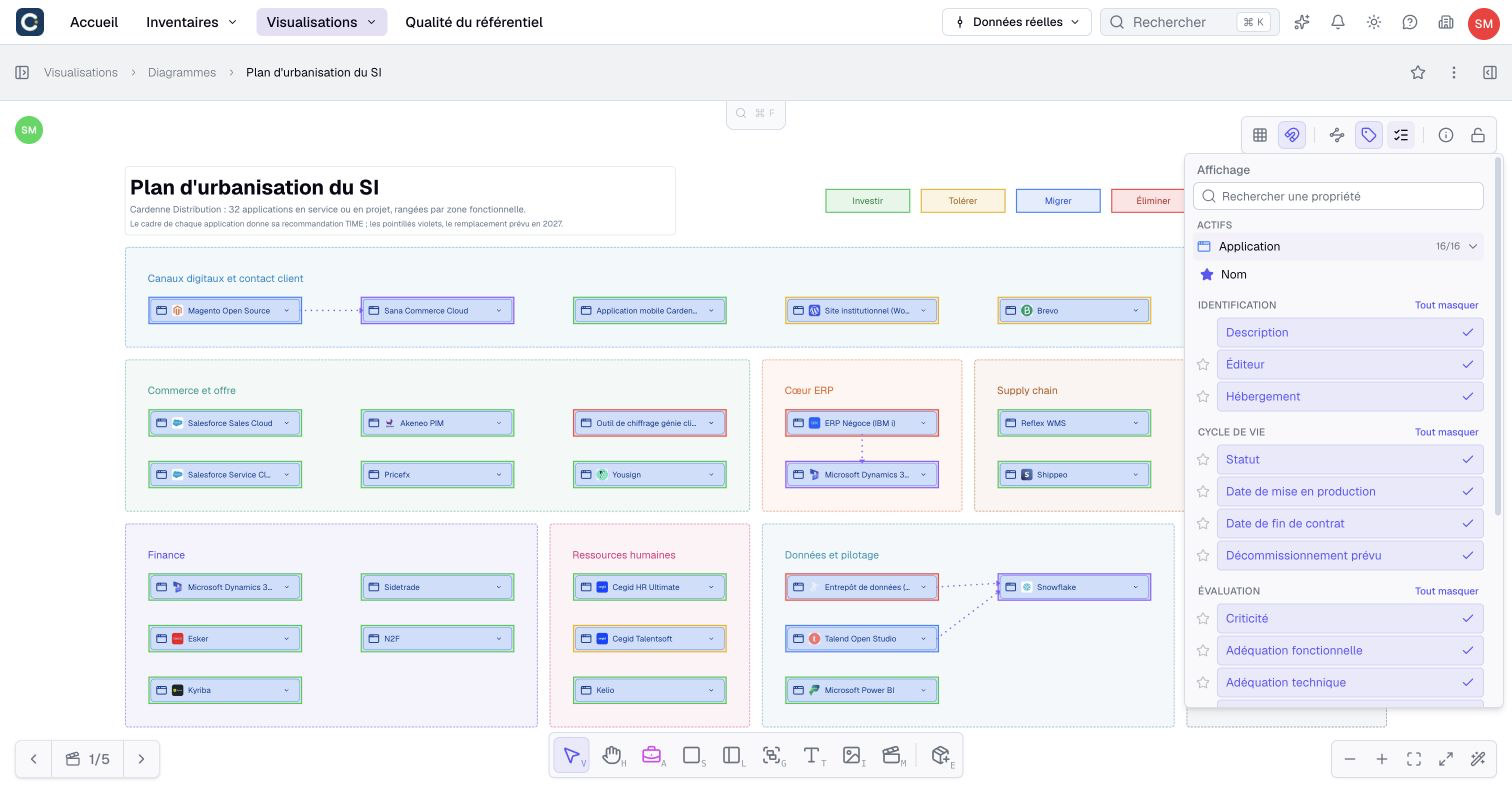
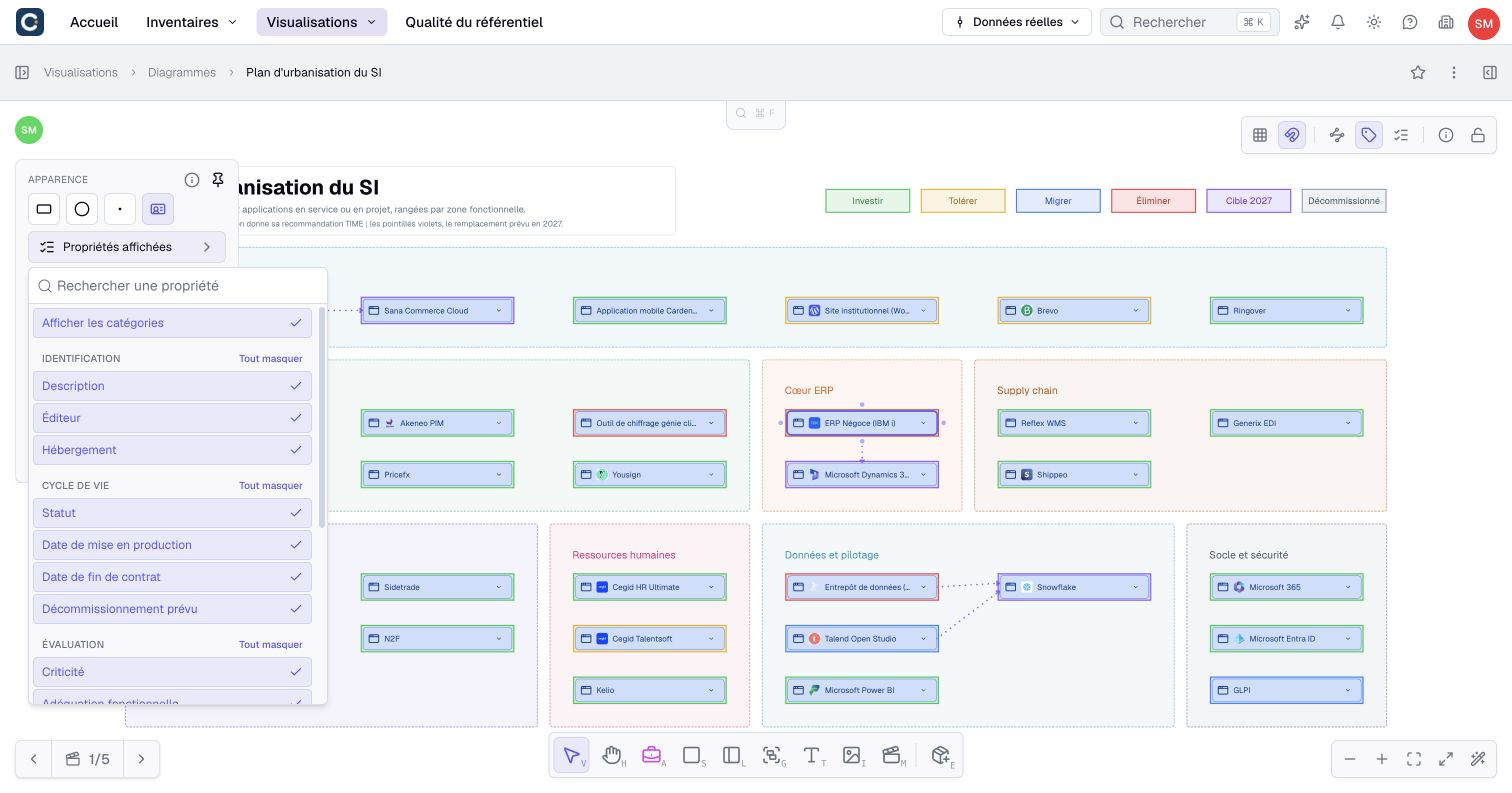
In Display, choose the label and visible properties for each asset type, and the properties shown beneath relationship names. Property categories help organize the information on expanded cards.
Use these defaults throughout the diagram, then customize an individual card or relationship when it needs different details. For example, show lifecycle information on all applications and additional properties on the application being discussed. These settings also apply when the diagram appears in a dashboard.
The new page Configure a diagram’s display explains labels, property categories and individual settings.
Arrange the canvas and prepare your presentation
Creation tools sit at the bottom of the canvas. Selecting an object opens its contextual controls, which you can dock on the left. Alignment, spacing, size and connection-route controls help you make the composition readable.
Use the layers panel to find objects and hide parts of the diagram. Hidden objects are also excluded from image exports. This visibility is shared with collaborators; it is not an access restriction on the underlying data.
Prepare camera views for the areas you want to show and use the laser pointer during a presentation. See Build a diagram for adding content and Arrange and present a diagram for layout, layers, cameras and exports.