Find your content and work more easily
Boldo v2 also updates everyday work: discussing an asset, editing a table, finding instructions, and following the organization’s activity. These improvements build on the tools already available in your workspace.
Find the right visualization
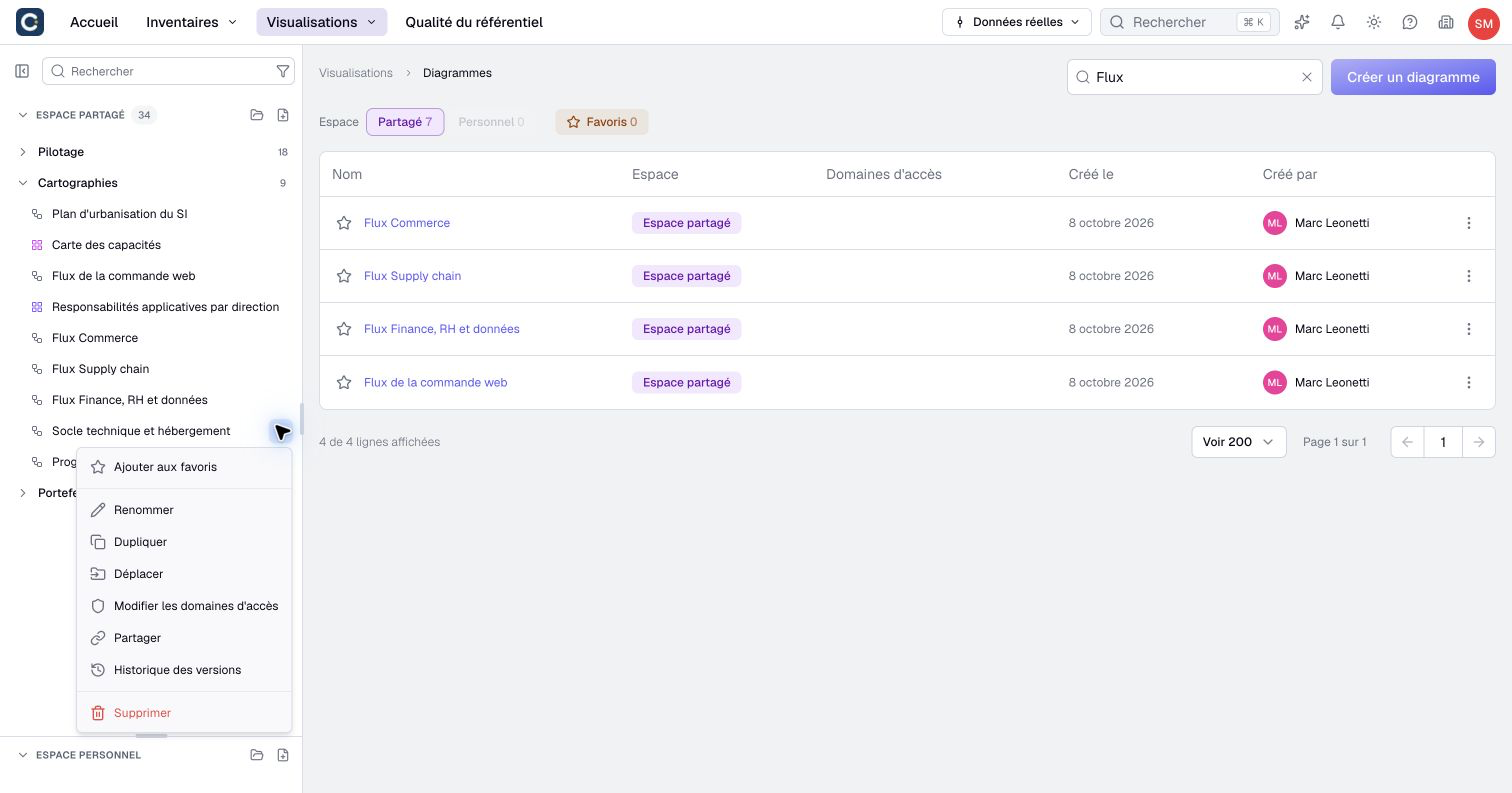
Combine the name search with Shared, Personal and Favorites in visualization lists. In the catalog, hover over a visualization to inspect its summary before opening it. Its row also gives you access to the favorite star and version history.
You can navigate the catalog with the keyboard, expand folders and open the selected item. The catalog documentation explains these controls, while favorites keep the visualizations you use most close at hand.
Access history when you need it
Open Version history from a visualization's menu in the side catalog without opening its page first. Preview an earlier composition before deciding whether to restore it.
If a process flow cannot load its saved content, its error screen also gives access to version history. With the required editing permissions, you can restore a usable version and reopen the flow. The version documentation explains what restoration changes and which underlying data remains current.
Discuss with images
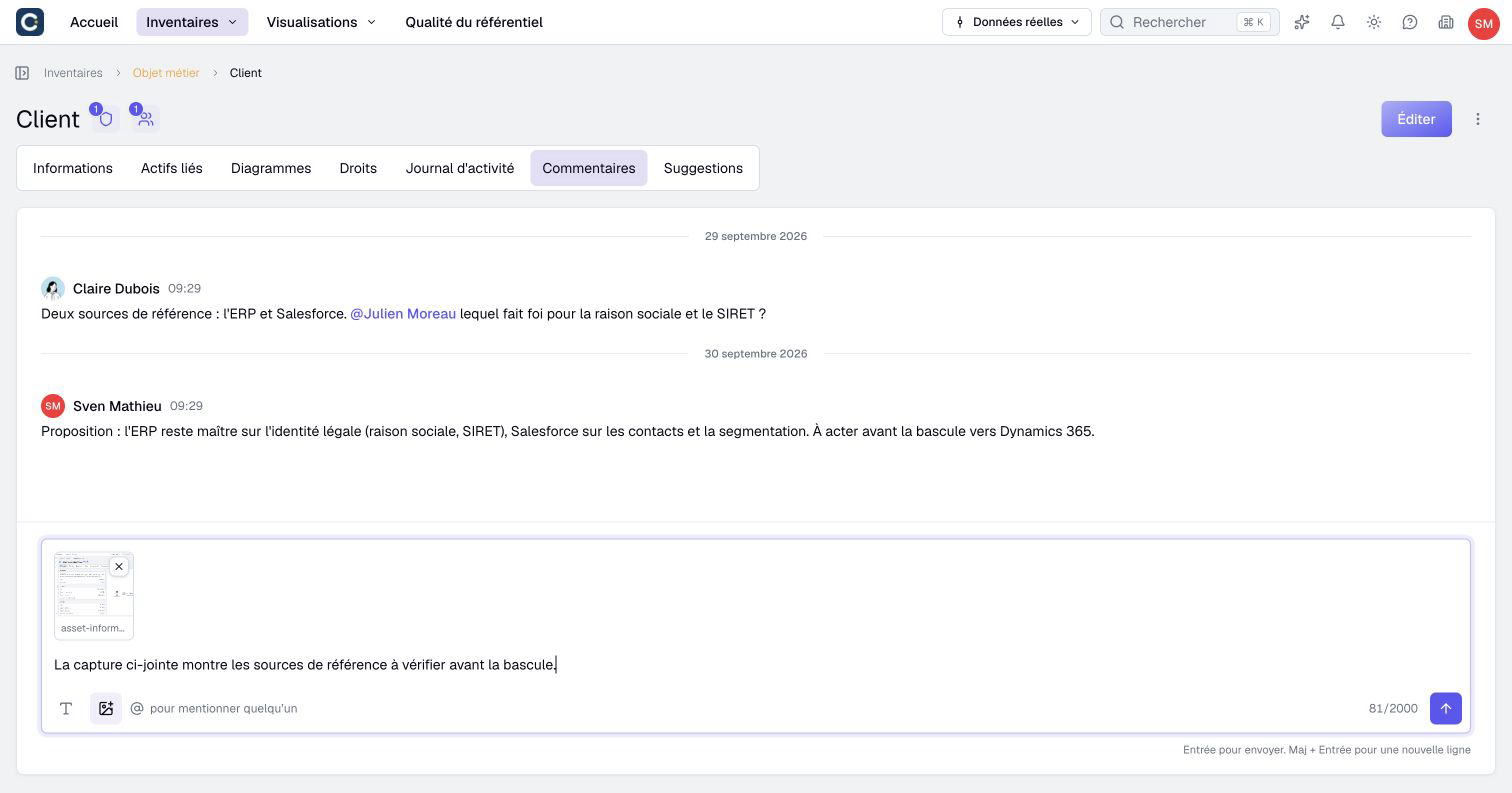
Discussions update as comments arrive. Add an image to show a detail that is difficult to describe, using the attachment button, drag-and-drop, or paste. A comment can contain up to five images, with or without text.
Mention a colleague to draw their attention to the discussion. Their access and notification preferences still apply. Comments require a compatible plan and read access to the resource. See comments and collaboration for formats, limits, and available actions.
Move through tables with the keyboard
Editable tables now use more consistent keyboard navigation. Move between cells with the arrows and open a cell editor with Enter or F2 where available. In a simple editor, Tab moves to the next cell and Shift+Tab to the previous one.
Closing a cell editor does not save the table’s pending changes. Review and confirm them using the table’s editing controls. The keyboard reference describes the commands for each context.
Find the relevant documentation passage
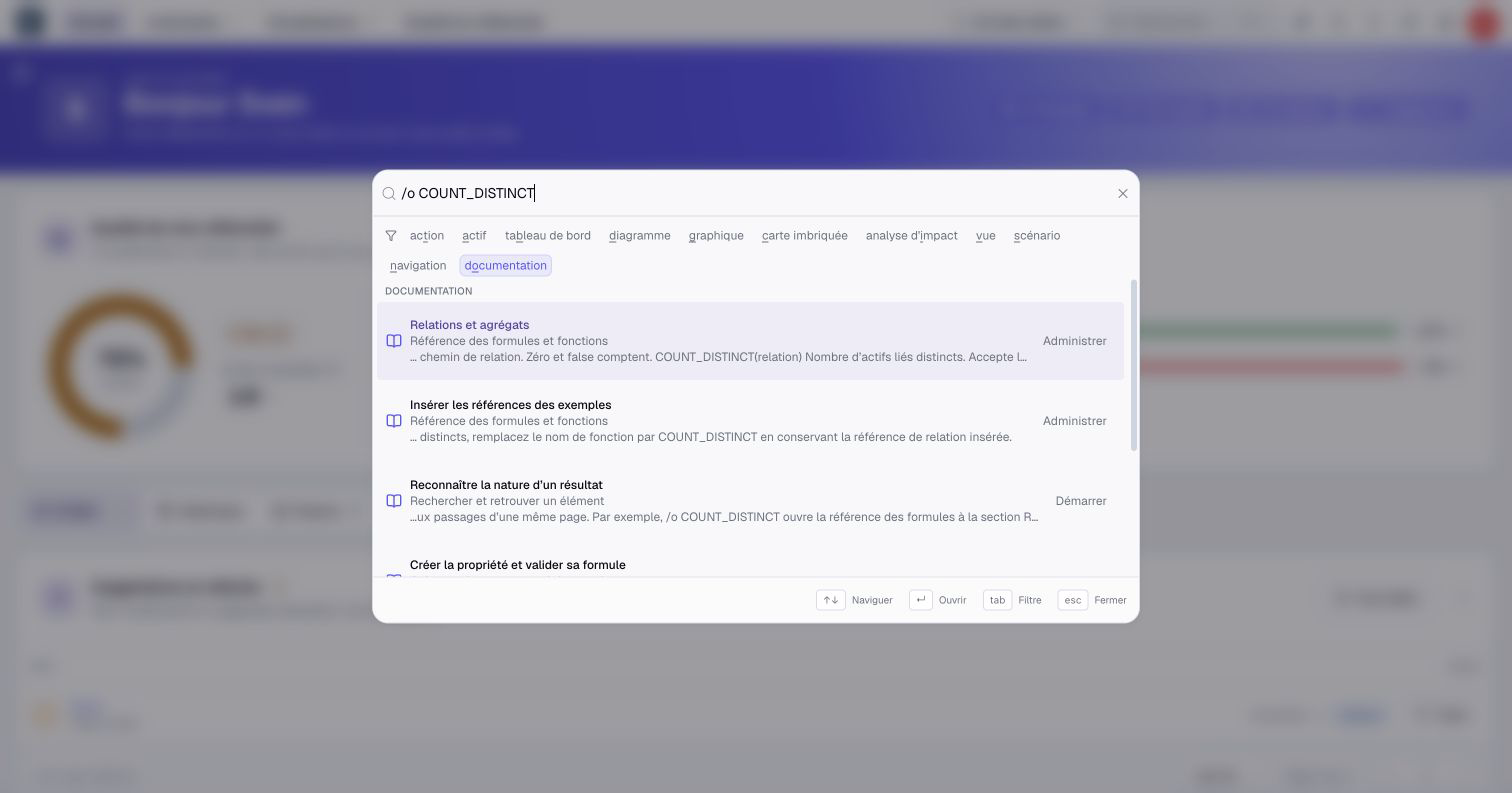
Search now looks through the published documentation’s pages and sections, with excerpts to help you choose a result. Selecting a passage opens the matching section in another tab, in your interface language.
Choose Documentation in global search or start your query with /o. For example, /o COUNT_DISTINCT leads to the formula reference. Read search and navigation for categories and shortcuts.
Follow the organization’s activity
A weekly report gives administrators and the organization Owner a summary of activity, completed reviews, and work still pending. Quality indicators are included when quality tracking is enabled.
This report is separate from the personal ownership summary. Delivery follows recipient eligibility and email preferences; you can turn it off in your notification preferences.