Describe the relationships between your assets
Two applications can exchange data through several ports, at different frequencies. A single connection does not describe those differences. In Boldo, relationships can carry their own properties, and several relationships of the same type can connect the same two assets.
Describe the connection itself
Keep an application's characteristics on the asset and describe the exchange on its relationship: port, frequency, volume, or cost share. Administrators enable properties on the relationship type and define the fields teams need.
With properties enabled, the same two applications can have one relationship for port 3000 and another for port 5000. Each relationship has its own values and history. Updating one does not change the other.
Review relationships in their own inventory
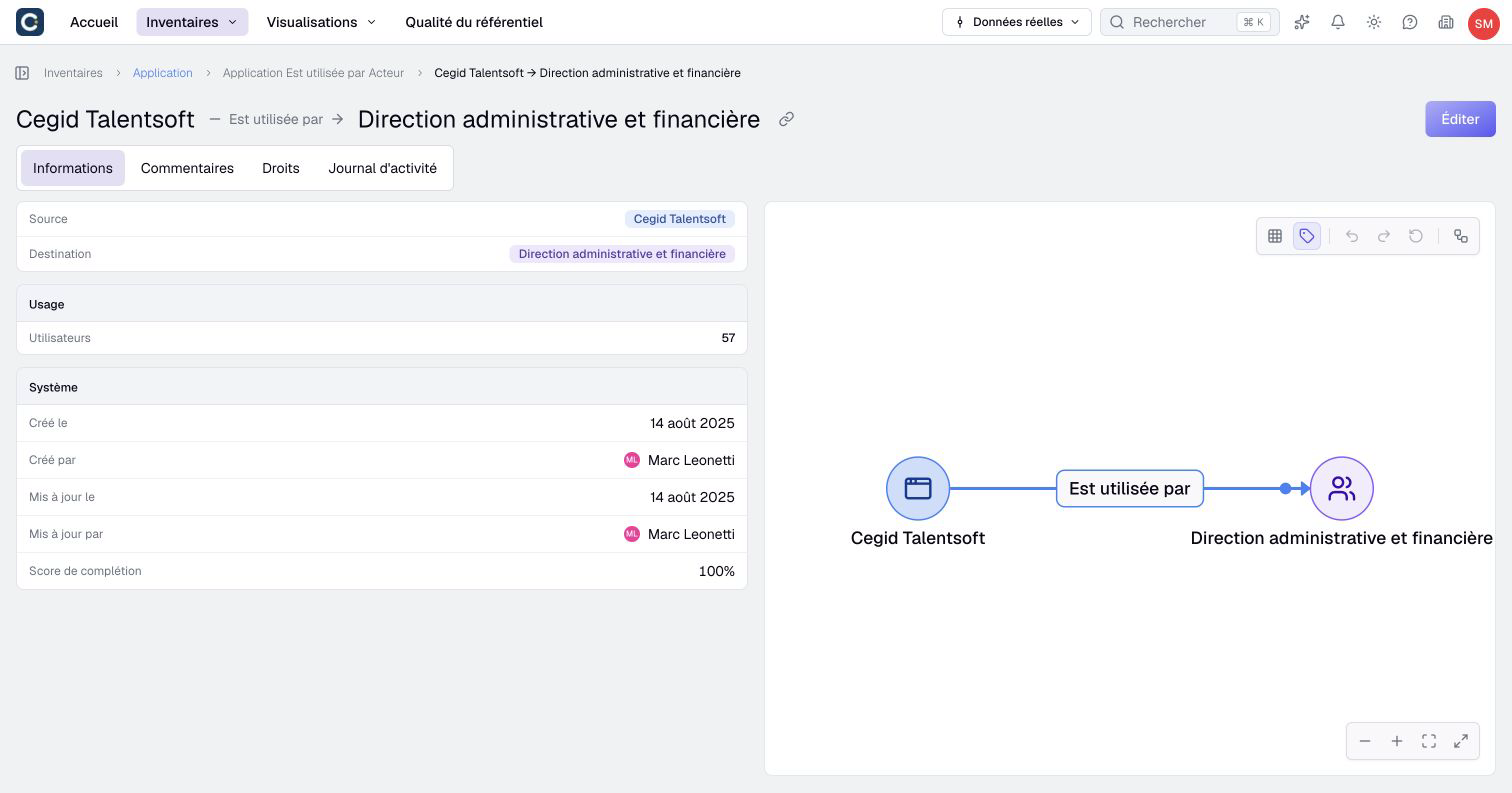
Open a relationship inventory to inspect source, target, and relationship properties together. Search, filter, group, and save a view for recurring reviews, such as checking exchange protocols or missing information.
Open an individual relationship for its details, or edit properties from the table. In a diagram, selecting an edge linked to an inventory relationship gives access to its properties. Changes there update the underlying relationship wherever it is used.
You can also archive individual relationships and restore them when both connected assets are active, provided you have the required permissions.
Maintain the details across imports and integrations
You can now import a file dedicated to relationships, with one row per link: source, target, and properties. A relationship ID or unique key identifies the link to update. The import also supports archiving and restoring relationships; review the preview before confirming.
When importing assets from CSV/XLSX, you can map relationship properties alongside the column identifying the related asset. Choose a stable identifying property, such as Port, to match each relationship when you import the file again.
Matching values update the existing active relationship. Changing a distinguishing value can create a different relationship, so inspect the preview before importing.
The API also lets you read and update each relationship and its properties. Through MCP, connected assistants can read relationships and, with the required authorization, suggest or directly apply changes to them.
Start by enabling properties on the relevant relationship type in the metamodel. The relationship guide explains editing, saved views, archives, and exports.