Plan your transformations with scenarios
Replacing an application means reviewing its dependencies, costs, and architecture diagrams. You need to try out changes before deciding which ones to apply to your real data. Boldo introduces scenarios to prepare that work in a separate data context.
Explore a working copy
Create a scenario from your real data, then edit assets, relationships, and visualizations as usual. Your changes stay in the scenario until you apply them. An orange banner keeps the active context visible. Keep a scenario private, share it with selected members, or make it available to the organization.
For an application replacement, you can model the target application, redirect relationships, and inspect the resulting charts. Computed properties use scenario data too. The metamodel and access settings remain shared with real data.
The AI assistant also works in this context. It reads data and prepares proposals in the scenario where the conversation started.
Compare options and build a trajectory
Chain sub-scenarios to represent successive architecture states. Compare each step with its parent to examine the transition between them. Schedule dates belong on project or other asset properties; scenarios do not have target dates.
Sub-scenarios let you explore variants from a common starting point. You can also copy selected changes from one scenario into another. Compare visualizations side by side, or use a diagram overlay to see changes on the map.
Apply the decisions you keep
The comparison separates your changes from updates made to their source: real data or the parent scenario. Resynchronize when needed and resolve conflicting values before proceeding.
The review lets you choose a destination, then accept changes field by field. Apply them to their source, or copy them into another scenario. A sub-scenario applies its changes to its parent. Boldo checks your editing permissions and reports any changes it could not apply.
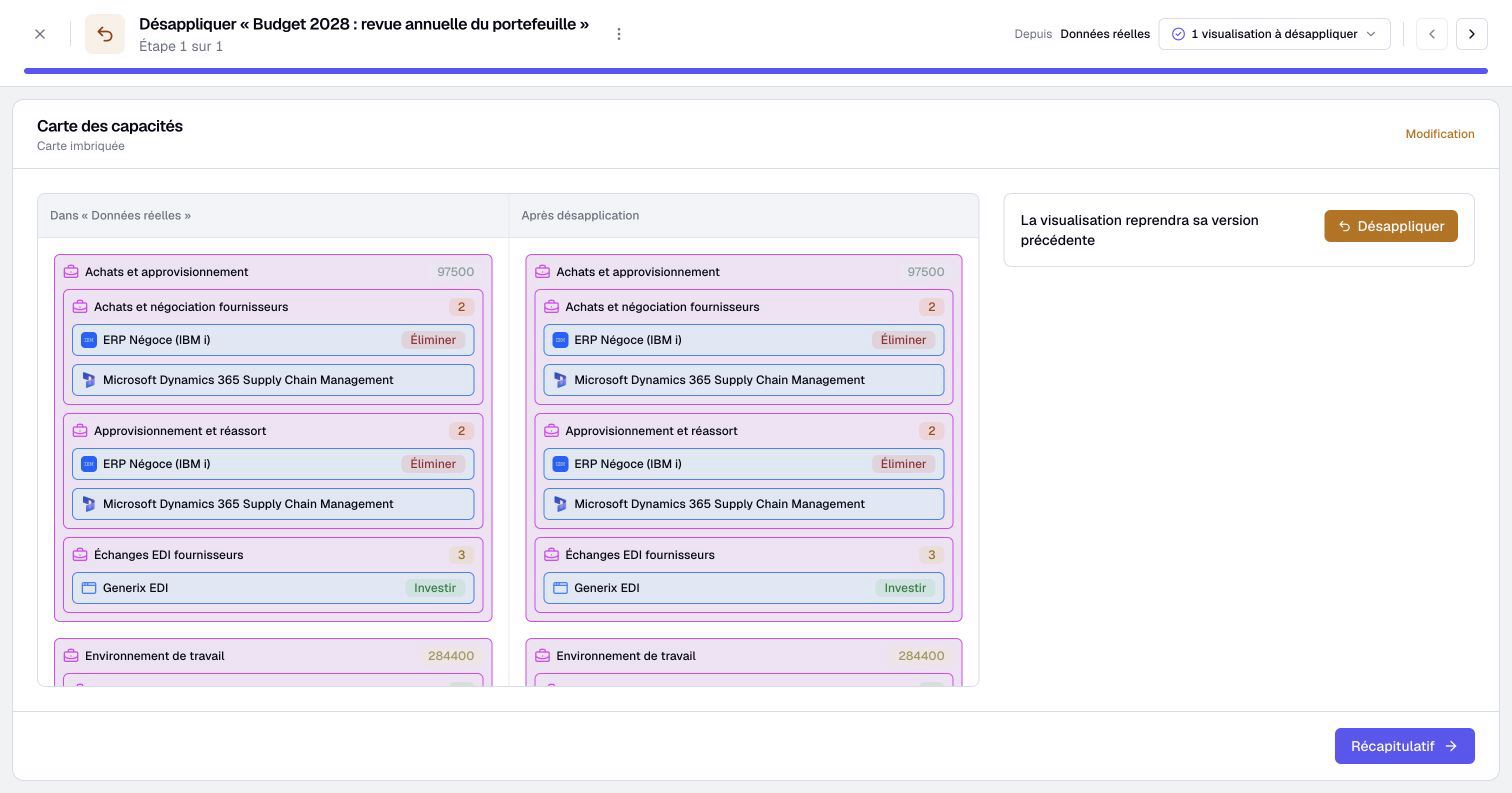
Editors with permission to manage the scenario and its parent can use application history to undo selected changes, down to individual fields. Boldo identifies changes made since the application and preserves them. Review the changes to undo before confirming. See applying and undoing changes for the full procedure.
Start from Data context in the top bar. Scenarios require an eligible plan, organization activation, and creation permission for an Editor or higher. Follow the scenario guide to prepare your first working copy.