Save key versions of your visualizations
An architecture workshop often changes a diagram several times before the team agrees on a useful layout. Boldo introduces visualization version history to revisit saved configurations and preserve the states that matter.
Preview before restoring
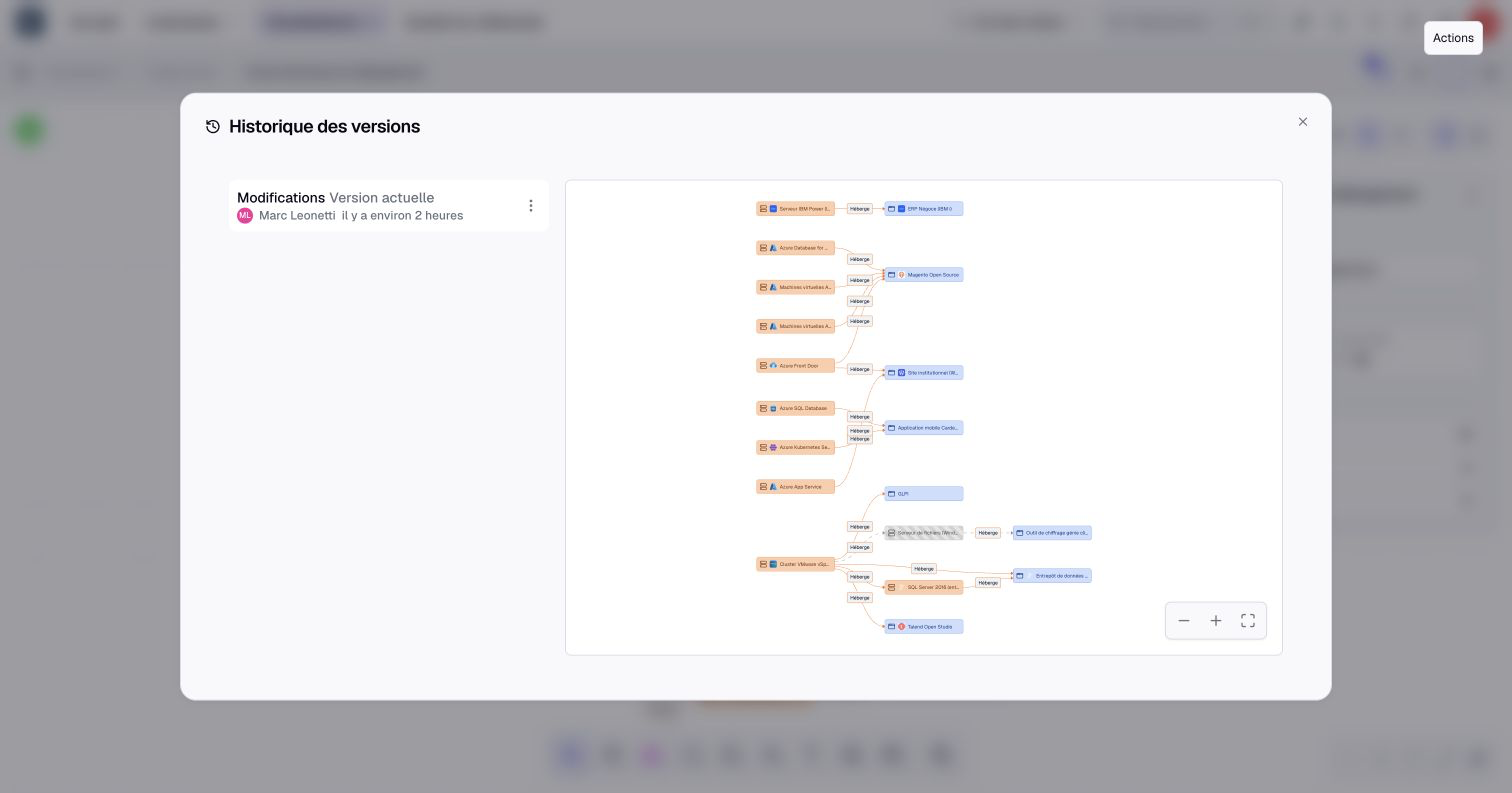
Open a saved visualization's version history to inspect earlier configurations, their dates, and contributors. Preview a version without replacing the current visualization, then restore it when you want to use that configuration again.
History covers diagrams, charts, asset and relationship views, nested maps, impact analyses, dashboards, and process flows.
Restoring a configuration does not remove later versions. They remain available until you delete them or automatic cleanup removes them.
Name the versions to keep
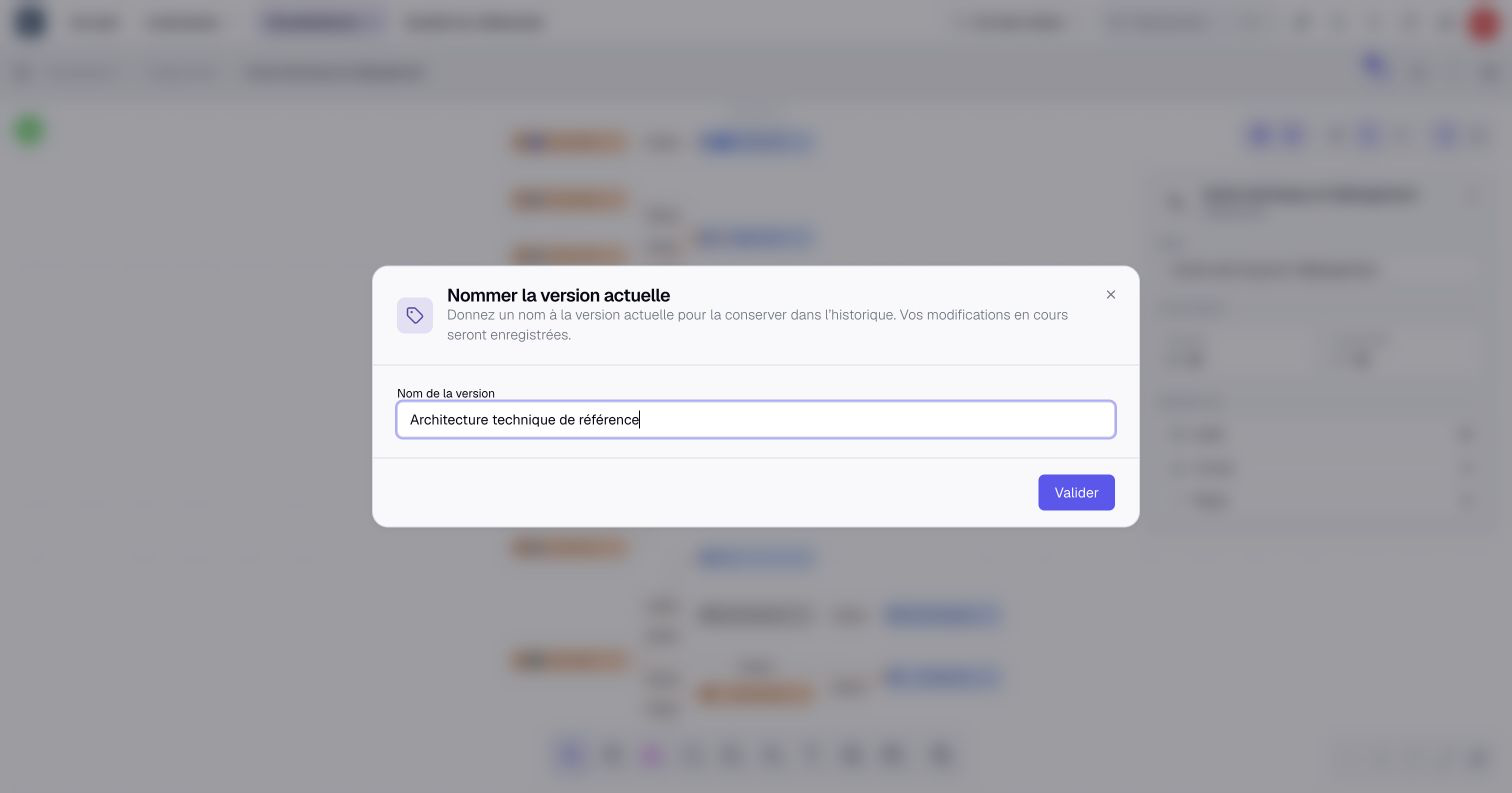
Name a version to explain why it matters, such as Architecture review, September. Naming it also protects it from automatic cleanup.
Choose Name current version before a workshop or when the team approves a visualization. You can also name an earlier version from the history.
Nearby saves can be grouped together. Named versions are kept; among unnamed versions, Boldo retains the 50 most recent per visualization. Removing a version’s name removes its protection from automatic cleanup.
Restore the configuration with current data
Version history preserves visualization configuration or diagram structure. It does not restore earlier asset values, relationships, permissions, or the metamodel. A restored chart reads the data currently available, and an impact analysis recalculates its result.
Restoring a shared visualization affects everyone using it. Coordinate with collaborators before replacing a diagram during an active workshop.
Open Version history from the visualization's actions menu, or use the history button in the process editor. Restoring and naming require an Editor or higher with editing permission. The version history documentation explains previews and how versions are kept.