Security
Use the Security page to protect access to your organization.
At the organization level, Boldo focuses on three controls:
- enforcing two-factor authentication
- limiting how long members stay signed in
- restricting access by IP address when the feature is available
This page is not a general security center. It is mainly the place where you enforce organization-level access controls. SSO membership and SSO-required access are managed with your identity provider and user sign-in methods.
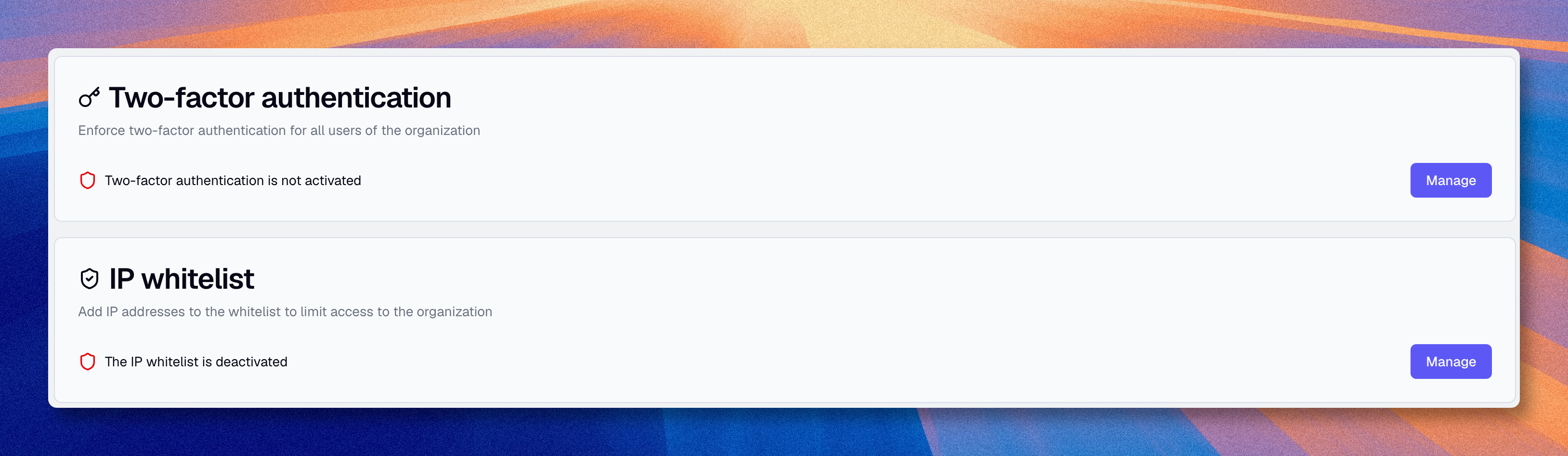
Access
- Click the Organization icon
- Select "Security"
Only administrators can modify security settings.
Two-factor authentication (2FA)
2FA adds a second verification step beyond the password.
The organization setting does not enroll users itself. It enforces 2FA for members of the organization.
Users still configure their own 2FA from their account security settings.
Enable enforcement
- Go to Organization → Security
- Locate "Two-factor authentication" and click "Manage"
- Toggle the "Enforce 2FA" switch on
- Validate
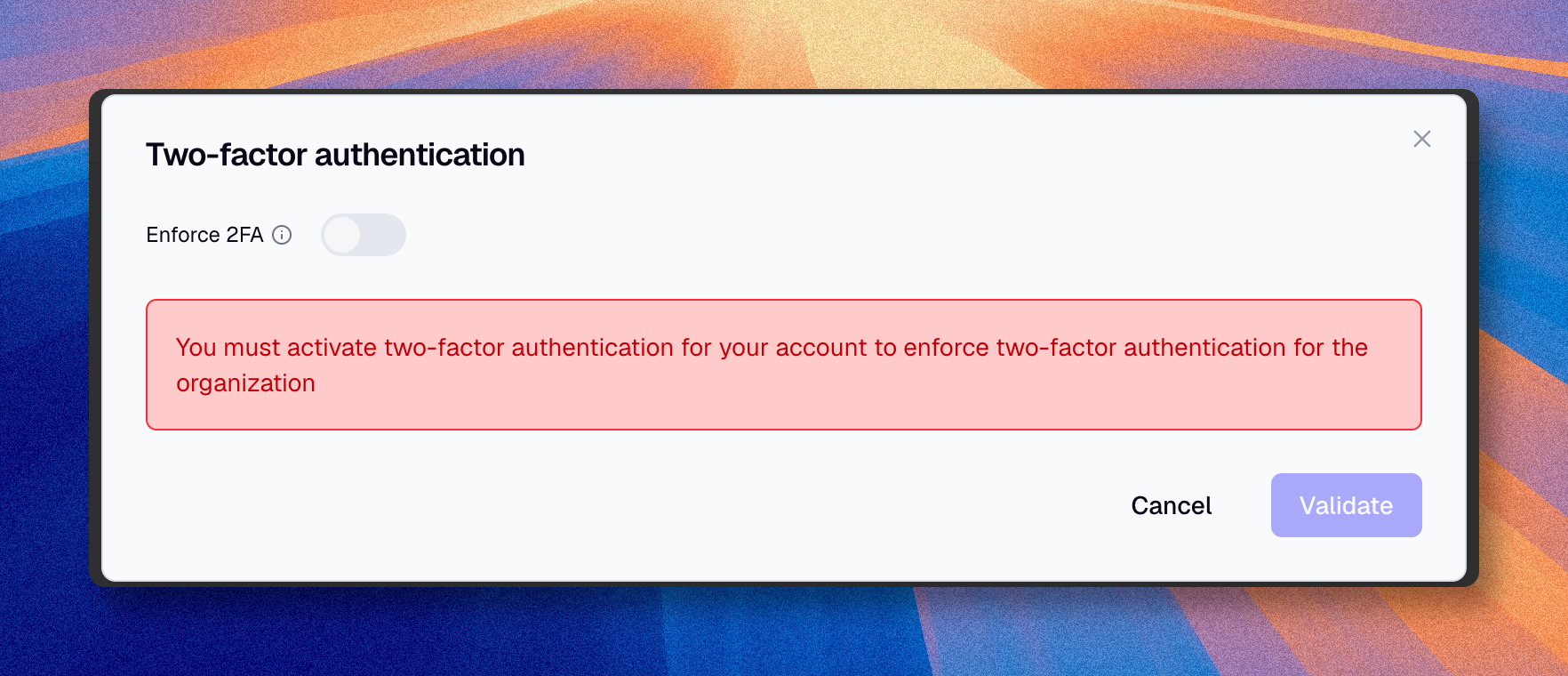
If you use email and password, you must first enable 2FA on your own account. SSO administrators can manage this setting without enrolling in Boldo 2FA.
What happens next
- Email-password users without 2FA are redirected to set it up before they can access the organization
- If they do not complete the setup, they cannot enter the organization
- Once 2FA is configured, they can continue normally
- If a user disables 2FA on their own account later, they lose access to the organization until they enable it again
2FA and SSO
In an SSO organization, this control mainly affects email-password sessions. SSO sessions authenticate through the identity provider and are not asked to enroll in Boldo 2FA.
SSO-required organizations
Some organizations are configured to require SSO. This mode is not a self-service setting: it is enabled by the Boldo team at your organization's request, and leaving it also goes through Boldo support. To connect your identity provider, see Single sign-on (SSO). In that mode:
- members must sign in through the matching identity provider to open the organization
- email invitations are not used to admit new members
- SSO members are created or linked when they sign in through the identity provider
- email-password sign-in methods cannot be re-enabled while SSO is required
- MFA policy for SSO users should be enforced in the identity provider
Administrators can still review members and their sign-in methods from Users. Manage the source SSO membership in the identity provider first.
Session duration
Session duration controls how long members stay signed in without activity.
By default, a Boldo session stays active for 7 days. Using Boldo extends the session, and a member who stays away for 7 days must sign in again. Organizations can adjust this window to their own policy, shorter or longer.
Set the duration
- Go to Organization → Security
- Locate "Session duration" and click "Manage"
- Choose a duration, from 1 day to 60 days
- Validate
The new duration applies immediately. Sessions of current members are shortened right away if they exceed it, and future sign-ins follow the new duration. Choosing a longer duration never extends sessions that are already open; they adopt it at their next sign-in.
A session belongs to the user, not to one organization. If a member belongs to several organizations, the strictest duration among them applies everywhere, and an organization without a custom duration counts as the 7-day default. Members can check their effective duration from their account's Security page.
IP Whitelist
IP whitelist restricts access to your organization to approved IP addresses or network ranges.
This is useful when you want to restrict access to:
- company offices
- VPN ranges
- a controlled corporate network
IP whitelist depends on your plan. If the control is not visible in your organization, your plan may not include it.
Configure the whitelist
- Go to Organization → Security
- Locate "IP whitelist"
- Click "Manage"
- Add the IPv4 addresses or ranges you want to allow. Use Add my IP to insert the address you are connecting from (shown next to the button), or Add an IP address to enter one manually:
| Field | Description | Example |
|---|---|---|
| IP address | IPv4 address to allow | 192.168.1.1 |
| CIDR | Optional subnet mask from 0 to 32 | /24 |
| Description | Explanatory note | "Paris Office" |
- Toggle the switch on
- Validate
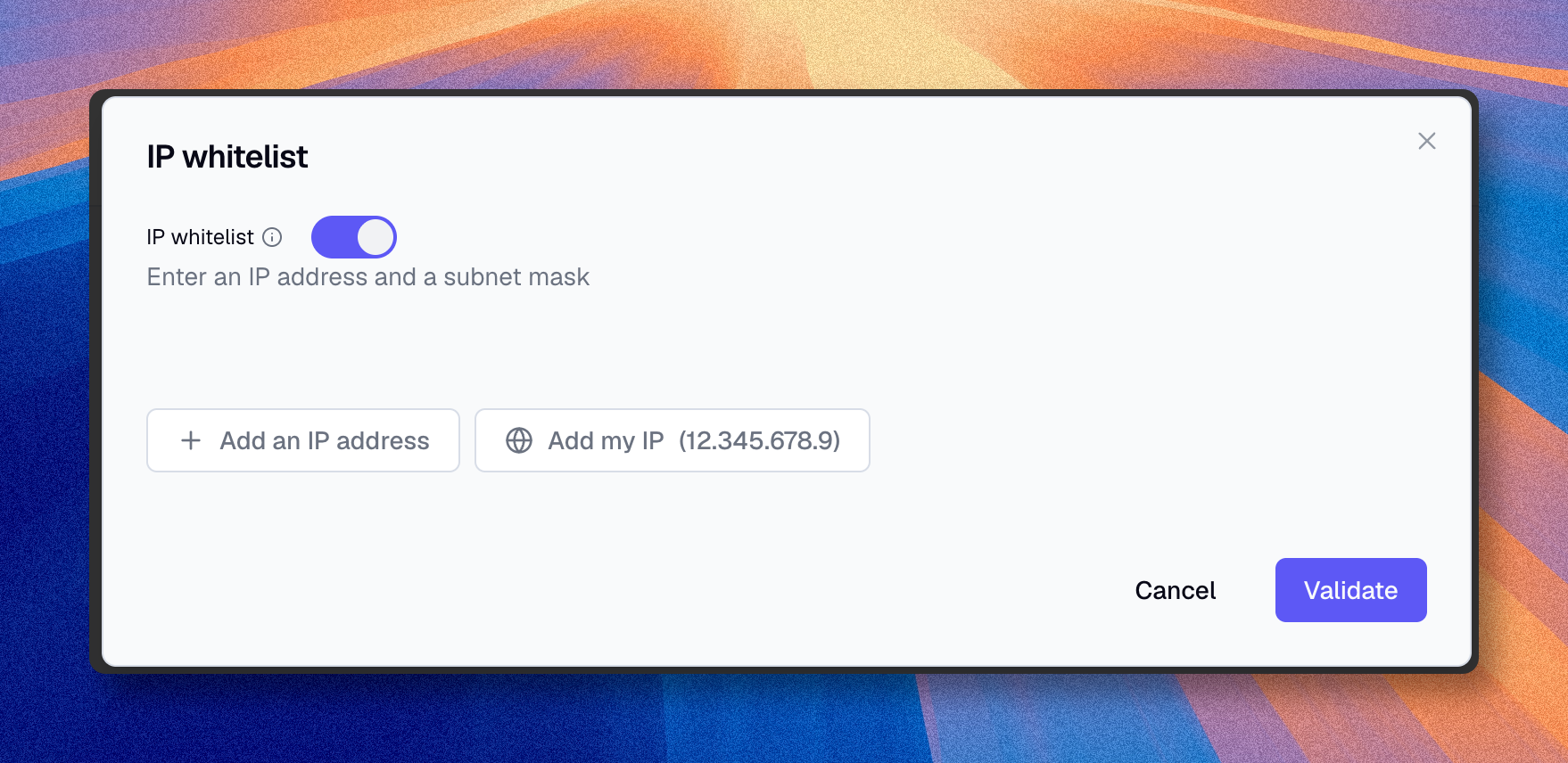
Boldo checks that your current IP is in the list. You cannot lock yourself out.
Use IP whitelist only if your organization can maintain it operationally. If the allowed network list changes often, the control may create more friction than value. Prepare the allowed list carefully before enabling it.
Share links follow this allowlist by default. Administrators and owners can configure one organization-wide bypass when public links must open outside the approved networks. Read Share link administration before enabling that bypass.
Administrators can also revoke a member's connected MCP agent (an authorized AI client) from Organization → Developer. See MCP.