Use folders in the catalog
Folders help you keep the catalog readable as the number of saved items grows. They help separate drafts from stable outputs and group content by project, team, use case, or status. Use them to organize your saved views, diagrams, charts, and nested maps.
Good folder structures
Choose one logic and stay consistent.
Common options:
| Structure | Example |
|---|---|
| By project | ERP, CRM modernization, Cloud migration |
| By team | Architecture, Security, Operations |
| By use case | Workshops, Reporting, Governance |
| By status | Draft, Shared, Official |
Create a folder
You can create folders from the folder actions menu in the catalog header.
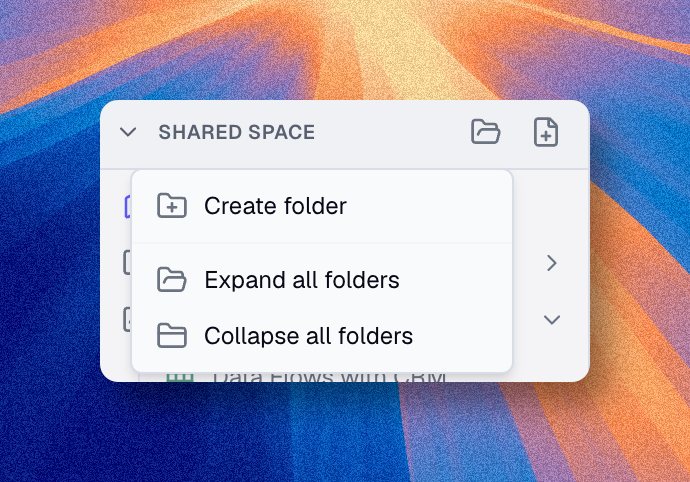
Typical flow:
- Open the catalog
- Open the folder actions menu
- Choose Create folder
- Give it a clear name
- Move items into it as needed
Read Move and Copy Items if you need the exact move and copy actions.
The same folder actions menu also lets you expand or collapse all folders to navigate faster.
Create folders in personal space for private work and drafts, and in organization space for shared and reusable content.
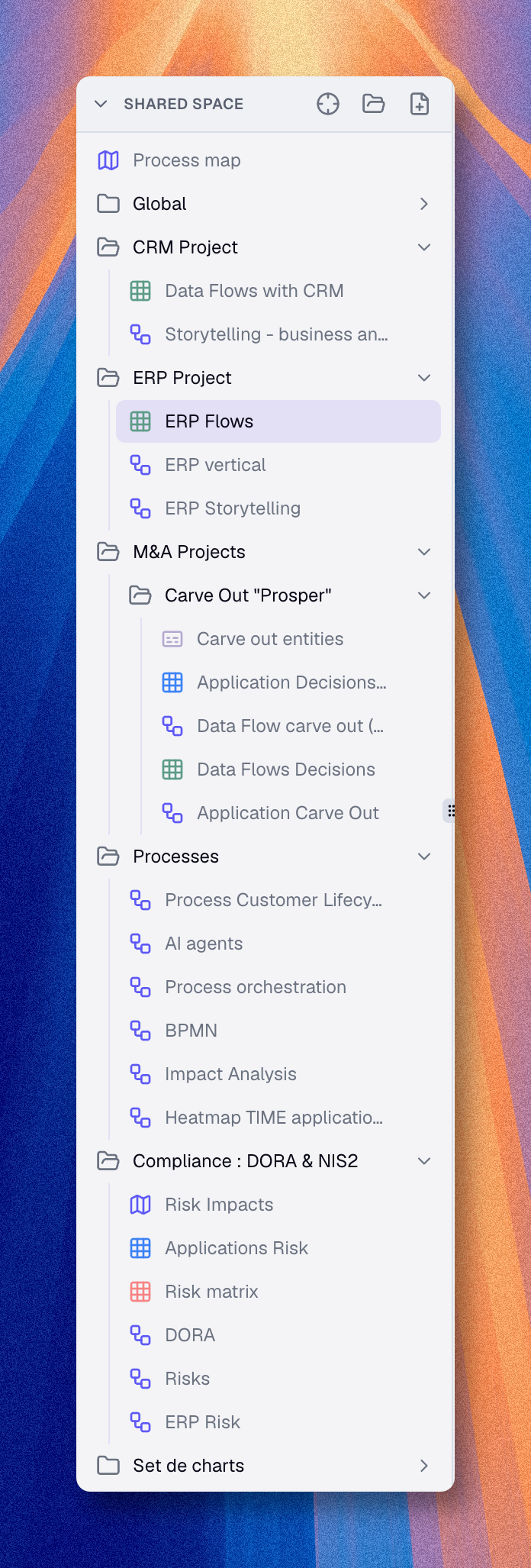
In organization space, folders can also use access domains. This can affect who sees the folder in the catalog and how easily shared items fit into that folder.
Naming recommendations
Use names that communicate purpose clearly, both for folders and for saved items.
Good examples:
Finance WorkshopsOfficial Shared DiagramsCritical Applications - ProductionBusiness Capabilities - Shared MapERP Dependencies - Workshop Diagram
Avoid generic names such as:
Folder 1New folderDiagram 2Chart copyMisc
Use folders to make the catalog understandable to someone else, not only to yourself.