Prepare your import file
A clean import file makes the import much faster and safer.
Most import problems are preparation problems before they become Boldo problems.
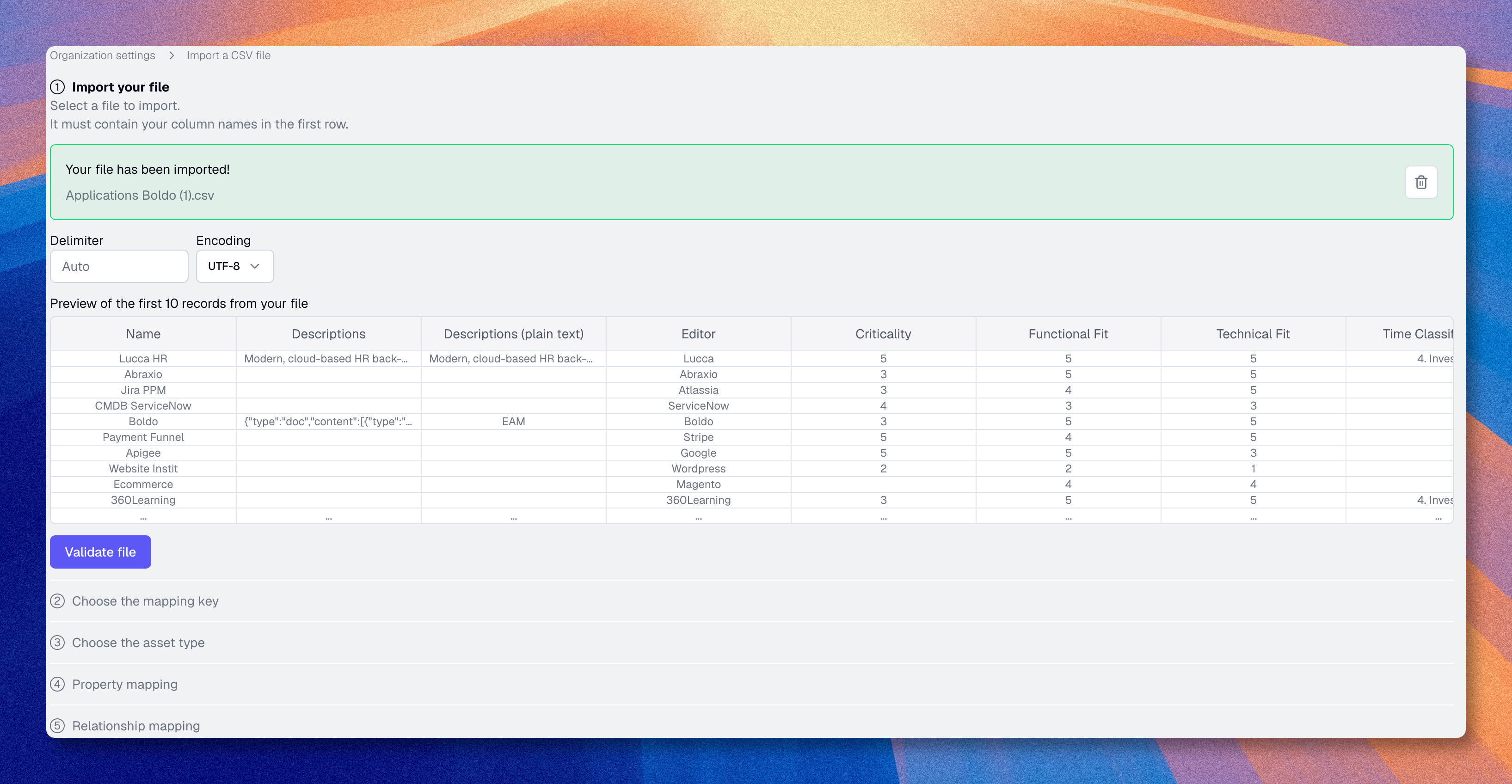
Basic format rules
Your file should follow these rules:
- use the
.csvor.xlsxformat - put column names on the first line
- use one row per asset
- for CSV files, keep one consistent delimiter in the whole file
For CSV files, Boldo can usually detect common delimiters:
- comma
- semicolon
- tab
- pipe
Choose a good import key
Before importing, decide how Boldo should match each row to an existing asset. The matching mode also controls whether the import can create new assets or only update existing ones.
Boldo supports three matching modes:
- By name - matches on the
Namecolumn. Unmatched rows create a new asset. Names must be stable, non-empty, and unique within the asset type. - By Boldo ID - matches on the
Boldo IDcolumn, the internal identifier added by Boldo exports. Never creates new assets: if the ID no longer resolves but aNameorNomcolumn matches an existing asset of the same type, that asset is updated; otherwise, the row is skipped. - By unique key - matches on a unique key property defined in the metamodel (product code, external reference). Unmatched rows create a new asset when a
NameorNomcolumn is available. Only available when the asset type has a unique key property.
If your file comes from an earlier Boldo export, it already contains a Boldo ID column and Boldo detects it automatically.
For external sources, prefer the unique key when one exists: it stays stable across systems and lets you rename assets during import. Otherwise, use the Name column and make sure names stay stable to avoid duplicates.
In Boldo ID and unique key modes, Boldo also reads a Name or Nom column if present, even when not mapped: the value can rename matched assets, name new ones (unique key only), and help locate an asset when a Boldo ID no longer resolves.
Clean your data
Before importing:
- remove empty duplicate rows
- normalize spelling for statuses and lists
- remove accidental extra spaces
- check date formats. Boldo accepts
YYYY-MM-DD,YYYY/MM/DD,DD/MM/YYYY, andDD-MM-YYYYduring import. - confirm numeric values are really numeric
If a property can contain multiple values in one cell:
- use one consistent separator
- document it before mapping
Example:
Java, React, PostgreSQL
A relationship column should contain the value used to find the related asset.
Examples:
- a team name
- an application name
- a server name
When a cell contains several related assets, use the separator expected during mapping.
Keep related names consistent, otherwise Boldo may create several near-duplicate related assets.
Watch out for these common mistakes
| Problem | Why it causes issues |
|---|---|
| Missing header row | Boldo cannot map columns correctly |
| Duplicate identifiers | Update and create behavior becomes ambiguous |
| Mixed separators | Rows are read incorrectly |
| Wrong encoding | Characters appear corrupted |
| Inconsistent list values | Mapping becomes unreliable |
Recommended method
For a first import:
- test on a small sample
- validate the result in Boldo
- correct the mapping if needed
- import the full file
If your import file uses the same filename as the asset type, Boldo can preselect that asset type automatically.
If your import file uses the expected column names, Boldo can also prefill the matching properties and relationships automatically.
In practice, the easiest starting point is often to export a small file from the target inventory with Actions > Export, then edit that file instead of starting from scratch. The exported file includes a Boldo ID column that makes re-importing reliable.
Before starting the real import, make sure:
- the preview is readable
- the key column is complete and stable
- the important properties are clean enough to map confidently
- relationship columns use consistent names
Continue with Import a file when the file is ready. If the result still looks wrong, use Troubleshoot import.